
- Validate a new server end-to-end before you involve a desktop client
- Compare provider behavior — ask the same prompt to Claude, GPT-4o, Llama, and Gemini and see which one nails your tool surface first try
- Demo MCP to stakeholders without “let me share my screen with my desktop app” friction
- Iterate on a tool description or schema — edit in the admin, reload chat, watch the assistant react in seconds
The Chat Playground is admin-only. Site administrators have access by default; other users must be added via the allowlist (covered below). API keys are encrypted on disk and only ever decrypted for your authenticated admin session.
Open the Playground
In the WordPress admin, navigate to GetMCP → Chats. The first time you open it, you’ll see two things to configure: an AI provider API key and MCP server credentials (only if your server is auth-protected).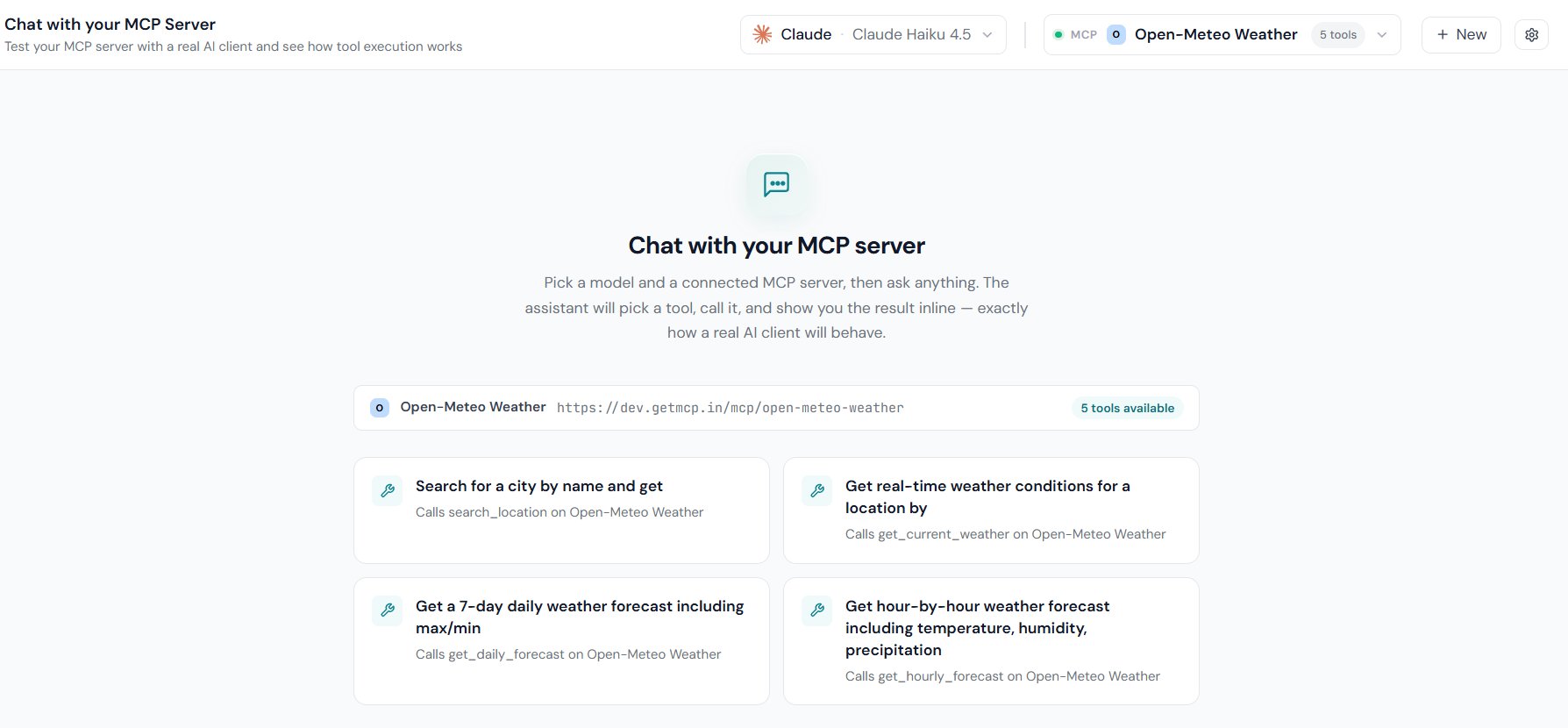
Configure an AI Provider
Click the gear icon in the chat topbar to open Settings, then switch to the AI Providers tab. Four providers are supported:
Expand any provider, paste the key, and click out. Each row carries a status pill on the right: Not connected until a key is stored, and Synced from WP Connector when Claude inherits its key from the WordPress Connector instead of one pasted here. Keys are encrypted at rest with libsodium.
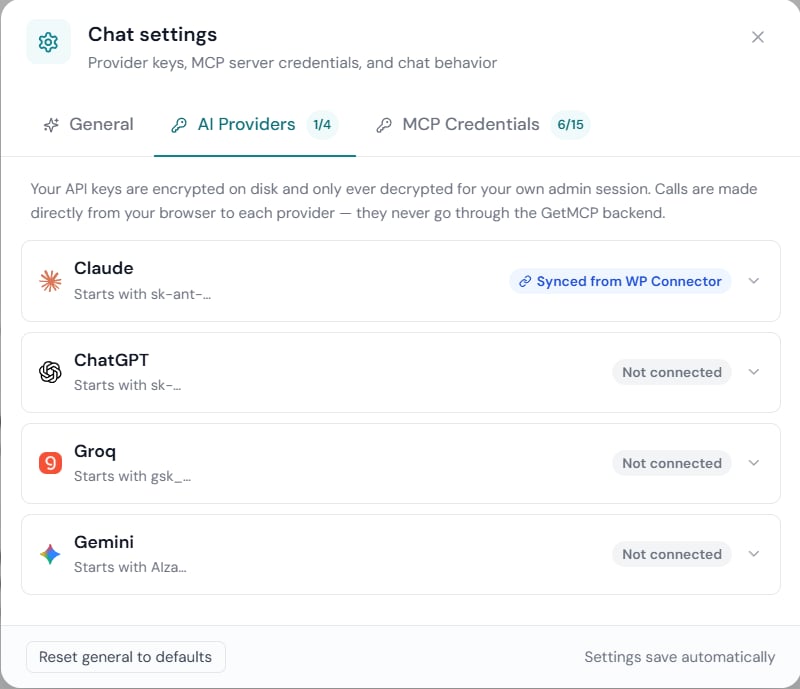
Calls go directly from your browser to the provider — they never pass through the GetMCP backend. This saves a server hop on every turn and means your prompts and responses aren’t logged anywhere on the WordPress side beyond what the MCP server itself records.
Anthropic prompt caching
For Claude conversations the chat automatically attachescache_control: { type: 'ephemeral' } to every request. After the first turn, the conversation prefix (tools + system + every prior message) is served from Anthropic’s cache at ~10% of normal input cost. OpenAI’s automatic prefix cache kicks in too once the prefix exceeds 1024 tokens. No configuration needed.
Configure MCP Server Credentials
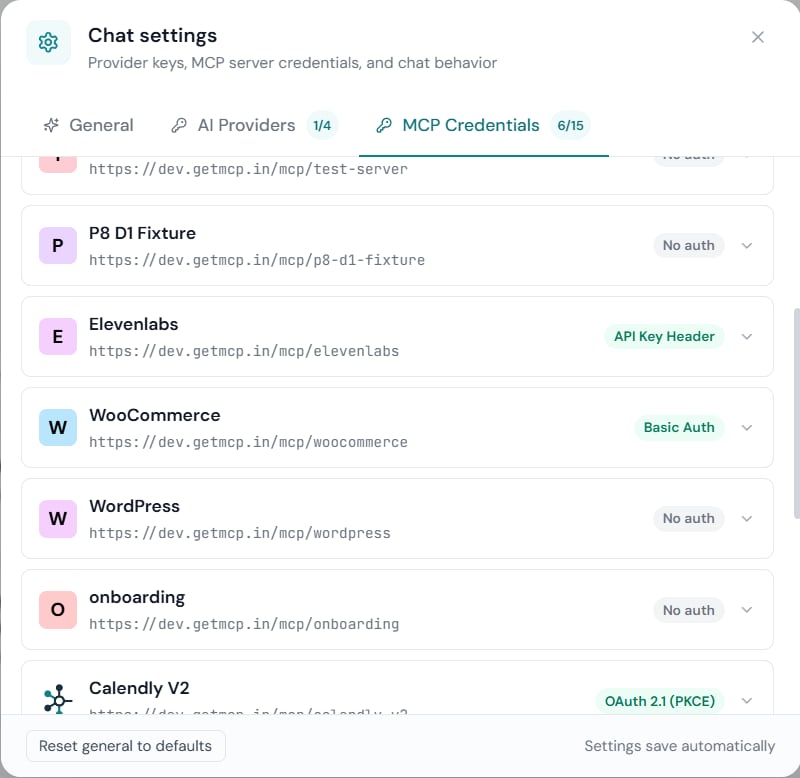
Switch to the MCP Credentials tab in Settings. Every connected MCP server gets its own accordion with an auth-method selector:
For all methods except OAuth, the token / value is stored encrypted at rest. For OAuth, see the next section.
OAuth Connect Flow
When you select OAuth 2.1 (PKCE) and click Connect, the chat performs the full MCP OAuth flow:1
Probe the MCP endpoint
The chat sends an unauthenticated
tools/list call and reads the WWW-Authenticate: Bearer resource_metadata="…" hint from the 401 response.2
Walk discovery
Fetches RFC 9728 protected-resource metadata, then RFC 8414 authorization-server metadata to learn the
authorization_endpoint, token_endpoint, and registration_endpoint.3
Dynamic client registration
POSTs an RFC 7591 client registration with the chat’s stable redirect URI:
{site}/wp-admin/admin.php?page=getmcp-chats&getmcp_oauth_cb=1.4
Redirect with PKCE
Generates a code verifier + S256 challenge, persists the flow in
sessionStorage keyed by state, then navigates the browser to the authorize URL with resource={server endpoint}.5
Callback + token exchange
After the user grants consent, the AS redirects back to the chat URL with
?code=…&state=…. The chat exchanges the code at the token endpoint and persists the encrypted token bundle to getmcp_chat_settings.6
Auto-refresh on 401
On any subsequent 401 from the MCP server, the chat silently calls the token endpoint with the refresh token, swaps the access token in place, and retries the original call — without bothering you.
Send Your First Message
Back on the main chat view:- Pick a provider + model from the first dropdown in the topbar.
- Pick an MCP server from the second dropdown (shows the tool count as a chip).
- Type a question in the composer.
- Press Enter (or click the send button).
tools/call against your MCP server with the configured auth, captures the response, and feeds it back. The whole round-trip renders inline:
- Tool trace — “Discovering tools → Selecting → Calling”
- Tool card (expandable) — input arguments + raw JSON output + latency
- Final answer — streamed character-by-character if streaming is enabled
Settings Reference
The Settings modal has three tabs:General
Behavior toggles, all persisted server-side per-site.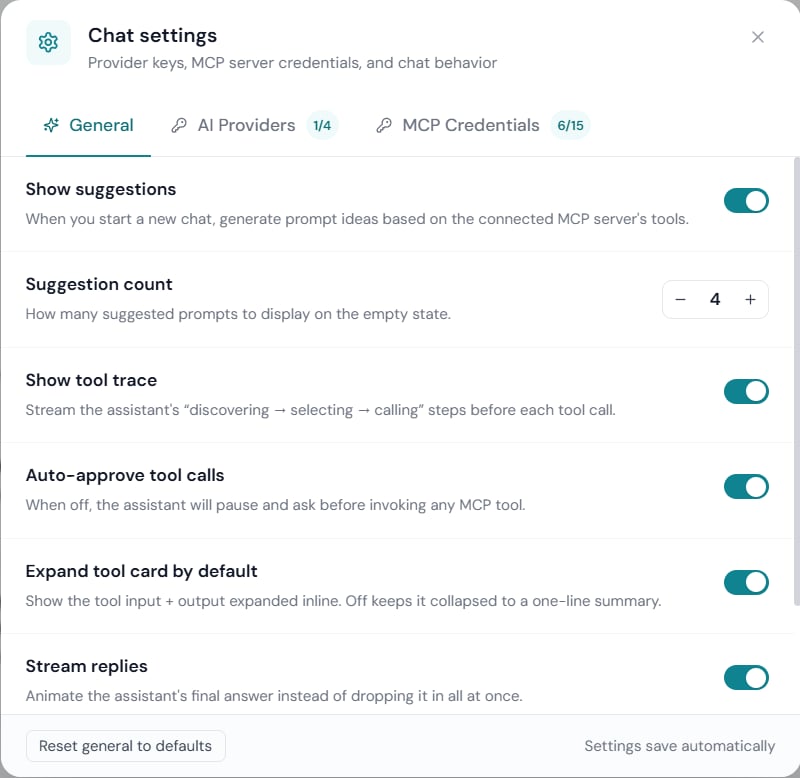
AI Providers
Provider keys (covered above).MCP Credentials
Per-server auth (covered above).Allowlist: Who Can Chat?
Chat is gated to a per-site allowlist. Site administrators (anyone withmanage_options) always have access — they can’t lock themselves out. Other admin-tier users (editors, etc.) need to be granted access individually.
1
Open GetMCP Settings
In the WordPress admin, navigate to GetMCP → Settings.
2
Switch to the Security tab
Find the Chat playground access section.
3
Tick the users who should have access
Check the box next to each user’s name. Use the filter to find people fast on busy sites.
4
Save
Click Save Changes. The Chats menu item appears in the React sidebar for allowlisted users; for everyone else the menu is hidden and the REST endpoints return 403.
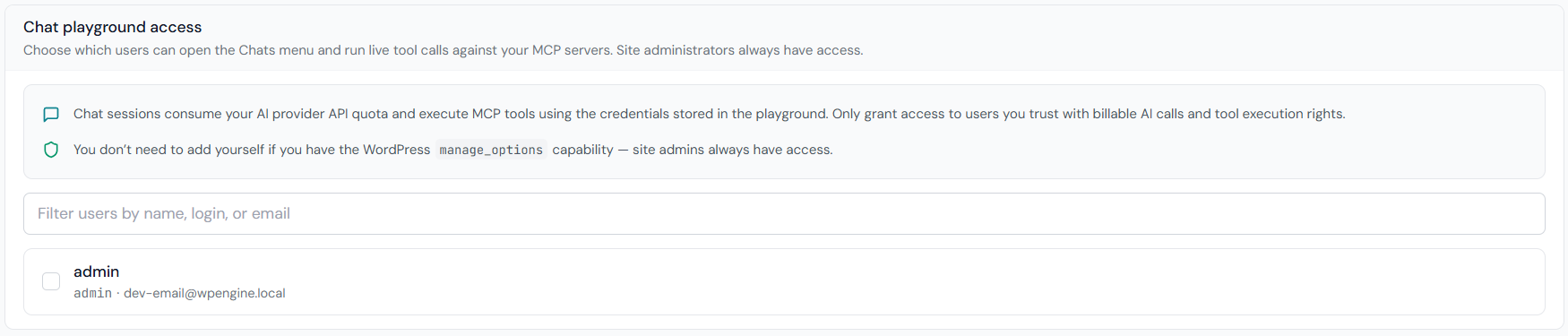
getmcp_settings.chat_allowed_users as an array of user IDs.
Audit Trail
The chat identifies itself to your MCP server via the standard MCPinitialize handshake with clientInfo.name: "GetMCP Chat". Every tool call shows up in your call logs alongside Claude Desktop, ChatGPT, Cursor, and other clients — same logs page, filter by client type, replay any historical call inline.
Troubleshooting
`Anthropic 400: input_schema.type: Field required`
`Anthropic 400: input_schema.type: Field required`
A tool’s input schema is missing
type: "object" at the root. The chat normalises this automatically — make sure you’re on plugin version 1.0 or later. If you wrote the schema by hand in the tool editor, add "type": "object" and a "properties": {} entry.OAuth Connect redirects but the page errors out
OAuth Connect redirects but the page errors out
The redirect URL must be fragment-free — the AS appends
?code=…&state=… to the registered URI, and if that URI already has a #fragment, the query params get trapped inside the fragment and never reach the client. The chat handles this correctly by default. If you previously connected from an older build, click Disconnect then Connect again to force a fresh dynamic client registration with the corrected redirect URI.Tool call returns an expired-access-token error
Tool call returns an expired-access-token error
Your MCP server is OAuth-protected, but the access token has expired and refresh failed (or the credential is misconfigured). Open Settings → MCP Credentials, click Reconnect on the server card to run the full OAuth flow again.
OAuth error even when using a plain Bearer token
OAuth error even when using a plain Bearer token
Your MCP server’s
auth_type is set to oauth — Bearer tokens won’t validate against it. Either switch the server’s auth_type to bearer in the admin, or use the Chat’s OAuth flow.Settings don't persist across reloads
Settings don't persist across reloads
The Chat REST endpoints require both
getmcp_manage_servers capability AND allowlist membership. If you’re logged in as a non-admin user who isn’t on the allowlist, saves are silently rejected. Check the Network tab for 403 responses.The Chat Playground is included in every GetMCP install — no add-on, no extra license. Bring your own AI provider key and you’re one click from a real AI client running against your real MCP server.