

Finding Your Server URL
Every GetMCP server has a unique MCP endpoint URL. Find it by:- Going to GetMCP > Dashboard
- Clicking on your server
- Copying the Server URL shown at the top of the server detail page
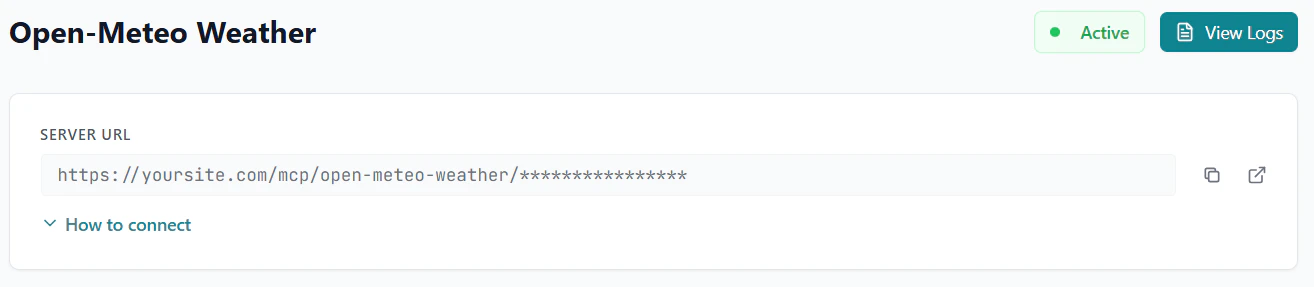
--header args; Cursor, Windsurf, and VS Code use a headers JSON object. See Authentication for a full explanation.Claude Desktop
mcp-remote)Open Claude Desktop
Open Developer Settings and click Edit Config
- macOS: Menu bar → Claude → Settings → Developer → Edit Config
- Windows: Breadcrumb menu (top bar) → File → Settings → Developer → Edit Config
- macOS:
~/Library/Application Support/Claude/claude_desktop_config.json - Windows:
%APPDATA%\Claude\claude_desktop_config.json
Copy the configuration below and paste it into the mcpServers object, then save
cmd.exe to avoid Node.js path-with-spaces issues:--header arg (no space after the colon). On Windows, use cmd /c npx as shown above and add the --header args the same way.Bearer token:username:password first):--header needed. For query-param keys, append ?keyName=YOUR_KEY to the URL. OAuth opens a browser flow automatically.Fully quit and restart Claude Desktop
Claude Code
npm install -g @anthropic-ai/claude-codeOpen your terminal
Copy and run the command below
username:password first):--header needed. For query-param keys, append ?keyName=YOUR_KEY to the URL.Other useful commands:Claude Code confirms the server was added immediately
Run /mcp inside Claude Code to verify the server appears
/mcp in Claude Code to confirm the server is listed and connected.Cursor
Open Cursor and go to Settings
Navigate to Tools & MCP, then click Add a custom MCP
The mcp.json file opens in the editor
mcp.json config file opens in the editor automatically.Copy the configuration below, paste it into the mcpServers object, then save
headers object before url:Bearer token:username:password first):headers needed — use the plain URL. For query-param keys, append ?keyName=YOUR_KEY to the URL.File location: ~/.cursor/mcp.json (global) · .cursor/mcp.json (project)Windsurf
Open Windsurf and go to Settings
Click on Cascade, then click Open MCP Registry
The mcp_config.json file opens in the editor
mcp_config.json config file opens in the editor automatically.Copy the configuration below and paste it into the mcpServers object, then save
headers object before serverUrl:Bearer token:username:password first):headers needed — use the plain URL. For query-param keys, append ?keyName=YOUR_KEY to the URL.File location: ~/.codeium/windsurf/mcp_config.jsonVS Code
Open (or create) .vscode/mcp.json in your project root
.vscode/mcp.json in your project root.For a global config, open the Command Palette and run MCP: Open User Configuration.Copy the configuration below and paste it into the file
headers object. VS Code’s ${input:} syntax prompts you to enter the value securely on first use:Bearer token:headers needed — use the plain URL. For query-param keys, append ?keyName=YOUR_KEY to the URL.File location: .vscode/mcp.json (workspace) · Command Palette → “MCP: Open User Configuration” (global)Save — VS Code detects the file automatically, no restart needed
OpenAI Playground
Go to platform.openai.com/playground/prompts
Click the tools icon in the left panel, then select Add MCP server
Enter the URL and label from the Connection Details below
Under Authentication, select "Access token / API key" and paste your API key
Copy the URL below, paste it into the URL field, then click Connect
Generic MCP Client
Any client that supports the MCP Streamable HTTP transport can connect using:Verifying the Connection
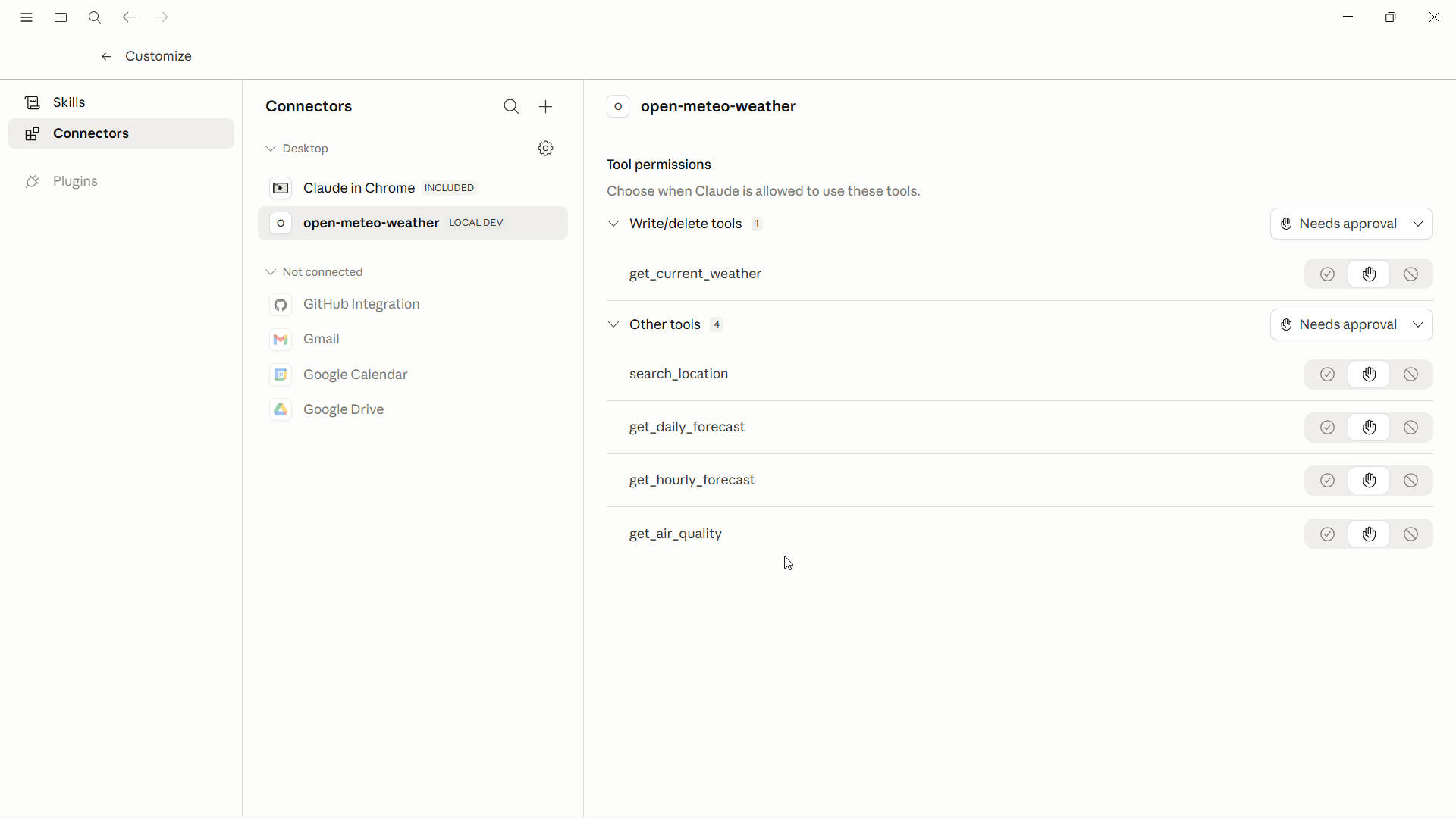
Once connected, ask your AI client to list available tools:“What tools do you have available?”The AI should respond with the tools configured in your GetMCP server. You can also verify the connection by checking GetMCP > Analytics — a successful MCP
initialize call will appear in the call logs.
Troubleshooting
Connection refused / server not found
Connection refused / server not found
- Verify HTTPS is properly configured on your WordPress site
- Check that the server status is Active in GetMCP admin
- Confirm the URL is correct (slug and server_id match)
- Ensure the MCP rewrite rules are flushed (visit Settings > Permalinks and click Save)
403 Forbidden
403 Forbidden
- Your server has inbound authentication enabled
- Verify the API key or token is correct
- Ensure the
Authorizationheader is being sent correctly for your client - For Claude Desktop: auth must be
--headerargs inmcp-remote(e.g."Authorization:Bearer TOKEN"), not aheadersJSON key —mcp-remotedoes not support aheadersobject
Tools not appearing
Tools not appearing
- Ensure tools are set to Active status
- Ask the AI to refresh its tool list
- In Claude Desktop, fully quit and restart — closing the window is not enough
- Run
/mcpin Claude Code to check the server status