

What is a Tool?
A tool is the core building block of GetMCP. When an AI client wants to take an action (fetch data, create a record, send a message), it calls a tool. Each tool maps to a specific HTTP API endpoint. Tools are defined by:- A name and description that help the AI decide when to use the tool
- An endpoint URL and HTTP method to call
- An input schema defining what parameters the AI can pass
- Parameter mapping that controls where arguments go in the request
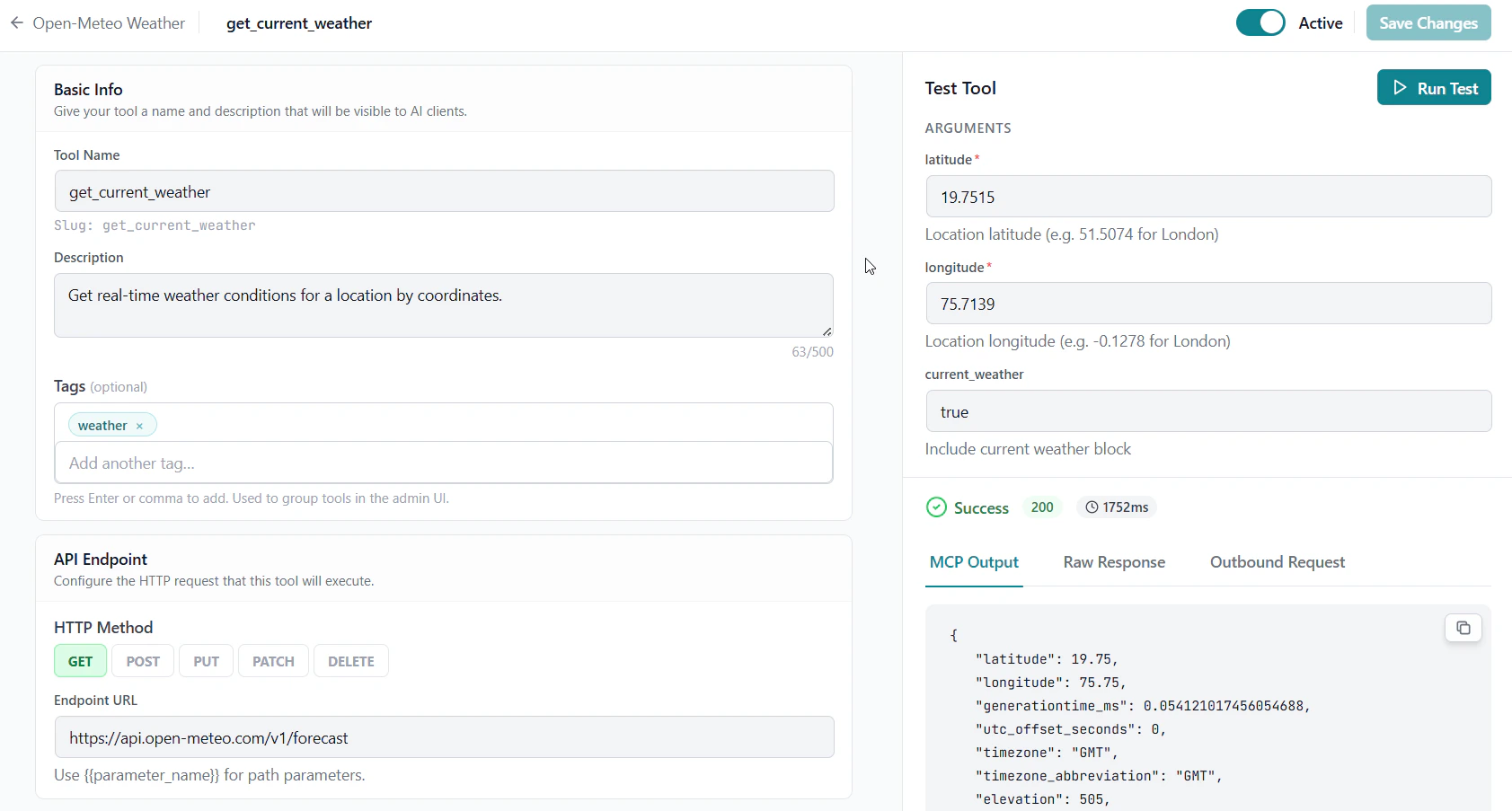
Tool Properties
Input Schema
Tools use JSON Schema to define their inputs. This lets AI clients understand what parameters to pass and enables automatic validation. Example input schema:Parameter Mapping
Each input parameter can be mapped to a different part of the HTTP request:Authentication
Tools can receive API credentials in two ways: Fixed credentials — Add static API keys as Custom Headers in the tool’s Advanced Settings. Common patterns:
User-supplied credentials — When each user of the MCP server has their own API key (e.g., their own OpenAI account), they add their key to the
headers block in their MCP client config. GetMCP forwards these headers to the external API — the keys are never stored in GetMCP.
Each tool has its own Custom Headers, so different tools can authenticate with different APIs using different credentials.
See the Authentication Guide for a full walkthrough of both approaches.
Naming Conventions
Tool names follow MCP conventions and are typicallysnake_case. Good examples:
get_user— fetch a user recordcreate_invoice— create a new invoicesearch_products— search a product catalogsend_email— send an email message
Tags
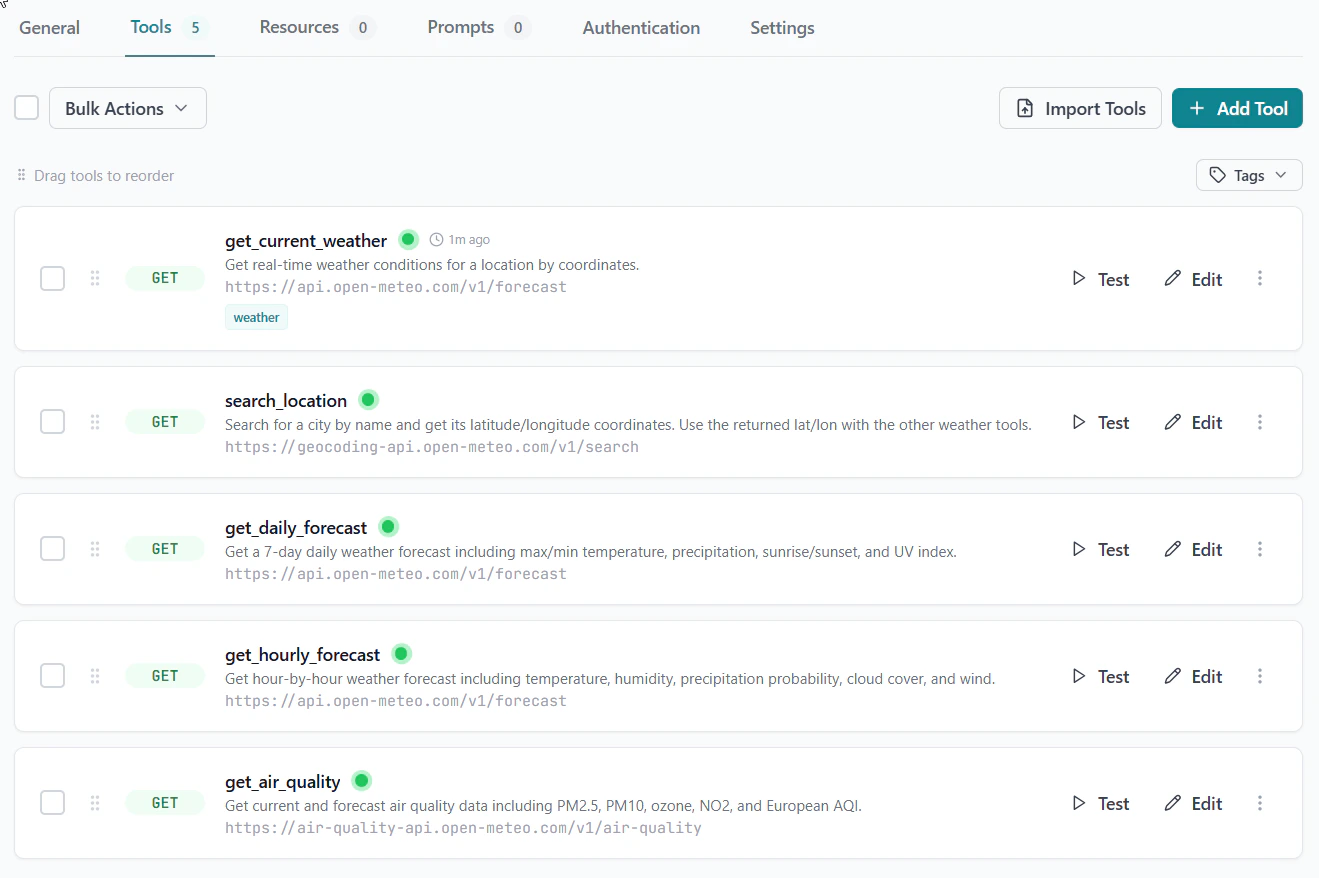
Tags are free-form labels you attach to tools for internal organization. They have no effect on how the MCP protocol exposes or calls the tool — AI clients do not use tags to decide which tools to call. Use tags to group and filter tools in the GetMCP admin:
Adding tags — Open the tool editor, scroll to the Tags field, and type a tag name then press Enter. A tool can have multiple tags.
Filtering by tag — On the Tools tab, use the tag filter dropdown to show only tools matching a specific tag. This is useful on servers with many tools across multiple domains.
Tags are for admin-side organization only. They do not affect tool discovery, tool calls, or any MCP protocol behavior seen by AI clients.
Testing Tools
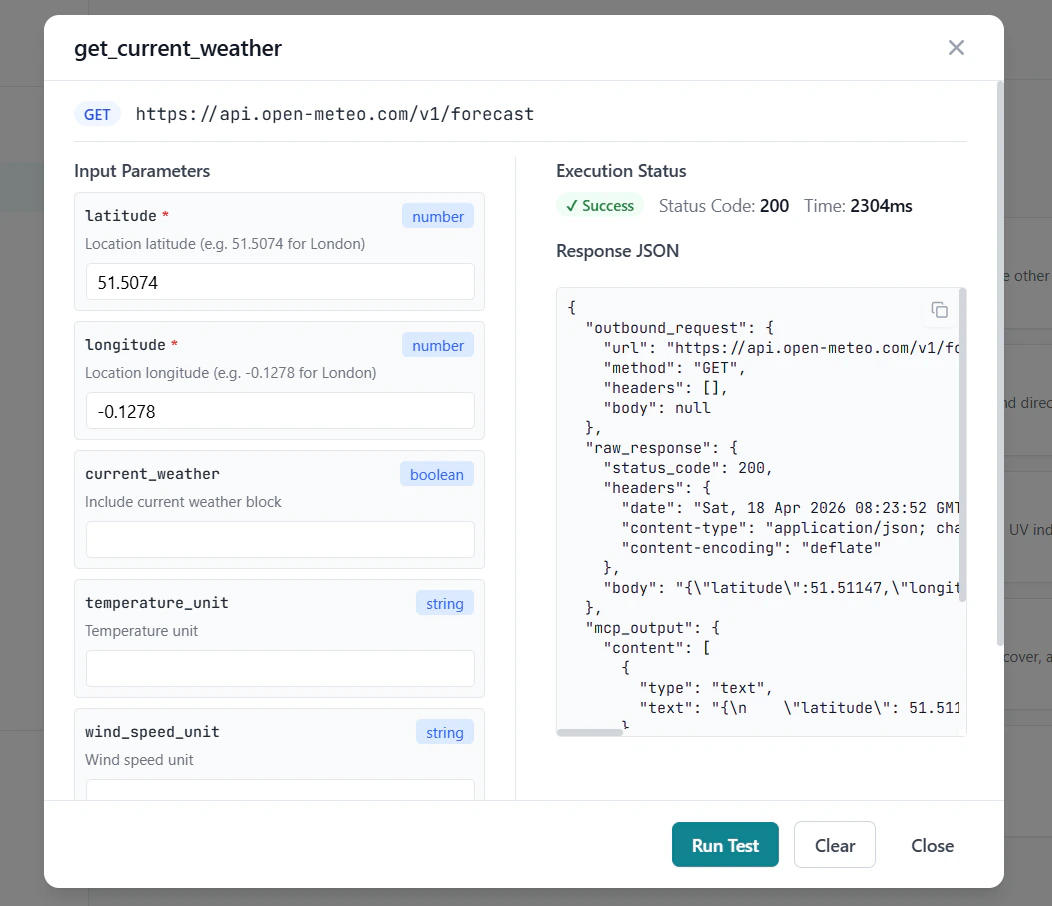
Use the built-in test panel to verify tool behavior before connecting AI clients:- Click the Test button on any tool
- Enter sample argument values as a JSON object
- Click Run Test to execute against the real API
- Review the response, status code, and response time
cURL Import
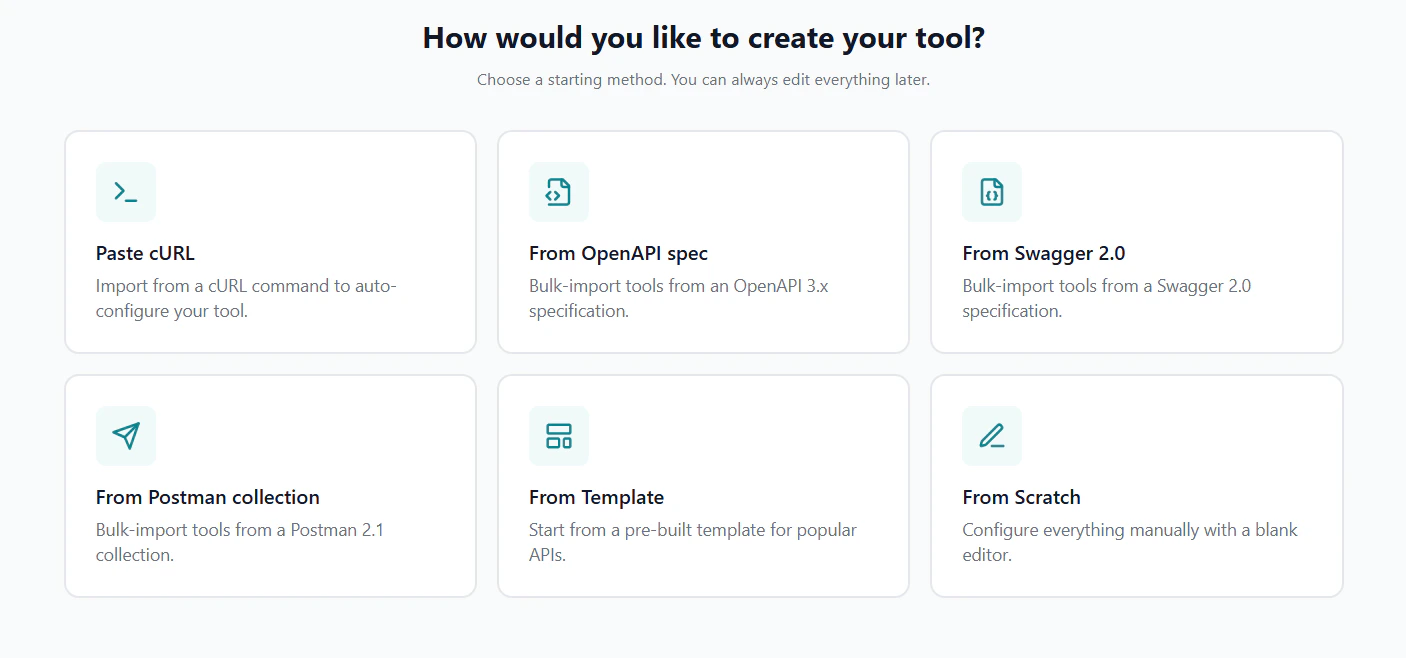
- Copy a
curlcommand from your terminal or API docs - Click Import from cURL in the tool editor
- GetMCP parses the URL, method, headers, and body automatically
MCP Protocol
Tools integrate with the standard MCP protocol methods:tools/list— Returns all active tools for the server (name, description, input schema). AI clients call this on connect to discover what tools are available.tools/call— Executes a specific tool with the provided arguments and returns the result. GetMCP validates the arguments against the input schema, makes the configured HTTP request, and returns the response to the AI client.
tools/list matches the order they are arranged in the GetMCP admin. Use drag-and-drop in the Tools tab to control which tools appear first.