

Layer 1 — Who Can Connect to Your Server
Every GetMCP server has a unique URL: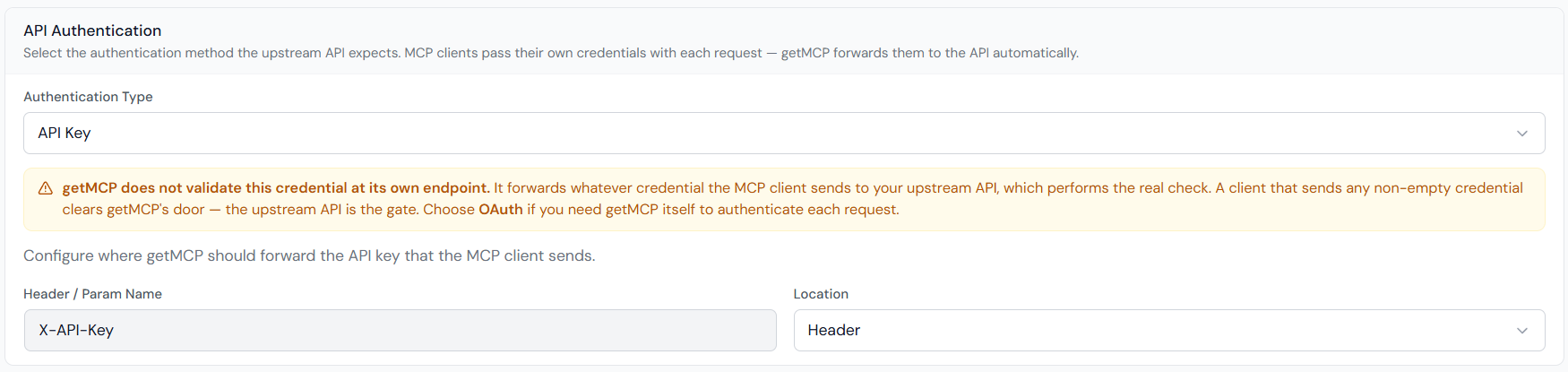
- Claude Desktop
- Claude Code
- Cursor
- Windsurf
- VS Code
Pass the credential as a Basic auth (base64-encode API key (header):API key (query param) or OAuth: Use the plain URL — no
--header arg (no space after the colon):Bearer token:username:password first):--header needed. For query-param keys, append ?keyName=YOUR_KEY to the URL. OAuth opens a browser flow automatically.On Windows, replace "command": "npx" with "command": "cmd" and add "/c" and "npx" as the first two args before "mcp-remote".Layer 2 — API Credentials for Tool Calls
When a tool runs, GetMCP calls an external API. That API usually requires credentials. There are two ways to supply them:Fixed credentials — all users share the same key
Add the key as a Custom Header in the tool’s Advanced Settings:
You can also embed an API key in the endpoint URL:
https://api.example.com/data?api_key=your_key
Each tool has its own Custom Headers, so different tools can call different APIs with different credentials.
User-supplied credentials — each user brings their own key
When each user has their own account on the external service (e.g., their own OpenAI key), they pass their key through their own MCP client config:- Claude Desktop
- Claude Code
- Cursor
- Windsurf
- VS Code
Pass the key as a On Windows, replace
--header arg to mcp-remote (no space after the colon):"command": "npx" with "command": "cmd" and add "/c" and "npx" as the first two args before "mcp-remote".- macOS:
~/Library/Application Support/Claude/claude_desktop_config.json - Windows:
%APPDATA%\Claude\claude_desktop_config.json
Test Credentials
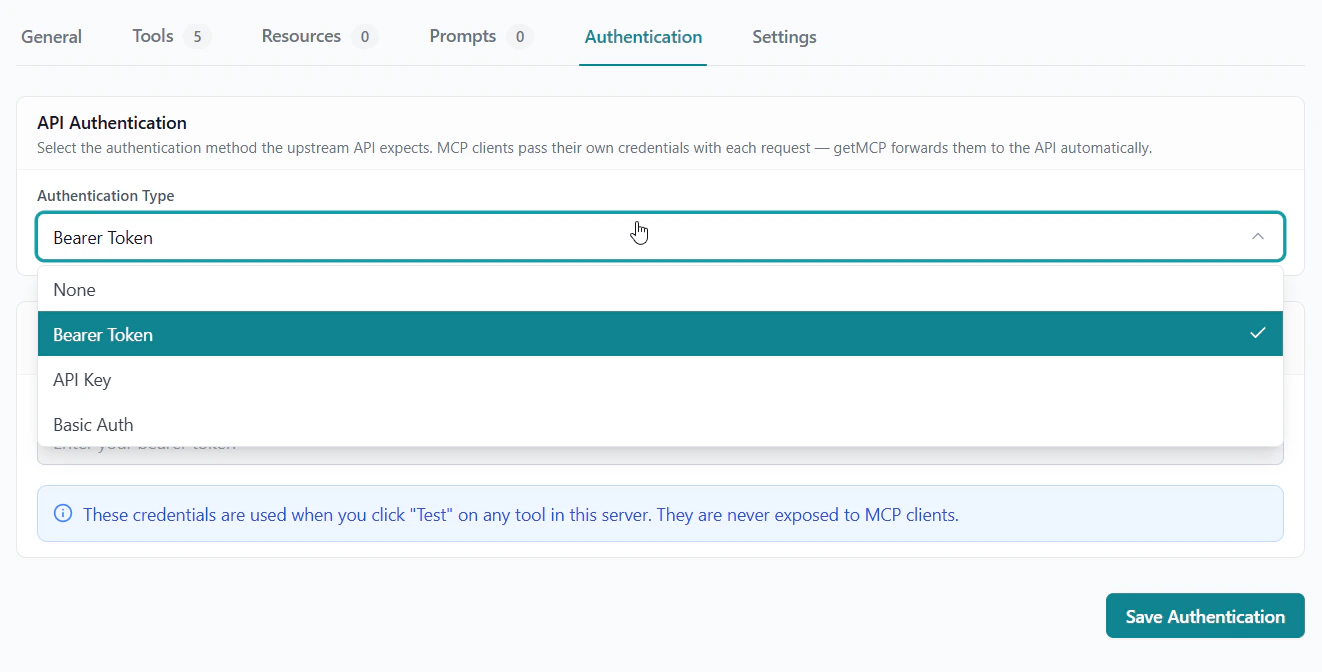
When you click Test on a tool in the admin, GetMCP uses test credentials — not the production keys in Custom Headers. Configure test credentials in the server detail page → Authentication tab → Test Credentials section. All tools in the server share the same test credentials, keeping your production keys safe during development.Test credentials are only used when you click Test in the admin panel. AI client calls always use the tool’s Custom Headers — never test credentials.
Troubleshooting
Tool returns 401 Unauthorized → The API key is missing or wrong. For user-supplied keys, check the auth config in your MCP client (for Claude Desktop,--header args; for others, the headers block). For fixed keys, check the tool’s Custom Headers in the admin.
Tool returns 403 Forbidden
→ The key is valid but lacks permissions. Check the scopes or roles for that key in the external service’s dashboard.
Server connects but tools fail with auth errors
→ You may be confusing Layer 1 and Layer 2. The headers you add to connect to GetMCP (Layer 1) are separate from the API credentials the tool uses to call an external service (Layer 2). You may need to configure both.
Don’t know where your config file is
→ See Connecting AI Clients for file paths per client.