

Overview
The Postman Import feature reads a Postman Collection 2.1 file and turns every request into a GetMCP tool. Postman collections organize requests in folders — GetMCP walks the full folder tree and uses the folder path as tool tags, so your collection structure is preserved. This is useful when:- Your team already uses Postman to document and test your API
- You want to expose an existing collection as MCP tools without re-configuring each request
- You use Postman environments and want to migrate variable-based URLs to tool parameters
How to Use
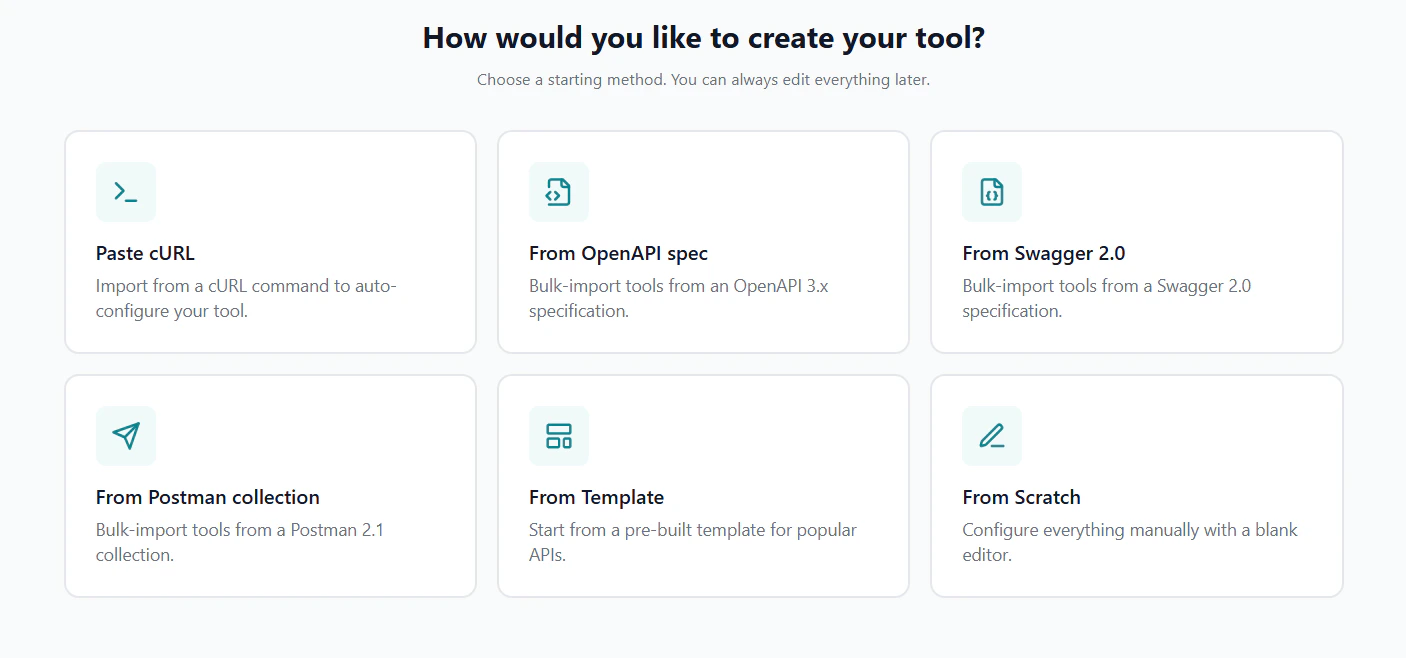
1
Export Your Postman Collection
In Postman, right-click the collection → Export → select Collection v2.1 → save the JSON file.You can also use a public share link if the collection is published.
2
Open the Import Dialog
Navigate to your server’s Tools tab, click the Import dropdown, and select Postman Collection.
3
Provide the Collection
Choose how to provide the collection JSON.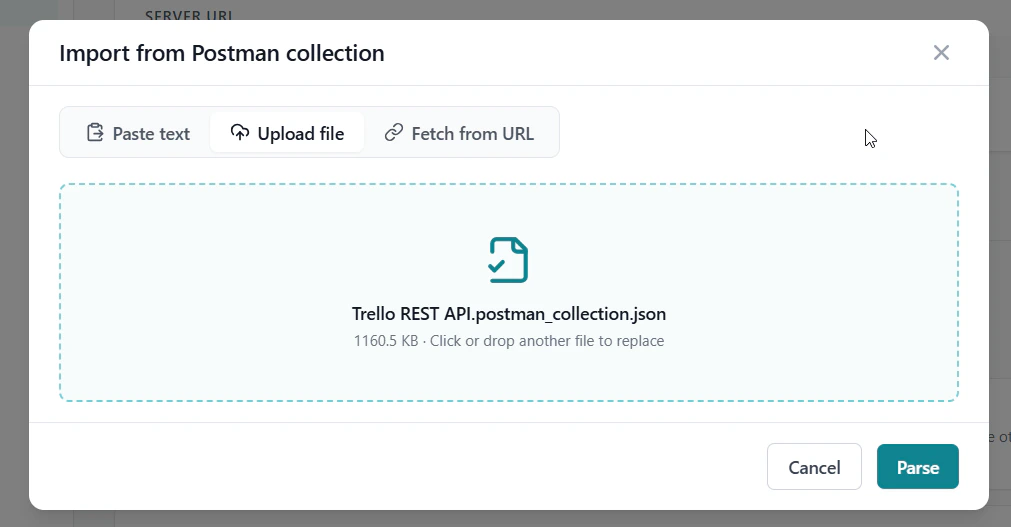
.json file (up to 10 MB).Fetch from URL — enter a public Postman share URL or raw JSON URL.Then click Parse.4
Select Requests to Import
GetMCP shows all requests found in the collection — including those nested inside folders. Each request shows its method, path, and the folder it lives in.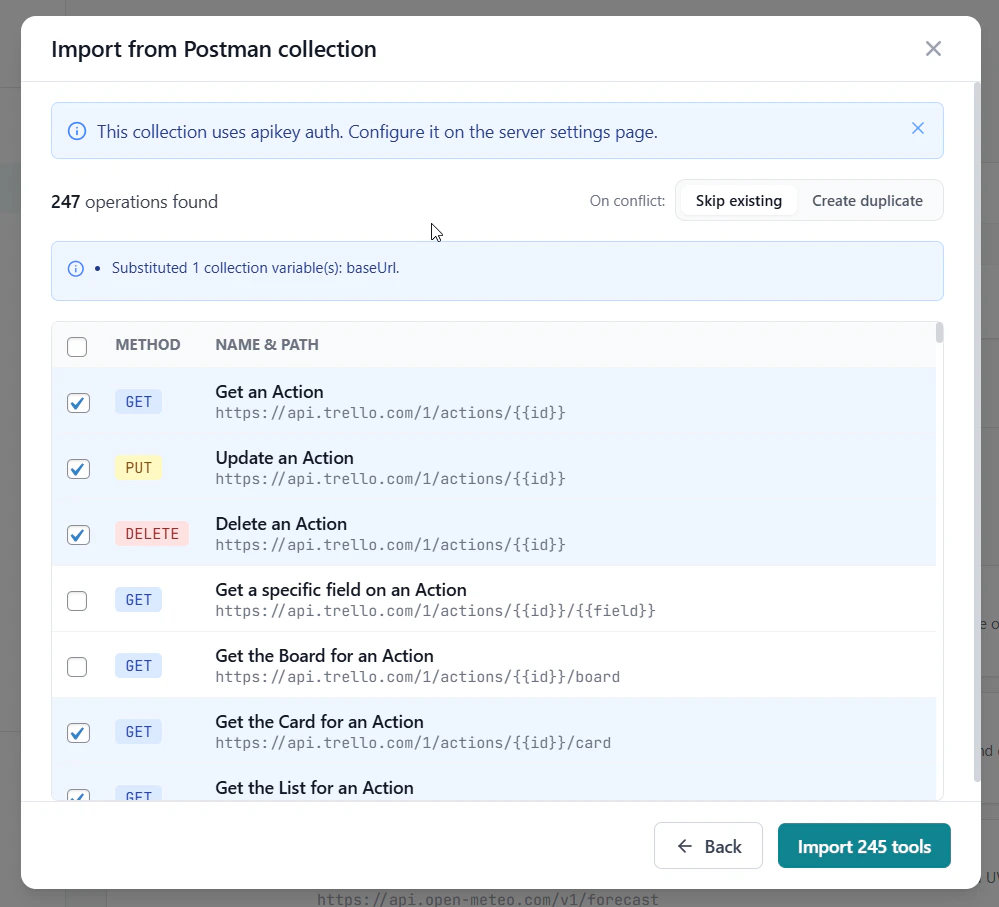
- Check or uncheck individual requests
- Folder structure is shown in the tags column
- Set On conflict to skip existing tools or create duplicates
5
Review Results
The result screen shows how many tools were created, skipped, or failed. Click Done to return to the tools list.
What Gets Imported
Auth headers (
Authorization, X-API-Key, Cookie, etc.) are stripped from the imported tool’s custom headers. Auth is noted in the preview and you configure it after import in Server Settings → Authentication.Postman Variables
Postman collections use{{variable}} syntax for environment variables. GetMCP preserves {{variable}} placeholders in imported URLs — they become path or query parameters you can configure.
For example, a Postman URL like:
base_url and user_id extracted as input parameters.