> ## Documentation Index
> Fetch the complete documentation index at: https://docs.getmcp.com/llms.txt
> Use this file to discover all available pages before exploring further.
# GetMCP for WordPress & WooCommerce
> Give AI clients direct access to your WordPress site — posts, products, orders, and custom data.
## The Opportunity
Your WordPress site already holds everything — products, orders, customers, posts, pages, custom post types. AI clients like Claude and Cursor can read and act on all of it, but only if there's an MCP server in between.
GetMCP runs on your WordPress installation and bridges that gap. No separate server, no API to build. Your existing WordPress REST API and WooCommerce endpoints become MCP tools in minutes.
***
## What You Can Expose
| WordPress Feature | Example MCP Tools |
| -------------------------- | ------------------------------------------------- |
| Posts & Pages | `get_post`, `search_posts`, `create_draft` |
| WooCommerce Products | `get_product`, `search_products`, `update_stock` |
| WooCommerce Orders | `get_order`, `list_orders`, `update_order_status` |
| Customers | `get_customer`, `search_customers` |
| Custom Post Types | Any CPT via the WordPress REST API |
| Site Settings | `get_site_info`, `list_pages` |
| Any Plugin with a REST API | Map its endpoints as tools |
***
## The Workflow
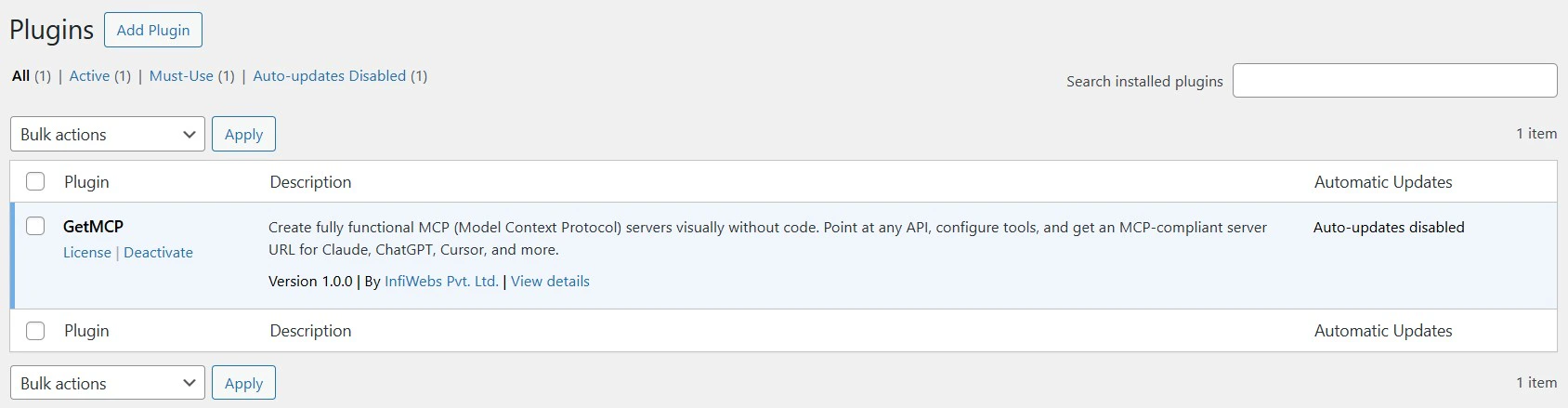
Install and activate the GetMCP plugin on your WordPress site. If you already have WordPress, this takes under two minutes.
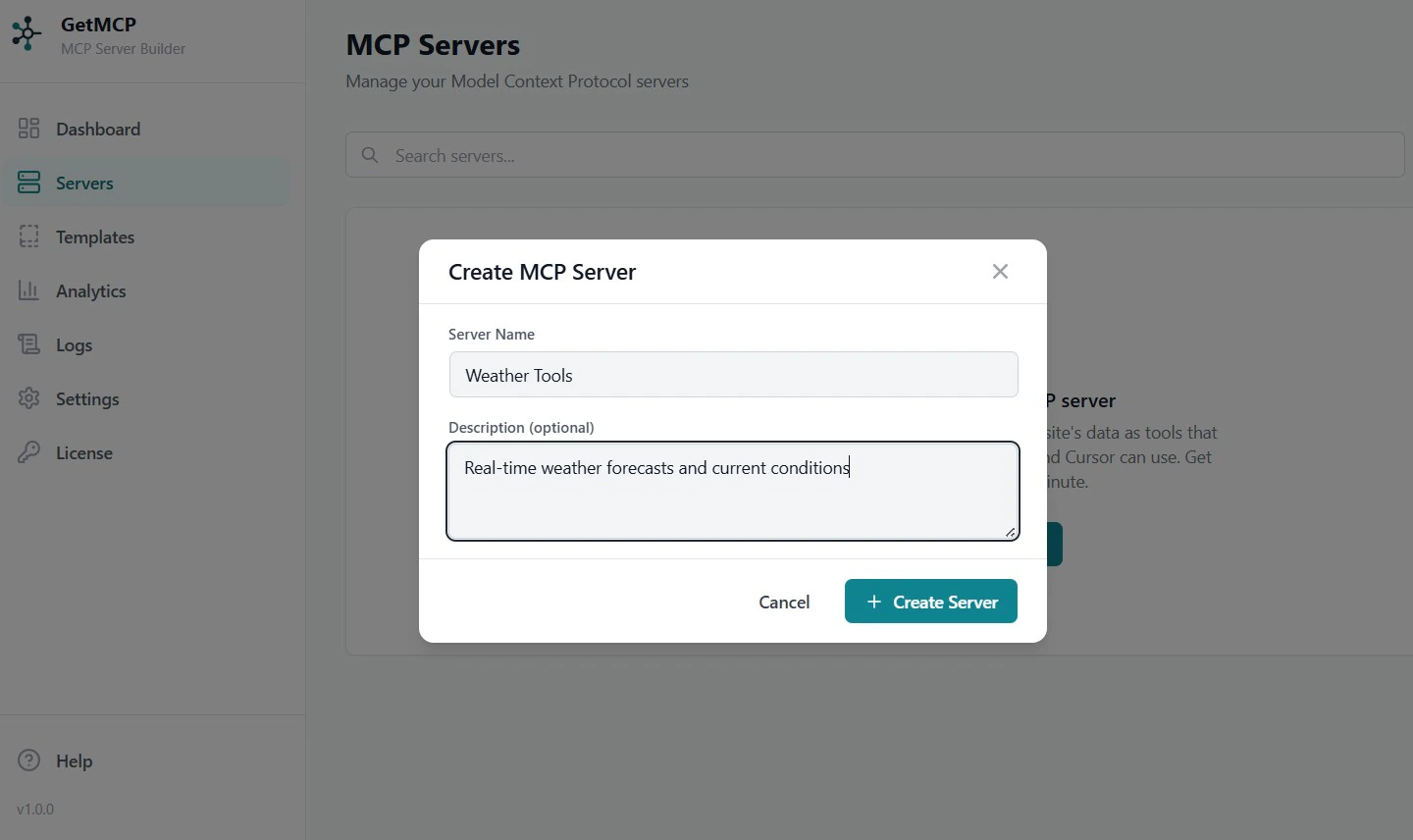
 Create one MCP server for your site. Give it a descriptive name — `my-store`, `my-blog`, or `my-site`. Each server gets its own MCP endpoint URL.
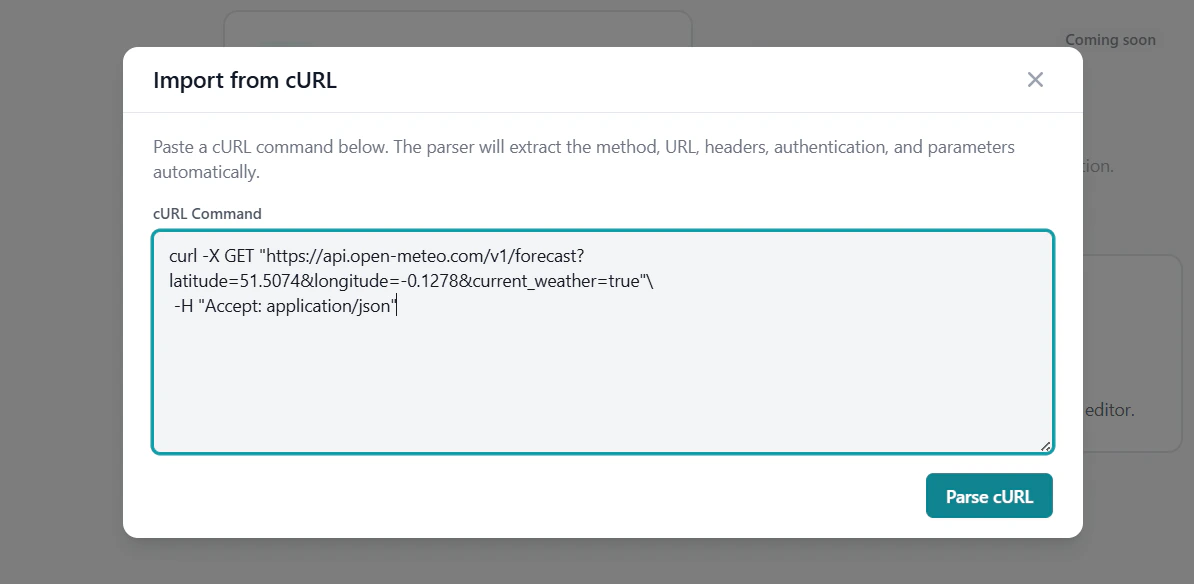
 WordPress and WooCommerce expose hundreds of REST endpoints out of the box. Add the ones you want as MCP tools. Use cURL import to populate fields instantly:
```bash theme={null}
# Get a WooCommerce order
curl https://yoursite.com/wp-json/wc/v3/orders/123 \
-u "ck_your_consumer_key:cs_your_consumer_secret"
```
Paste this into the cURL import dialog and the URL, method, auth, and parameters are all populated for you.
WordPress and WooCommerce expose hundreds of REST endpoints out of the box. Add the ones you want as MCP tools. Use cURL import to populate fields instantly:
```bash theme={null}
# Get a WooCommerce order
curl https://yoursite.com/wp-json/wc/v3/orders/123 \
-u "ck_your_consumer_key:cs_your_consumer_secret"
```
Paste this into the cURL import dialog and the URL, method, auth, and parameters are all populated for you.
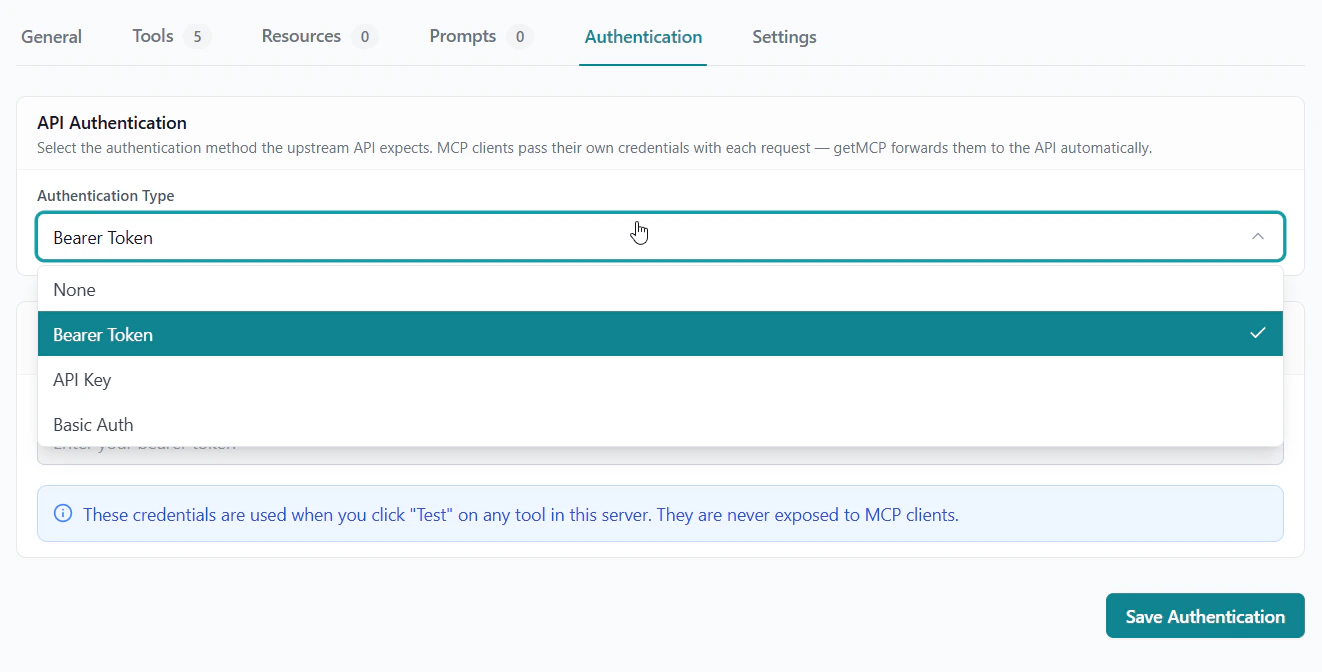
 WooCommerce uses consumer key/secret pairs. Store them as a Custom Header using Basic auth:
```
Authorization: Basic base64(consumer_key:consumer_secret)
```
This header is encrypted at rest and injected into every tool call — your AI client never sees the credential.
WooCommerce uses consumer key/secret pairs. Store them as a Custom Header using Basic auth:
```
Authorization: Basic base64(consumer_key:consumer_secret)
```
This header is encrypted at rest and injected into every tool call — your AI client never sees the credential.
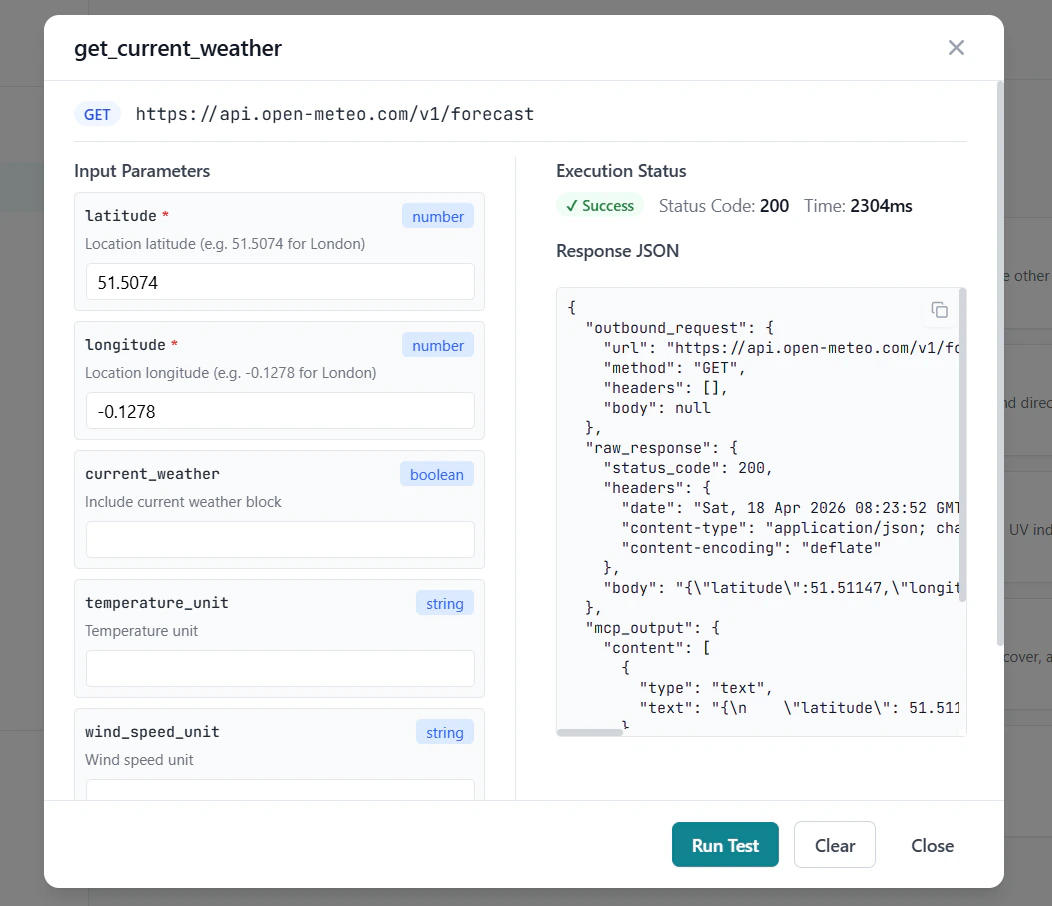
 Use the built-in test panel to confirm each tool returns the right data. Then copy the MCP endpoint URL into Claude Desktop, Cursor, or any MCP client.
 ***
## Example: Managing a WooCommerce Store with AI
Once your tools are connected, your AI client can handle store operations through natural language:
> *"Show me all pending orders from the last 48 hours"*
> → calls `list_orders` with status=pending, date filter
> *"What's the current stock level for Widget Pro?"*
> → calls `get_product` and reads the `stock_quantity` field
> *"Mark order #1042 as shipped"*
> → calls `update_order_status` with status=completed
> *"Draft a blog post about our new summer collection"*
> → calls `create_draft` with AI-generated content
***
## Using Templates
The GetMCP template library includes pre-built tool sets for common WordPress and WooCommerce workflows. Instead of configuring each tool from scratch, install a template and have a working server in minutes.
***
## Example: Managing a WooCommerce Store with AI
Once your tools are connected, your AI client can handle store operations through natural language:
> *"Show me all pending orders from the last 48 hours"*
> → calls `list_orders` with status=pending, date filter
> *"What's the current stock level for Widget Pro?"*
> → calls `get_product` and reads the `stock_quantity` field
> *"Mark order #1042 as shipped"*
> → calls `update_order_status` with status=completed
> *"Draft a blog post about our new summer collection"*
> → calls `create_draft` with AI-generated content
***
## Using Templates
The GetMCP template library includes pre-built tool sets for common WordPress and WooCommerce workflows. Instead of configuring each tool from scratch, install a template and have a working server in minutes.
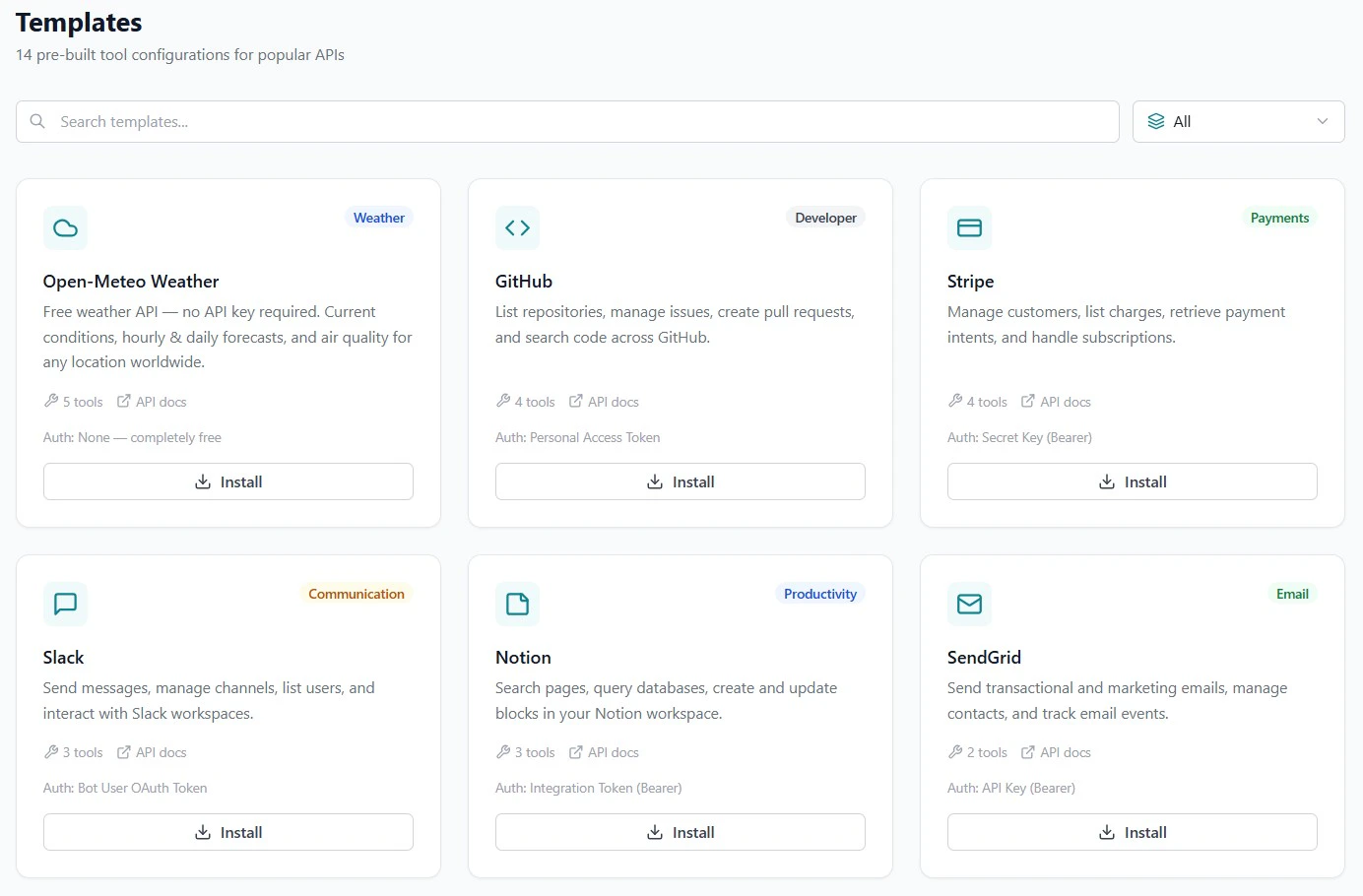 See [Templates](/docs/guides/templates) for available templates and how to install them.
***
## Get Started
Install GetMCP on your WordPress site
Populate tools from WooCommerce curl commands instantly
Browse pre-built WordPress and WooCommerce tool sets
Configure WooCommerce consumer key/secret auth
See [Templates](/docs/guides/templates) for available templates and how to install them.
***
## Get Started
Install GetMCP on your WordPress site
Populate tools from WooCommerce curl commands instantly
Browse pre-built WordPress and WooCommerce tool sets
Configure WooCommerce consumer key/secret auth