> ## Documentation Index
> Fetch the complete documentation index at: https://docs.getmcp.com/llms.txt
> Use this file to discover all available pages before exploring further.
# GetMCP for App Developers & SaaS
> Ship MCP support for your product in an afternoon — not a sprint.
## The Problem
Your product has a REST API. Your users want to connect Claude, Cursor, or other AI clients directly to it — so they can automate workflows, query their data, and take actions through natural language.
The obvious paths are all expensive:
* **Build a custom MCP server** — learn the protocol spec, implement JSON-RPC 2.0, handle transport, write tool schemas, manage auth. That's weeks of engineering before a single tool works.
* **Wait for native MCP support** — while competitors ship it first.
* **Third-party hosted bridges** — your API traffic routes through someone else's infrastructure. Privacy, compliance, and vendor lock-in are real concerns.
## How GetMCP Solves It
GetMCP installs on your own server and sits in front of your existing API — no protocol code required. You define tools through a UI, point them at your endpoints, and your users get a working MCP server immediately.
* **No protocol code** — GetMCP handles JSON-RPC 2.0, transport, tool schemas, and session management.
* **Your infrastructure** — runs as a WordPress plugin on your own server. API traffic stays on your stack.
* **Ships in an afternoon** — paste a cURL command, configure parameters, done. No new server to build or maintain.
***
## The Workflow
If your product already runs on WordPress, GetMCP installs in minutes. If not, a lightweight WordPress install on any server works — it becomes your dedicated MCP layer, separate from your main product stack.
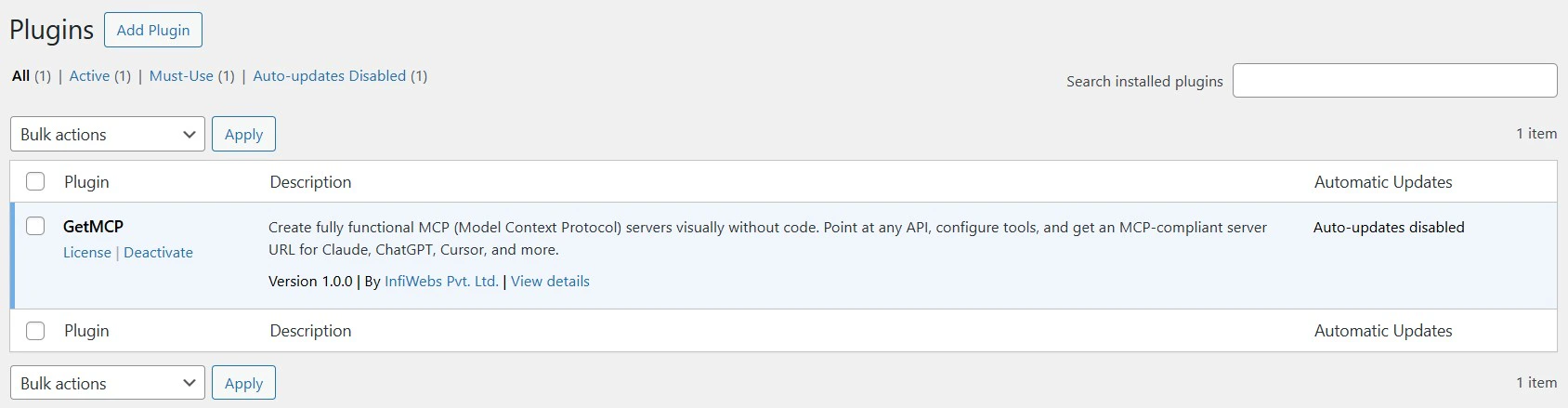 Create one MCP server per logical API surface — or per customer tier if you want isolated endpoints.
```
my-product-api → https://yoursite.com/mcp/my-product-api/a1b2c3...
my-product-api-pro → https://yoursite.com/mcp/my-product-api-pro/d4e5f6...
```
Each server gets its own URL, its own auth, and its own logs.
Create one MCP server per logical API surface — or per customer tier if you want isolated endpoints.
```
my-product-api → https://yoursite.com/mcp/my-product-api/a1b2c3...
my-product-api-pro → https://yoursite.com/mcp/my-product-api-pro/d4e5f6...
```
Each server gets its own URL, its own auth, and its own logs.
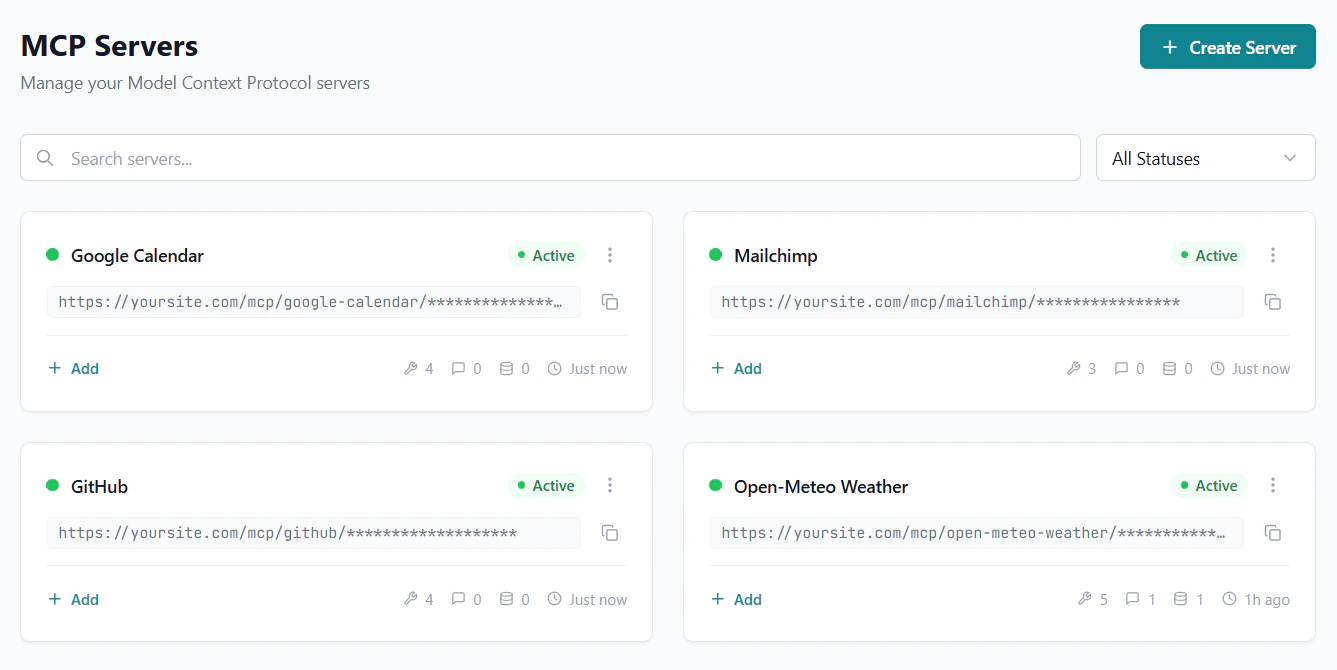 Each tool points at one of your API endpoints. GetMCP handles everything in between — JSON-RPC to HTTP translation, input validation, response formatting.
```
get_user → GET https://api.yourproduct.com/users/{user_id}
create_project → POST https://api.yourproduct.com/projects
list_invoices → GET https://api.yourproduct.com/billing/invoices
send_message → POST https://api.yourproduct.com/messages
```
Use cURL import to configure tools in seconds — paste a curl command from your API docs and every field is populated automatically.
Each tool points at one of your API endpoints. GetMCP handles everything in between — JSON-RPC to HTTP translation, input validation, response formatting.
```
get_user → GET https://api.yourproduct.com/users/{user_id}
create_project → POST https://api.yourproduct.com/projects
list_invoices → GET https://api.yourproduct.com/billing/invoices
send_message → POST https://api.yourproduct.com/messages
```
Use cURL import to configure tools in seconds — paste a curl command from your API docs and every field is populated automatically.
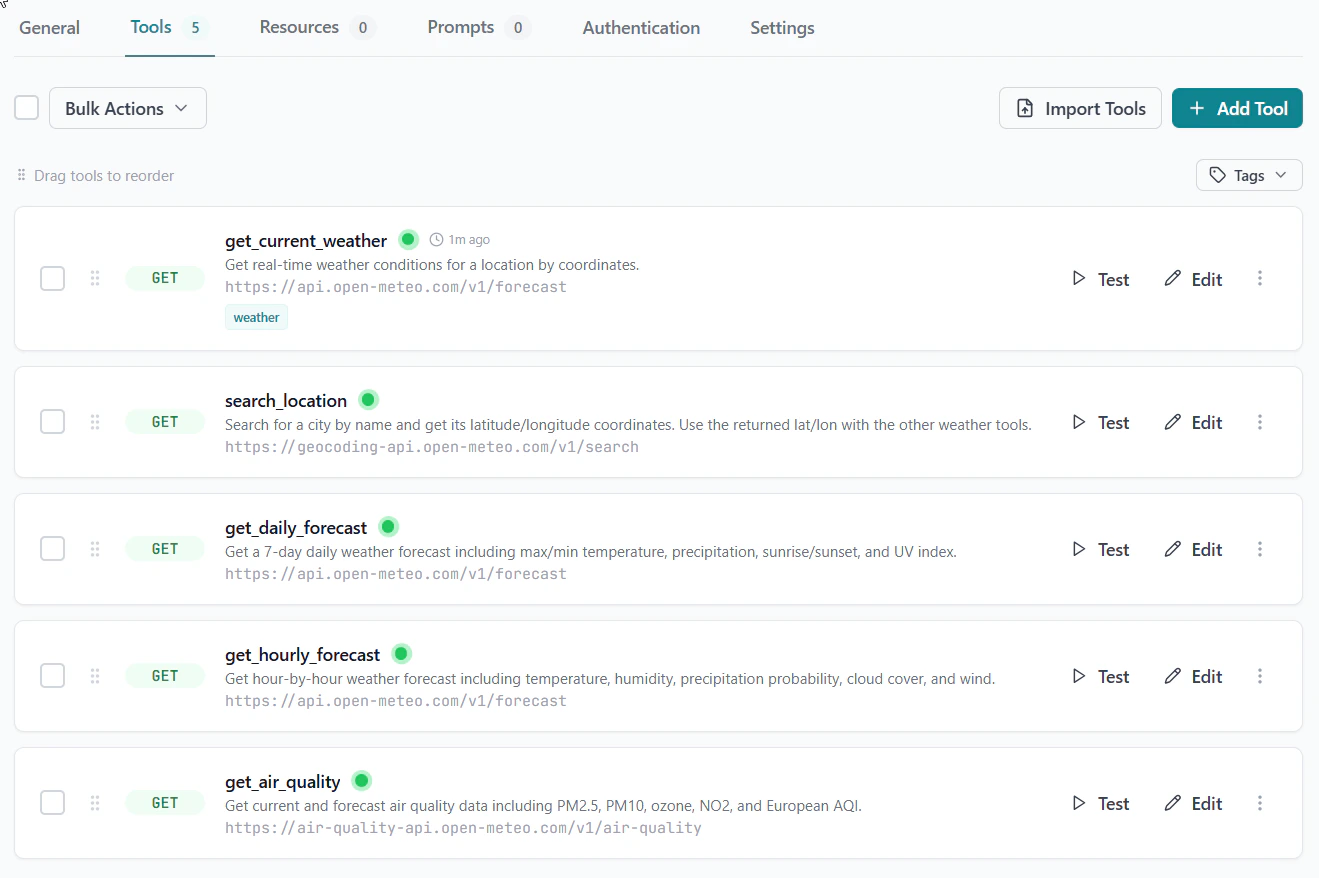 Two auth layers work independently:
* **Inbound** — protect your MCP endpoint so only your users can connect (bearer token, API key, or basic auth)
* **Outbound** — store your API credentials so GetMCP can call your backend on every tool invocation
Your users connect their AI client with their own key. GetMCP validates it, then calls your API with your credentials. Neither key is ever exposed to the other party.
Two auth layers work independently:
* **Inbound** — protect your MCP endpoint so only your users can connect (bearer token, API key, or basic auth)
* **Outbound** — store your API credentials so GetMCP can call your backend on every tool invocation
Your users connect their AI client with their own key. GetMCP validates it, then calls your API with your credentials. Neither key is ever exposed to the other party.
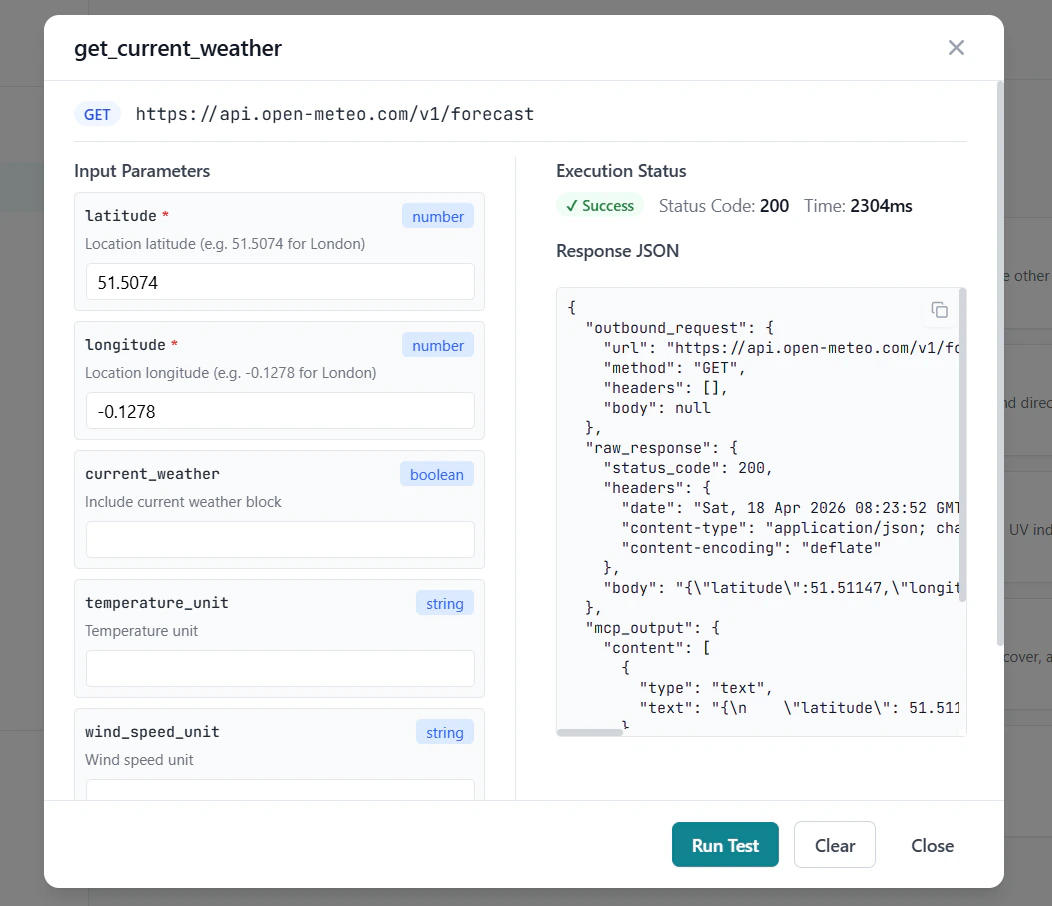
 Use the built-in test panel to call each tool against your real API and confirm the response is correct. Then run a full protocol test with MCP Inspector — the same view Claude and Cursor get when they connect.
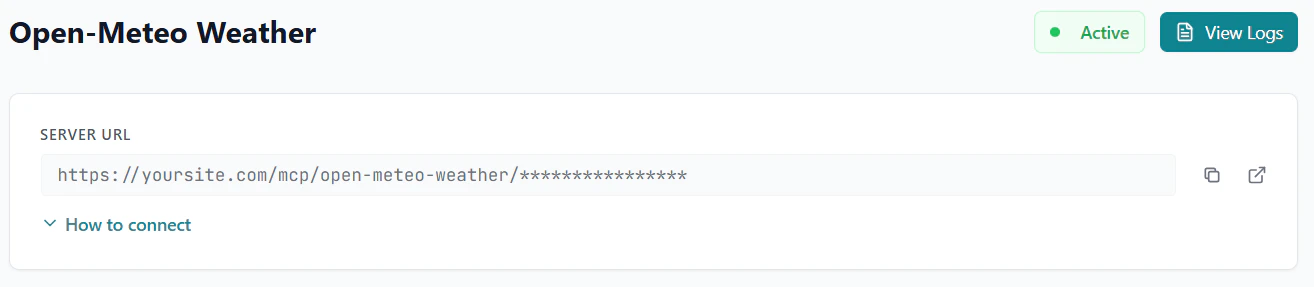
 Ship your MCP endpoint URL in your product's docs, settings page, or onboarding flow. Users paste it into Claude Desktop, Cursor, or any MCP client and they're connected.
```
https://yoursite.com/mcp/my-product-api/a1b2c3d4e5f6a7b8
```
Ship your MCP endpoint URL in your product's docs, settings page, or onboarding flow. Users paste it into Claude Desktop, Cursor, or any MCP client and they're connected.
```
https://yoursite.com/mcp/my-product-api/a1b2c3d4e5f6a7b8
```
 ***
## The Result
MCP support shipped in an afternoon — with auth, analytics, and zero protocol code.
| | Build custom MCP server | GetMCP |
| ------------------------------- | ---------------------------- | --------------------------------- |
| **Time to first working tool** | Days to weeks | Under an hour |
| **Protocol expertise needed** | Yes — JSON-RPC 2.0, MCP spec | No |
| **Runs on your infrastructure** | Requires separate deployment | Yes — your WordPress server |
| **Auth layer** | Build it yourself | Built-in (inbound + outbound) |
| **Per-user analytics** | Build it yourself | Included — calls, errors, latency |
| **Update tools without deploy** | Redeploy server | Edit in admin, live immediately |
***
## Real Examples
**SaaS with a project management API**
A two-person dev team configured `list_projects`, `create_task`, `get_task`, `update_status`, and `search_tasks` in 90 minutes using cURL import from their API docs. Users now manage projects from Claude Desktop without opening the app.
**Developer platform exposing code execution tools**
An API platform added `run_snippet`, `list_environments`, and `get_output` as MCP tools. Their users connect Cursor and invoke execution environments directly from the IDE — no copy-paste between tools.
***
## Giving Each User Their Own Endpoint
For SaaS products where each customer has their own API key, the cleanest pattern is user-supplied credentials:
1. Create one MCP server for your product (no stored outbound credentials)
2. Users add their own API key in their MCP client config's `headers` block
3. GetMCP forwards that header to your API on every call — the key is never stored
See [Authentication](/docs/guides/authentication) for the full walkthrough of this pattern.
***
## Get Started
Install GetMCP on any WordPress site in 2 minutes
Create your first server and tool
Configure inbound and outbound auth
Monitor tool usage and error rates
***
## The Result
MCP support shipped in an afternoon — with auth, analytics, and zero protocol code.
| | Build custom MCP server | GetMCP |
| ------------------------------- | ---------------------------- | --------------------------------- |
| **Time to first working tool** | Days to weeks | Under an hour |
| **Protocol expertise needed** | Yes — JSON-RPC 2.0, MCP spec | No |
| **Runs on your infrastructure** | Requires separate deployment | Yes — your WordPress server |
| **Auth layer** | Build it yourself | Built-in (inbound + outbound) |
| **Per-user analytics** | Build it yourself | Included — calls, errors, latency |
| **Update tools without deploy** | Redeploy server | Edit in admin, live immediately |
***
## Real Examples
**SaaS with a project management API**
A two-person dev team configured `list_projects`, `create_task`, `get_task`, `update_status`, and `search_tasks` in 90 minutes using cURL import from their API docs. Users now manage projects from Claude Desktop without opening the app.
**Developer platform exposing code execution tools**
An API platform added `run_snippet`, `list_environments`, and `get_output` as MCP tools. Their users connect Cursor and invoke execution environments directly from the IDE — no copy-paste between tools.
***
## Giving Each User Their Own Endpoint
For SaaS products where each customer has their own API key, the cleanest pattern is user-supplied credentials:
1. Create one MCP server for your product (no stored outbound credentials)
2. Users add their own API key in their MCP client config's `headers` block
3. GetMCP forwards that header to your API on every call — the key is never stored
See [Authentication](/docs/guides/authentication) for the full walkthrough of this pattern.
***
## Get Started
Install GetMCP on any WordPress site in 2 minutes
Create your first server and tool
Configure inbound and outbound auth
Monitor tool usage and error rates