> ## Documentation Index
> Fetch the complete documentation index at: https://docs.getmcp.com/llms.txt
> Use this file to discover all available pages before exploring further.
# Using Templates
> Install pre-built tool collections for popular APIs in seconds — no configuration from scratch required.
## What are Templates?
Templates are pre-built, ready-to-install tool collections for popular APIs and services. Each template includes a set of fully configured tools — endpoint URLs, parameter definitions, auth setup instructions, and response mappings — all ready to use.
Instead of configuring every field manually, you install a template and start making API calls in under two minutes.
 ***
## How Installation Works
Installing a template runs two steps automatically:
1. **A new server is created** named after the template (e.g., "Stripe", "GitHub"). This gives each template its own isolated MCP endpoint.
2. **All tools are bulk-created** inside that server — pre-configured with endpoints, parameter definitions, and response mappings.
After installation you only need to do one thing: enter your API credentials in the server's **Authentication** tab. GetMCP encrypts and stores them, then injects them automatically into every outbound API call.
Installing the same template twice creates two separate servers. It never overwrites an existing one.
***
## Available Templates
GetMCP ships with **14 pre-built templates** across 9 categories:
| Template | Category | Tools | Auth Required |
| ---------------------- | ------------- | ----- | -------------------------------- |
| **Open-Meteo Weather** | Weather | 5 | None — completely free |
| **GitHub** | Developer | 4 | Personal Access Token |
| **Stripe** | Payments | 4 | Secret Key (Bearer) |
| **Slack** | Communication | 3 | Bot User OAuth Token |
| **Notion** | Productivity | 3 | Integration Token (Bearer) |
| **SendGrid** | Email | 2 | API Key (Bearer) |
| **Twilio** | Communication | 2 | Account SID + Auth Token (Basic) |
| **HubSpot** | CRM | 3 | Private App Token (Bearer) |
| **WordPress** | CMS | 4 | Application Password (Basic) |
| **WooCommerce** | E-commerce | 5 | Consumer Key + Secret (Basic) |
| **Google Calendar** | Productivity | 4 | OAuth 2.0 Access Token |
| **Airtable** | Productivity | 3 | Personal Access Token (Bearer) |
| **Amadeus Travel** | Travel | 3 | OAuth 2.0 Bearer Token |
| **Mailchimp** | Email | 3 | API Key (Basic auth) |
***
## Browsing Templates
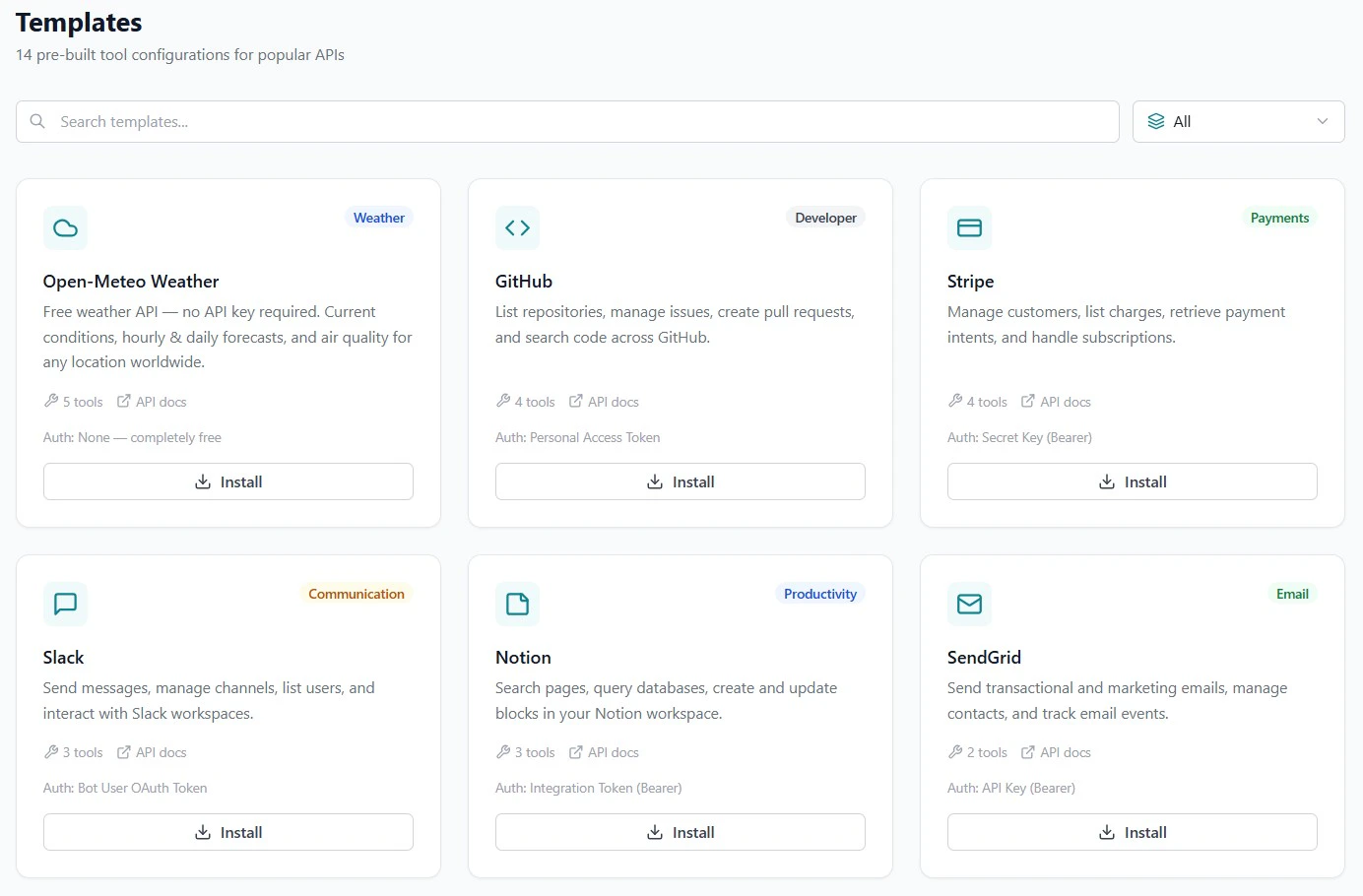
In the GetMCP admin sidebar, click **Templates**. Use the search bar to find by name or category, or use the category dropdown to filter by type (Weather, Developer, Payments, etc.).
Each card shows the service icon, category badge, description, number of tools included, a link to the official API docs, and the authentication method required.
***
## Installing a Template
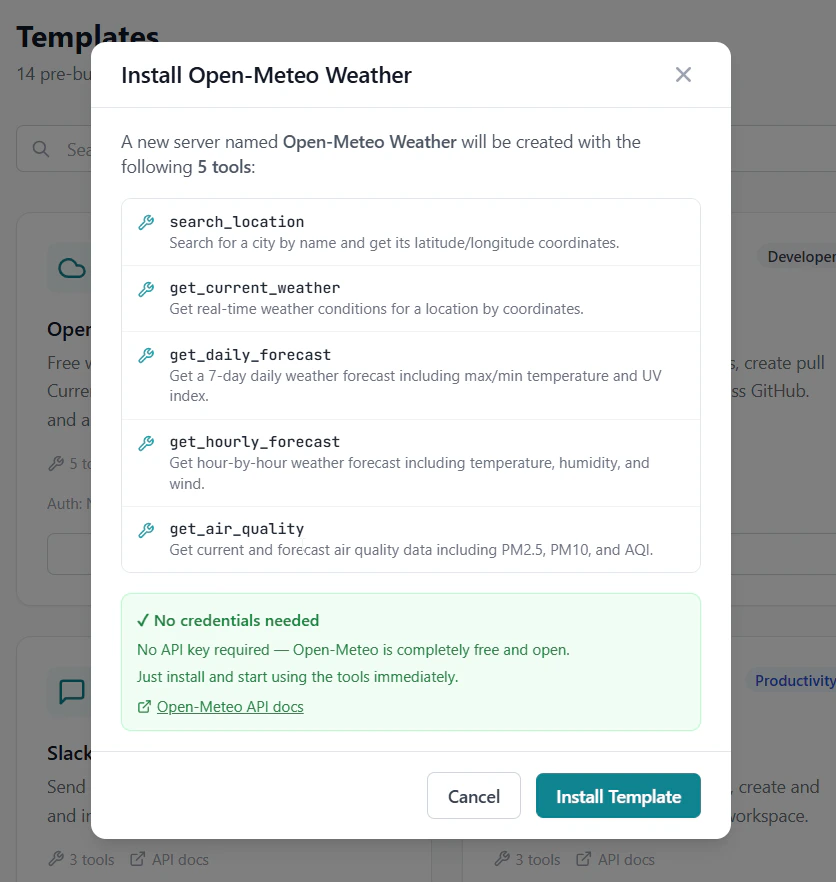
Click the **Install** button on the template you want to use. The install modal opens.
The modal lists every tool that will be created — tool names and descriptions — so you know exactly what you're getting before committing.
Below the tool list, GetMCP shows step-by-step instructions for obtaining your API credentials for that specific service, with a direct link to that service's credentials dashboard.
* For **free APIs** (like Open-Meteo), a green banner confirms no credentials are needed.
* For **authenticated APIs**, an amber panel walks you through exactly where to get your key.
Click **Install Template**. GetMCP automatically:
1. Creates a new server named after the template
2. Creates all included tools inside that server
***
## How Installation Works
Installing a template runs two steps automatically:
1. **A new server is created** named after the template (e.g., "Stripe", "GitHub"). This gives each template its own isolated MCP endpoint.
2. **All tools are bulk-created** inside that server — pre-configured with endpoints, parameter definitions, and response mappings.
After installation you only need to do one thing: enter your API credentials in the server's **Authentication** tab. GetMCP encrypts and stores them, then injects them automatically into every outbound API call.
Installing the same template twice creates two separate servers. It never overwrites an existing one.
***
## Available Templates
GetMCP ships with **14 pre-built templates** across 9 categories:
| Template | Category | Tools | Auth Required |
| ---------------------- | ------------- | ----- | -------------------------------- |
| **Open-Meteo Weather** | Weather | 5 | None — completely free |
| **GitHub** | Developer | 4 | Personal Access Token |
| **Stripe** | Payments | 4 | Secret Key (Bearer) |
| **Slack** | Communication | 3 | Bot User OAuth Token |
| **Notion** | Productivity | 3 | Integration Token (Bearer) |
| **SendGrid** | Email | 2 | API Key (Bearer) |
| **Twilio** | Communication | 2 | Account SID + Auth Token (Basic) |
| **HubSpot** | CRM | 3 | Private App Token (Bearer) |
| **WordPress** | CMS | 4 | Application Password (Basic) |
| **WooCommerce** | E-commerce | 5 | Consumer Key + Secret (Basic) |
| **Google Calendar** | Productivity | 4 | OAuth 2.0 Access Token |
| **Airtable** | Productivity | 3 | Personal Access Token (Bearer) |
| **Amadeus Travel** | Travel | 3 | OAuth 2.0 Bearer Token |
| **Mailchimp** | Email | 3 | API Key (Basic auth) |
***
## Browsing Templates
In the GetMCP admin sidebar, click **Templates**. Use the search bar to find by name or category, or use the category dropdown to filter by type (Weather, Developer, Payments, etc.).
Each card shows the service icon, category badge, description, number of tools included, a link to the official API docs, and the authentication method required.
***
## Installing a Template
Click the **Install** button on the template you want to use. The install modal opens.
The modal lists every tool that will be created — tool names and descriptions — so you know exactly what you're getting before committing.
Below the tool list, GetMCP shows step-by-step instructions for obtaining your API credentials for that specific service, with a direct link to that service's credentials dashboard.
* For **free APIs** (like Open-Meteo), a green banner confirms no credentials are needed.
* For **authenticated APIs**, an amber panel walks you through exactly where to get your key.
Click **Install Template**. GetMCP automatically:
1. Creates a new server named after the template
2. Creates all included tools inside that server
 A success banner confirms how many tools were created and which server they were added to.
If the template requires authentication, navigate to the server's **Authentication** tab to enter your credentials.
***
## Setting Up Authentication After Install
Most templates require your API credentials before tools can execute. After installing, the server's **Authentication** tab is where you enter them.
You land here directly if you clicked **Go to Authentication Settings** in the install modal. You can also reach it from the server detail page.
A success banner confirms how many tools were created and which server they were added to.
If the template requires authentication, navigate to the server's **Authentication** tab to enter your credentials.
***
## Setting Up Authentication After Install
Most templates require your API credentials before tools can execute. After installing, the server's **Authentication** tab is where you enter them.
You land here directly if you clicked **Go to Authentication Settings** in the install modal. You can also reach it from the server detail page.
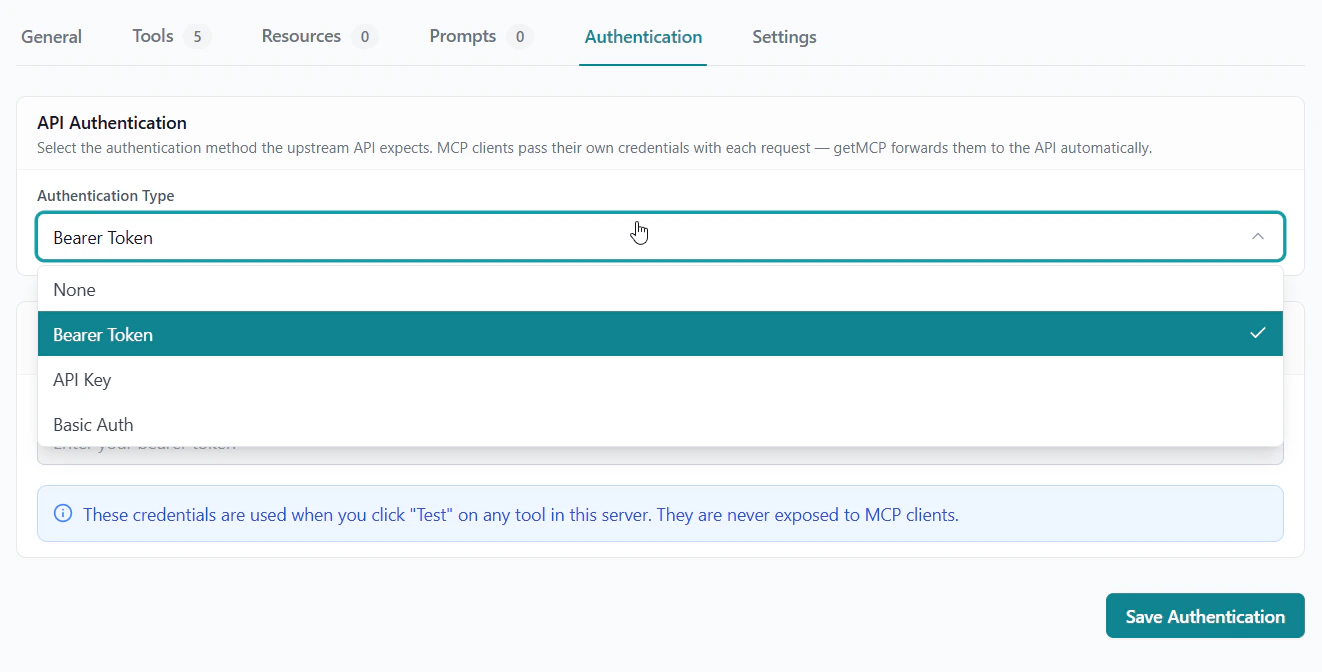 Each template requires a different credential format. Refer to the auth instructions shown in the install modal (or visit the service's docs directly). Common formats:
| Auth Type | Example credential field |
| ------------ | ----------------------------------------------------------------------------------------------------------------------------------------------------------- |
| Bearer Token | `sk_live_xxxxxxxxxxxxx` (Stripe), `xoxb-xxxxx` (Slack) |
| API Key | Your API key string |
| Basic Auth | `username:password` or `consumer_key:consumer_secret` |
| OAuth 2.0 | Access token generated via the service's OAuth flow (e.g., Google OAuth Playground). Tokens expire — re-enter a fresh token when the old one stops working. |
Click **Save**. Credentials are encrypted and stored — never exposed in API responses or logs.
Credentials you enter here are your credentials for the external API (e.g., your Stripe key). AI clients connecting to your MCP server use a separate GetMCP API key to authenticate **with** the server — they never see your external API credentials.
***
## Testing After Install
Once credentials are saved, verify your tools work using the built-in test panel or MCP Inspector.
### Quick Test via Admin Panel
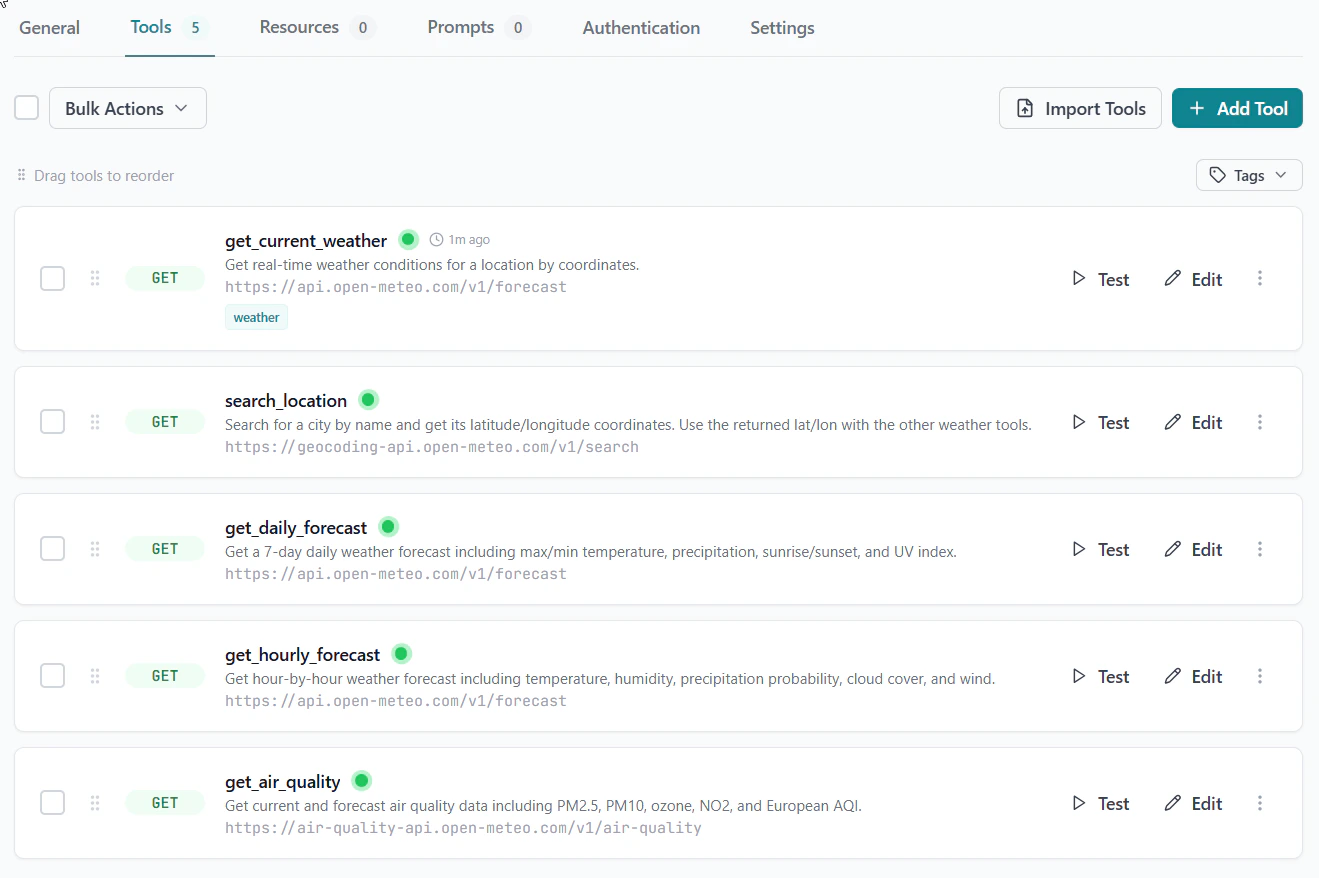
The newly created tools from the template are listed here.
Each template requires a different credential format. Refer to the auth instructions shown in the install modal (or visit the service's docs directly). Common formats:
| Auth Type | Example credential field |
| ------------ | ----------------------------------------------------------------------------------------------------------------------------------------------------------- |
| Bearer Token | `sk_live_xxxxxxxxxxxxx` (Stripe), `xoxb-xxxxx` (Slack) |
| API Key | Your API key string |
| Basic Auth | `username:password` or `consumer_key:consumer_secret` |
| OAuth 2.0 | Access token generated via the service's OAuth flow (e.g., Google OAuth Playground). Tokens expire — re-enter a fresh token when the old one stops working. |
Click **Save**. Credentials are encrypted and stored — never exposed in API responses or logs.
Credentials you enter here are your credentials for the external API (e.g., your Stripe key). AI clients connecting to your MCP server use a separate GetMCP API key to authenticate **with** the server — they never see your external API credentials.
***
## Testing After Install
Once credentials are saved, verify your tools work using the built-in test panel or MCP Inspector.
### Quick Test via Admin Panel
The newly created tools from the template are listed here.
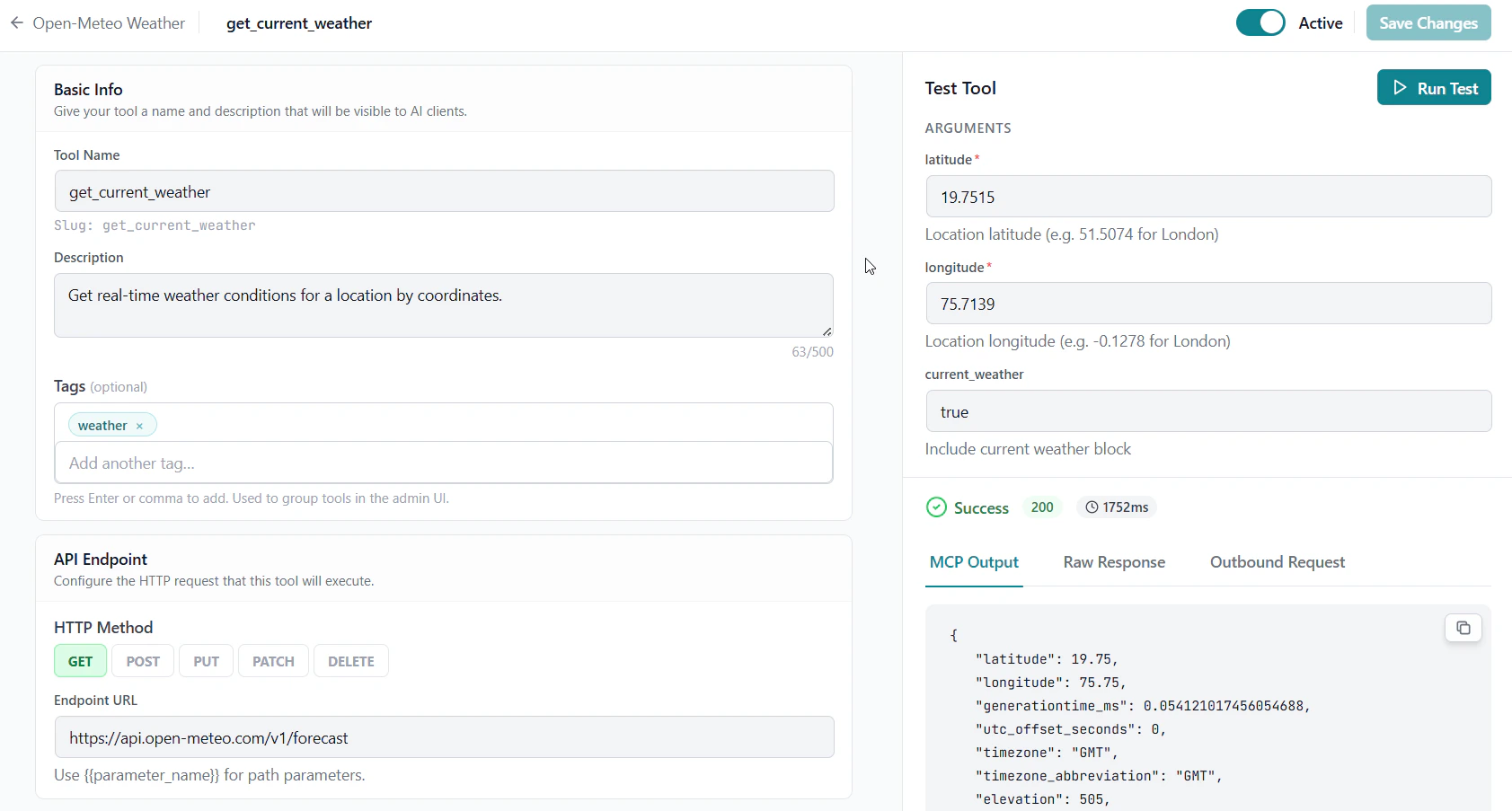
 Open a tool and scroll to the **Test** panel on the right.
Enter test argument values and click **Execute Test**. You should see the external API response and the final MCP output.
Open a tool and scroll to the **Test** panel on the right.
Enter test argument values and click **Execute Test**. You should see the external API response and the final MCP output.
 ### Test via MCP Inspector
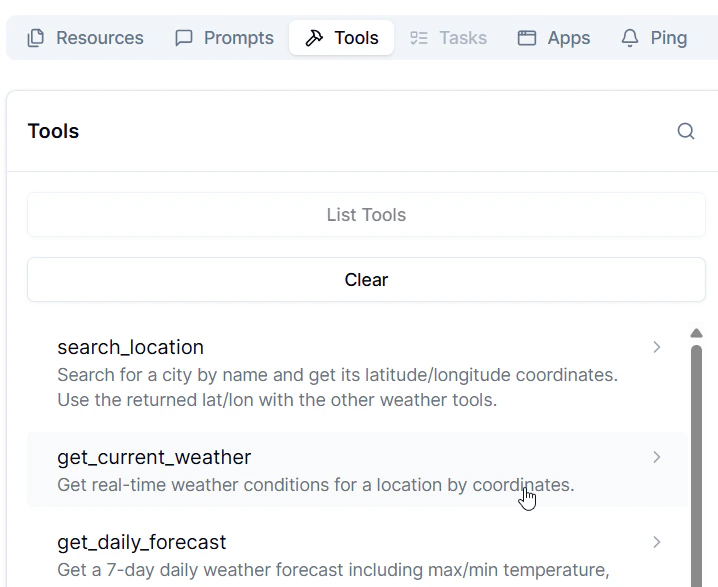
Connect the [MCP Inspector](/docs/guides/mcp-inspector) to your server URL, navigate to the **Tools** tab, and call any tool interactively.
### Test via MCP Inspector
Connect the [MCP Inspector](/docs/guides/mcp-inspector) to your server URL, navigate to the **Tools** tab, and call any tool interactively.
 ***
## Customizing an Installed Template
Templates are a starting point. Every generated tool can be freely edited — parameters, endpoint URLs, response mappings, timeouts, and more.
Click **Edit** next to any tool.
Open a tool — the editor shows the pre-filled configuration (endpoint URL, parameters, response mappings) that the template generated. Modify any field as needed.
Changes take effect immediately — connected AI clients will see the updated tool on their next `tools/list` request.
***
## Troubleshooting
A warning toast shows which specific tools failed. This is rare and usually means the template data was malformed. Try uninstalling (deleting the server) and re-installing the template.
Your credentials were not saved or are incorrect. Go to the server's **Authentication** tab, re-enter your credentials, and save. Double-check the format (e.g., `consumer_key:consumer_secret` for WooCommerce, not just the key alone).
Your credentials are valid but lack the required permissions/scopes. Return to the service's credentials dashboard and ensure the token has the necessary scopes (e.g., Slack bot scopes, GitHub repo access, Stripe permissions). Then generate a new token and update it in the Authentication tab.
Open-Meteo tools require valid latitude/longitude coordinates or a city name depending on the tool. Use `search_location` first to get coordinates, then pass them to `get_current_weather` or forecast tools.
Google OAuth access tokens expire after 1 hour. Generate a new access token via the [OAuth 2.0 Playground](https://developers.google.com/oauthplayground/) and update it in the Authentication tab.
***
## Customizing an Installed Template
Templates are a starting point. Every generated tool can be freely edited — parameters, endpoint URLs, response mappings, timeouts, and more.
Click **Edit** next to any tool.
Open a tool — the editor shows the pre-filled configuration (endpoint URL, parameters, response mappings) that the template generated. Modify any field as needed.
Changes take effect immediately — connected AI clients will see the updated tool on their next `tools/list` request.
***
## Troubleshooting
A warning toast shows which specific tools failed. This is rare and usually means the template data was malformed. Try uninstalling (deleting the server) and re-installing the template.
Your credentials were not saved or are incorrect. Go to the server's **Authentication** tab, re-enter your credentials, and save. Double-check the format (e.g., `consumer_key:consumer_secret` for WooCommerce, not just the key alone).
Your credentials are valid but lack the required permissions/scopes. Return to the service's credentials dashboard and ensure the token has the necessary scopes (e.g., Slack bot scopes, GitHub repo access, Stripe permissions). Then generate a new token and update it in the Authentication tab.
Open-Meteo tools require valid latitude/longitude coordinates or a city name depending on the tool. Use `search_location` first to get coordinates, then pass them to `get_current_weather` or forecast tools.
Google OAuth access tokens expire after 1 hour. Generate a new access token via the [OAuth 2.0 Playground](https://developers.google.com/oauthplayground/) and update it in the Authentication tab.