> ## Documentation Index
> Fetch the complete documentation index at: https://docs.getmcp.com/llms.txt
> Use this file to discover all available pages before exploring further.
# Postman Import
> Import requests from a Postman 2.1 collection and generate tools automatically.
## Overview
The Postman Import feature reads a Postman Collection 2.1 file and turns every request into a GetMCP tool. Postman collections organize requests in folders — GetMCP walks the full folder tree and uses the folder path as tool tags, so your collection structure is preserved.
This is useful when:
* Your team already uses Postman to document and test your API
* You want to expose an existing collection as MCP tools without re-configuring each request
* You use Postman environments and want to migrate variable-based URLs to tool parameters
## How to Use
 In Postman, right-click the collection → **Export** → select **Collection v2.1** → save the JSON file.
You can also use a public share link if the collection is published.
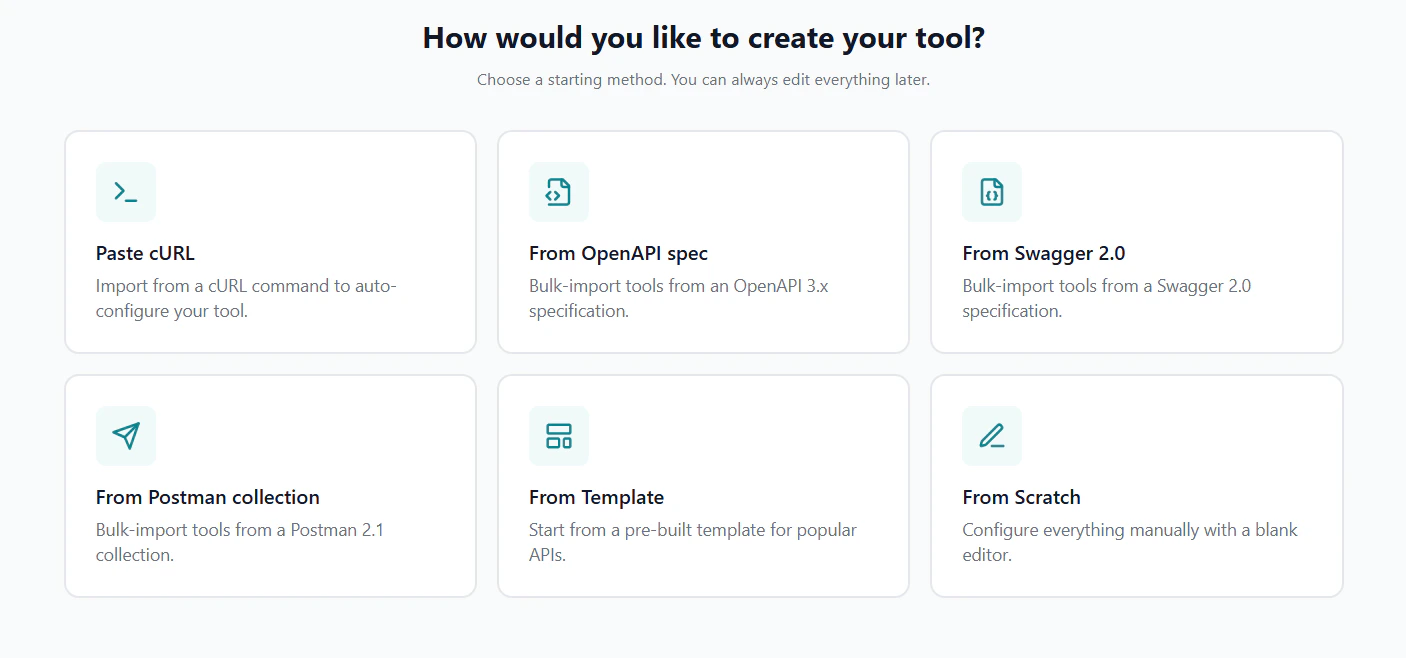
Navigate to your server's **Tools** tab, click the **Import** dropdown, and select **Postman Collection**.
Choose how to provide the collection JSON.
In Postman, right-click the collection → **Export** → select **Collection v2.1** → save the JSON file.
You can also use a public share link if the collection is published.
Navigate to your server's **Tools** tab, click the **Import** dropdown, and select **Postman Collection**.
Choose how to provide the collection JSON.
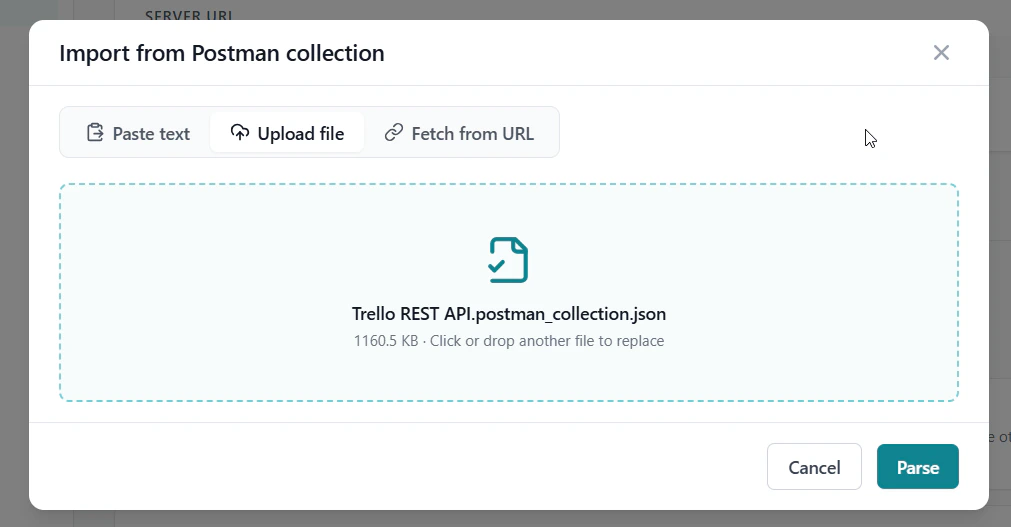 **Paste text** — paste the exported JSON directly.
**Upload file** — drag and drop or select the `.json` file (up to 10 MB).
**Fetch from URL** — enter a public Postman share URL or raw JSON URL.
Then click **Parse**.
GetMCP shows all requests found in the collection — including those nested inside folders. Each request shows its method, path, and the folder it lives in.
**Paste text** — paste the exported JSON directly.
**Upload file** — drag and drop or select the `.json` file (up to 10 MB).
**Fetch from URL** — enter a public Postman share URL or raw JSON URL.
Then click **Parse**.
GetMCP shows all requests found in the collection — including those nested inside folders. Each request shows its method, path, and the folder it lives in.
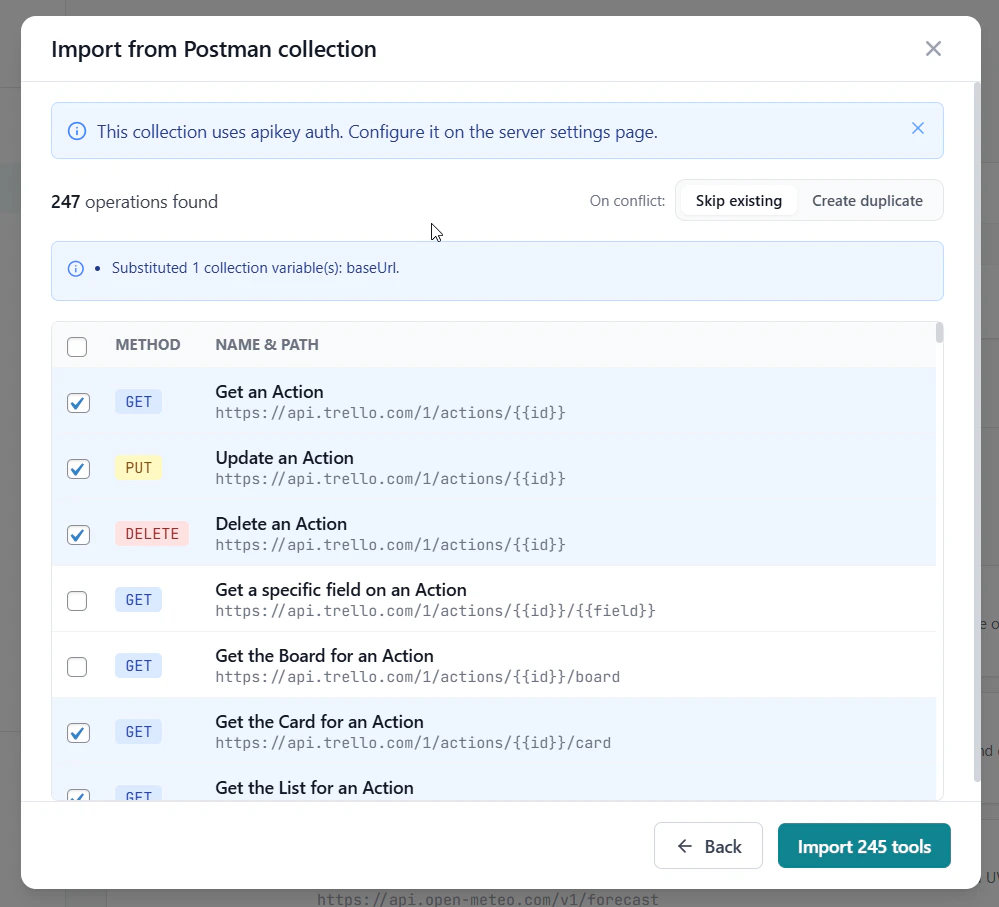 * Check or uncheck individual requests
* Folder structure is shown in the tags column
* Set **On conflict** to skip existing tools or create duplicates
Click **Import N tools** when ready.
The result screen shows how many tools were created, skipped, or failed. Click **Done** to return to the tools list.
## What Gets Imported
| Collection Field | Imported As |
| ------------------------------------ | -------------------------------------------------------- |
| Request `name` | Tool name |
| Request `description` | Tool description |
| HTTP method | HTTP Method |
| Request URL (resolved) | Endpoint URL |
| URL path variables (`:param` syntax) | Path parameters mapped to Path, converted to `{{param}}` |
| URL query params | Input parameters mapped to Query String |
| JSON body fields | Input parameters mapped to Request Body |
| Form data fields | Input parameters mapped to Request Body |
| URL-encoded body fields | Input parameters mapped to Request Body |
| Folder path | Tool tags (for grouping in admin) |
| Auth headers | Detected and noted — stripped from tool headers |
Auth headers (`Authorization`, `X-API-Key`, `Cookie`, etc.) are stripped from the imported tool's custom headers. Auth is noted in the preview and you configure it after import in **Server Settings → Authentication**.
## Postman Variables
Postman collections use `{{variable}}` syntax for environment variables. GetMCP preserves `{{variable}}` placeholders in imported URLs — they become path or query parameters you can configure.
For example, a Postman URL like:
```
https://{{base_url}}/v1/users/{{user_id}}
```
Becomes an endpoint URL:
```
https://{{base_url}}/v1/users/{{user_id}}
```
With `base_url` and `user_id` extracted as input parameters.
## Tips
Postman's `:param` path syntax (e.g. `/users/:id`) is automatically converted to GetMCP's `{{param}}` syntax. You don't need to change anything in Postman before exporting.
Use Postman folders to organize your collection before exporting. GetMCP maps folder names to tool tags, making it easy to filter tools by API area in the admin.
Only **Postman Collection v2.1** format is supported. If you have an older v1 collection, open it in Postman and re-export as v2.1 before importing.
* Check or uncheck individual requests
* Folder structure is shown in the tags column
* Set **On conflict** to skip existing tools or create duplicates
Click **Import N tools** when ready.
The result screen shows how many tools were created, skipped, or failed. Click **Done** to return to the tools list.
## What Gets Imported
| Collection Field | Imported As |
| ------------------------------------ | -------------------------------------------------------- |
| Request `name` | Tool name |
| Request `description` | Tool description |
| HTTP method | HTTP Method |
| Request URL (resolved) | Endpoint URL |
| URL path variables (`:param` syntax) | Path parameters mapped to Path, converted to `{{param}}` |
| URL query params | Input parameters mapped to Query String |
| JSON body fields | Input parameters mapped to Request Body |
| Form data fields | Input parameters mapped to Request Body |
| URL-encoded body fields | Input parameters mapped to Request Body |
| Folder path | Tool tags (for grouping in admin) |
| Auth headers | Detected and noted — stripped from tool headers |
Auth headers (`Authorization`, `X-API-Key`, `Cookie`, etc.) are stripped from the imported tool's custom headers. Auth is noted in the preview and you configure it after import in **Server Settings → Authentication**.
## Postman Variables
Postman collections use `{{variable}}` syntax for environment variables. GetMCP preserves `{{variable}}` placeholders in imported URLs — they become path or query parameters you can configure.
For example, a Postman URL like:
```
https://{{base_url}}/v1/users/{{user_id}}
```
Becomes an endpoint URL:
```
https://{{base_url}}/v1/users/{{user_id}}
```
With `base_url` and `user_id` extracted as input parameters.
## Tips
Postman's `:param` path syntax (e.g. `/users/:id`) is automatically converted to GetMCP's `{{param}}` syntax. You don't need to change anything in Postman before exporting.
Use Postman folders to organize your collection before exporting. GetMCP maps folder names to tool tags, making it easy to filter tools by API area in the admin.
Only **Postman Collection v2.1** format is supported. If you have an older v1 collection, open it in Postman and re-export as v2.1 before importing.