> ## Documentation Index
> Fetch the complete documentation index at: https://docs.getmcp.com/llms.txt
> Use this file to discover all available pages before exploring further.
# MCP Inspector
> Debug and test your GetMCP server interactively before connecting any AI client.
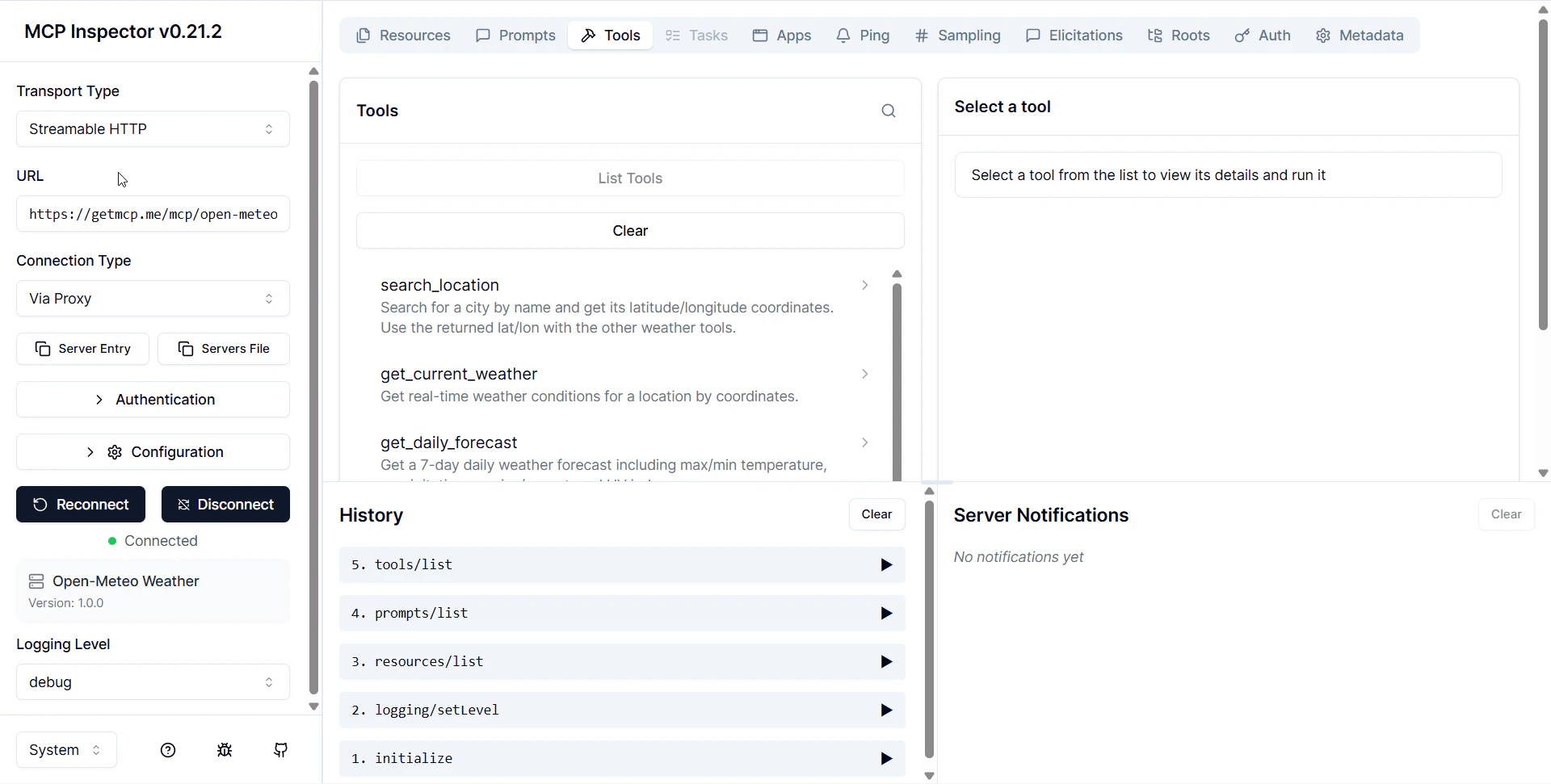
MCP Inspector is an official developer tool from Anthropic that gives you a live, interactive view into any MCP server. Connect it to your GetMCP server to browse tools, call them manually, inspect raw JSON-RPC messages, and verify everything works — before you involve Claude, Cursor, or any other client.
Think of it as Postman, but purpose-built for the MCP protocol.
 ***
## Why Use It
* **Verify tools are configured correctly** — see exactly what `tools/list` returns to AI clients
* **Test tool calls manually** — fill in arguments and see the raw response your API returns
* **Debug authentication** — confirm your server URL, inbound auth, and Custom Headers all work
* **Inspect protocol messages** — see the exact JSON-RPC requests and responses
* **Catch problems before users do** — faster than connecting Claude Desktop and asking it questions
***
## Prerequisites
* Node.js 18+ installed ([nodejs.org](https://nodejs.org))
* A GetMCP server that is set to **Active** status
* Your server's MCP endpoint URL (from the server detail page)
***
## Launch Inspector
MCP Inspector runs entirely in your browser via `npx` — no installation required:
```bash theme={null}
npx @modelcontextprotocol/inspector
```
Your browser opens automatically at `http://localhost:5173`.
***
## Connect to Your GetMCP Server
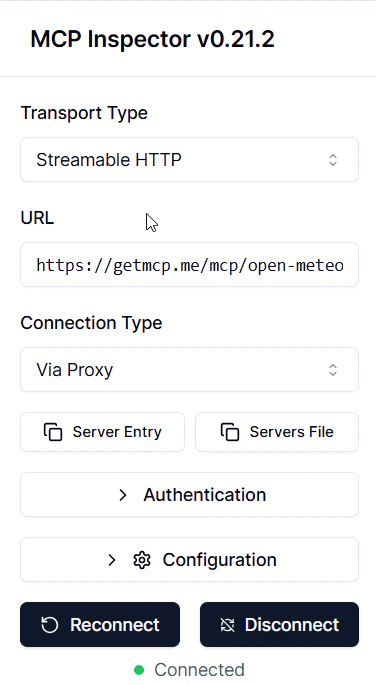
In the **Transport** dropdown, select **Streamable HTTP**.
Paste your GetMCP server URL into the **URL** field:
```
https://yoursite.com/mcp/{server-slug}
```
Your URL is on the server detail page in GetMCP admin.
If your server has inbound authentication enabled, click **Add Header** and enter:
| Header | Value |
| --------------- | ------------------- |
| `Authorization` | `Bearer YOUR_TOKEN` |
Leave this blank if your server uses `none` auth type.
Click the **Connect** button. Inspector runs the `initialize` handshake and negotiates the protocol version. A green status indicator confirms the connection.
***
## Why Use It
* **Verify tools are configured correctly** — see exactly what `tools/list` returns to AI clients
* **Test tool calls manually** — fill in arguments and see the raw response your API returns
* **Debug authentication** — confirm your server URL, inbound auth, and Custom Headers all work
* **Inspect protocol messages** — see the exact JSON-RPC requests and responses
* **Catch problems before users do** — faster than connecting Claude Desktop and asking it questions
***
## Prerequisites
* Node.js 18+ installed ([nodejs.org](https://nodejs.org))
* A GetMCP server that is set to **Active** status
* Your server's MCP endpoint URL (from the server detail page)
***
## Launch Inspector
MCP Inspector runs entirely in your browser via `npx` — no installation required:
```bash theme={null}
npx @modelcontextprotocol/inspector
```
Your browser opens automatically at `http://localhost:5173`.
***
## Connect to Your GetMCP Server
In the **Transport** dropdown, select **Streamable HTTP**.
Paste your GetMCP server URL into the **URL** field:
```
https://yoursite.com/mcp/{server-slug}
```
Your URL is on the server detail page in GetMCP admin.
If your server has inbound authentication enabled, click **Add Header** and enter:
| Header | Value |
| --------------- | ------------------- |
| `Authorization` | `Bearer YOUR_TOKEN` |
Leave this blank if your server uses `none` auth type.
Click the **Connect** button. Inspector runs the `initialize` handshake and negotiates the protocol version. A green status indicator confirms the connection.
 ***
## Browse Your Tools
Click the **Tools** tab to see every tool `tools/list` returns — exactly what Claude or Cursor sees when they connect.
***
## Browse Your Tools
Click the **Tools** tab to see every tool `tools/list` returns — exactly what Claude or Cursor sees when they connect.
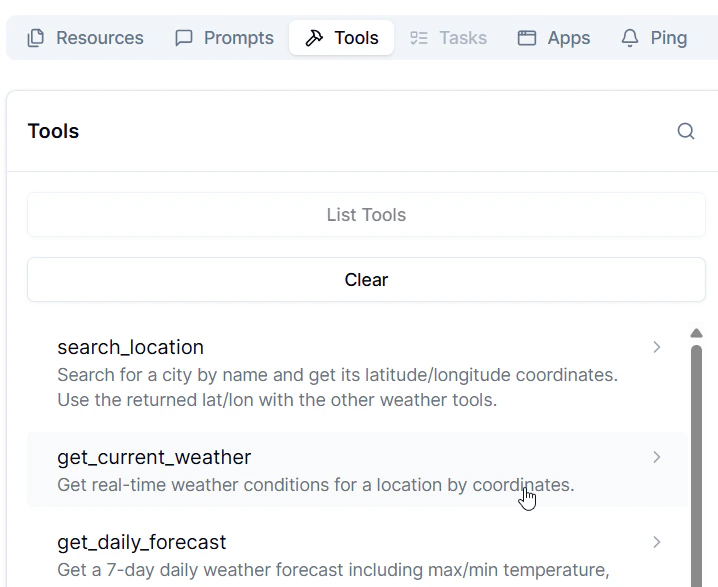 For each tool you can see:
* **Name** — the `snake_case` identifier
* **Description** — what you wrote (this is what the AI reads)
* **Input Schema** — the JSON Schema defining accepted parameters
***
## Call a Tool
Select a tool from the list. The input form renders automatically from the tool's JSON Schema.
Enter values for each parameter. Required fields are marked.
For each tool you can see:
* **Name** — the `snake_case` identifier
* **Description** — what you wrote (this is what the AI reads)
* **Input Schema** — the JSON Schema defining accepted parameters
***
## Call a Tool
Select a tool from the list. The input form renders automatically from the tool's JSON Schema.
Enter values for each parameter. Required fields are marked.
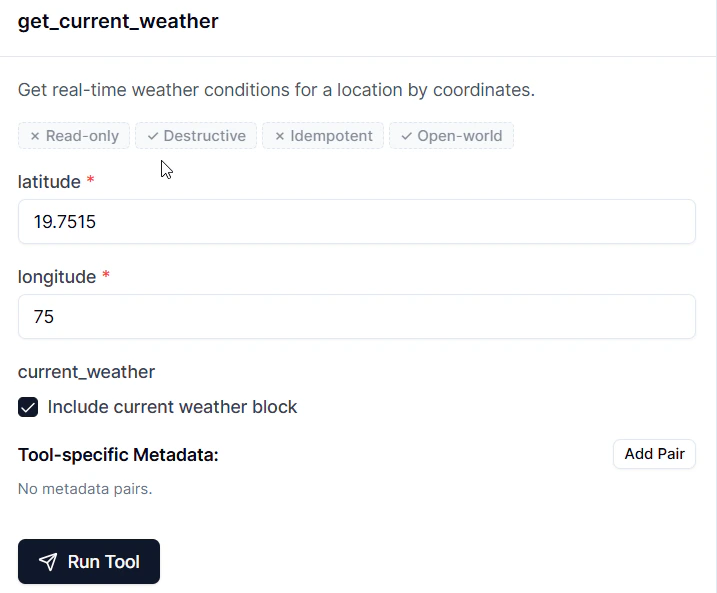 Inspector sends a `tools/call` JSON-RPC request and displays the full response.
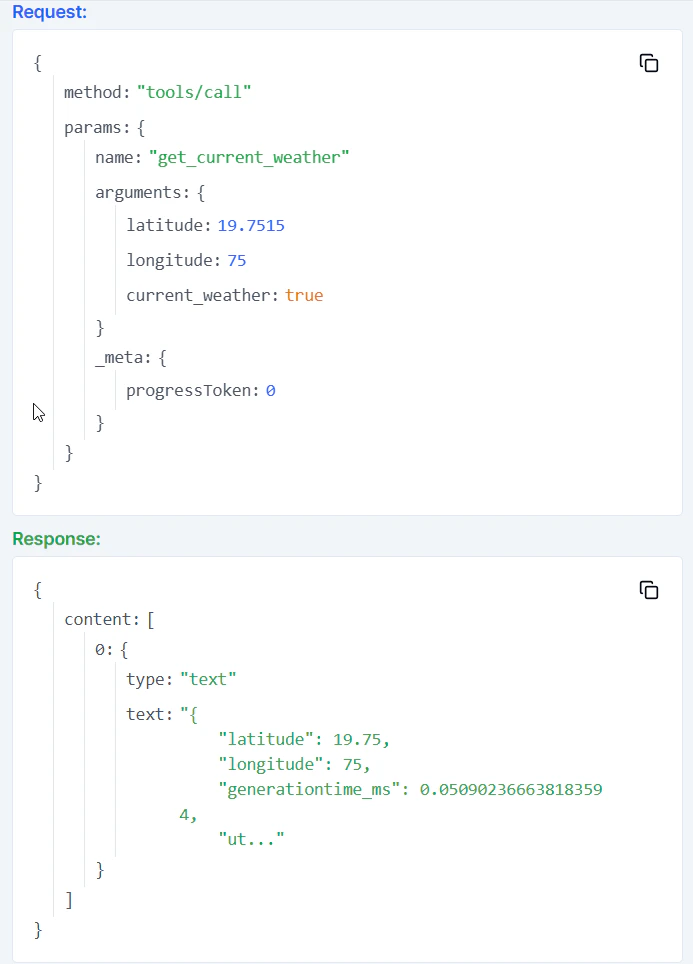 The response panel shows the raw JSON-RPC response — including the API data returned in `result.content[0].text`. You can see exactly what an AI client receives.
***
## Browse Resources and Prompts
**Resources tab** — Lists all resources via `resources/list`. Click any resource to call `resources/read` and see its content.
**Prompts tab** — Lists all prompt templates via `prompts/list`. Click a prompt, fill in argument values, and call `prompts/get` to see the fully rendered prompt text.
***
## Inspect Raw Messages
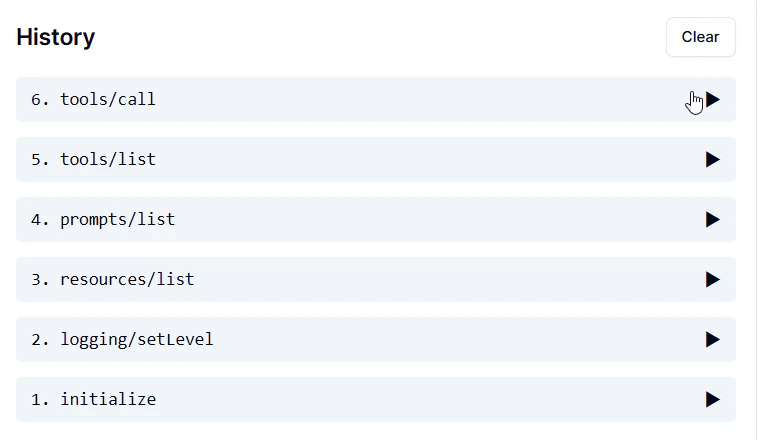
Click the **History** or **Messages** panel to see every JSON-RPC request and response as raw JSON. This is the exact protocol traffic your GetMCP server exchanges with AI clients.
Useful for:
* Confirming the `initialize` capability negotiation is correct
* Checking that tool input schemas are valid JSON Schema
* Verifying error response formats when something goes wrong
The response panel shows the raw JSON-RPC response — including the API data returned in `result.content[0].text`. You can see exactly what an AI client receives.
***
## Browse Resources and Prompts
**Resources tab** — Lists all resources via `resources/list`. Click any resource to call `resources/read` and see its content.
**Prompts tab** — Lists all prompt templates via `prompts/list`. Click a prompt, fill in argument values, and call `prompts/get` to see the fully rendered prompt text.
***
## Inspect Raw Messages
Click the **History** or **Messages** panel to see every JSON-RPC request and response as raw JSON. This is the exact protocol traffic your GetMCP server exchanges with AI clients.
Useful for:
* Confirming the `initialize` capability negotiation is correct
* Checking that tool input schemas are valid JSON Schema
* Verifying error response formats when something goes wrong
 ***
## Troubleshooting
* Confirm your WordPress site is reachable over HTTPS
* Check the server status is **Active** in GetMCP admin
* Verify the URL — the slug must be exact
* Flush WordPress permalinks: **Settings → Permalinks → Save Changes**
Your server has inbound authentication enabled. Add the `Authorization` header in Inspector's header configuration before clicking Connect. The value must match exactly what you set in the server's Authentication tab.
All tools are set to **Paused** status. Go to GetMCP admin → Tools tab and set at least one tool to **Active**.
The error message is in `result.content[0].text`. Common causes:
* API key missing or expired — check Custom Headers in the tool's Advanced Settings
* API endpoint URL typo — verify the endpoint in the tool editor
* Missing required parameter — confirm your test arguments match the input schema
Ensure Node.js 18 or higher is installed: `node --version`. If outdated, download from [nodejs.org](https://nodejs.org).
***
MCP Inspector is maintained by Anthropic as part of the official MCP project. Source code and docs: [github.com/modelcontextprotocol/inspector](https://github.com/modelcontextprotocol/inspector)
***
## Troubleshooting
* Confirm your WordPress site is reachable over HTTPS
* Check the server status is **Active** in GetMCP admin
* Verify the URL — the slug must be exact
* Flush WordPress permalinks: **Settings → Permalinks → Save Changes**
Your server has inbound authentication enabled. Add the `Authorization` header in Inspector's header configuration before clicking Connect. The value must match exactly what you set in the server's Authentication tab.
All tools are set to **Paused** status. Go to GetMCP admin → Tools tab and set at least one tool to **Active**.
The error message is in `result.content[0].text`. Common causes:
* API key missing or expired — check Custom Headers in the tool's Advanced Settings
* API endpoint URL typo — verify the endpoint in the tool editor
* Missing required parameter — confirm your test arguments match the input schema
Ensure Node.js 18 or higher is installed: `node --version`. If outdated, download from [nodejs.org](https://nodejs.org).
***
MCP Inspector is maintained by Anthropic as part of the official MCP project. Source code and docs: [github.com/modelcontextprotocol/inspector](https://github.com/modelcontextprotocol/inspector)