> ## Documentation Index
> Fetch the complete documentation index at: https://docs.getmcp.com/llms.txt
> Use this file to discover all available pages before exploring further.
# cURL Import
> Import existing API calls directly from cURL commands to auto-generate tool configurations.
## Overview
The cURL Import feature lets you create tool configurations instantly from `curl` commands. Instead of manually filling in the URL, method, headers, parameters, and body, paste a curl command and GetMCP parses it automatically — then shows you an interactive preview to review and adjust before importing.
This is useful when:
* You have a working curl command from an API's documentation
* You've captured a request from your browser's developer tools
* You're migrating existing API integrations to GetMCP
## How to Use
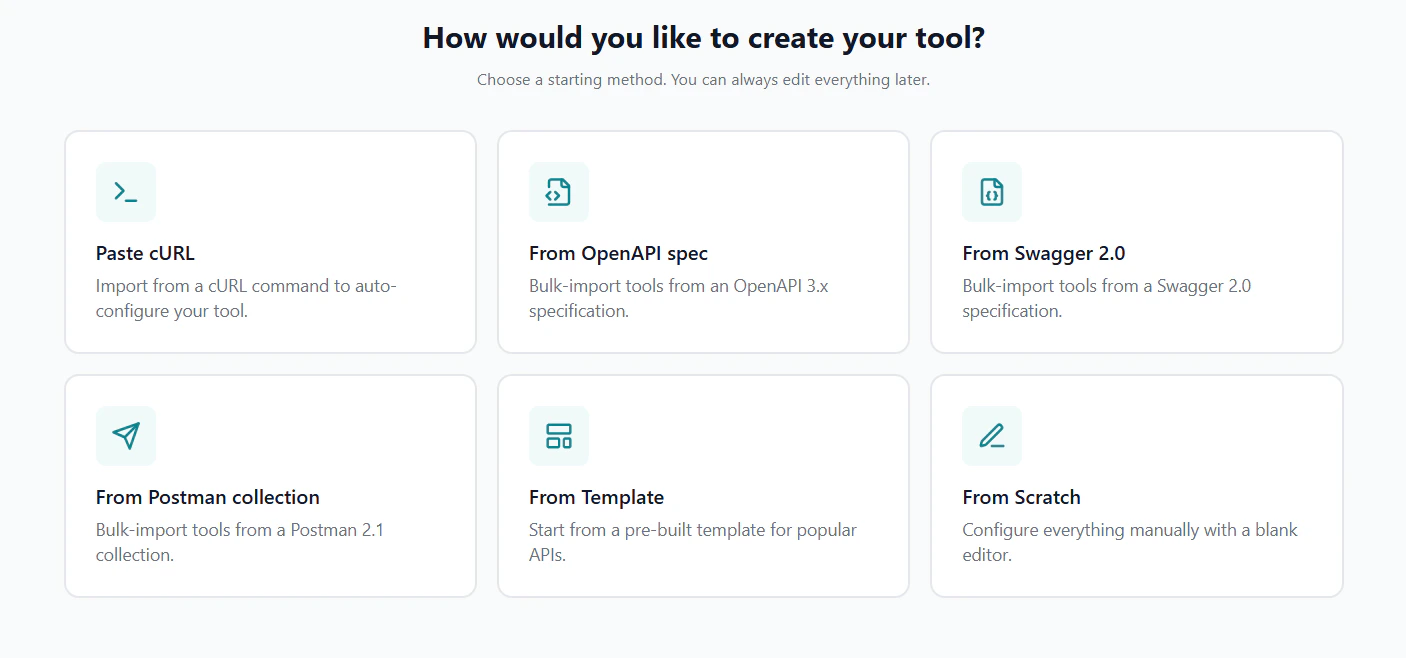 Navigate to your server's **Tools** tab, click **Add Tool**, then select **Import from cURL**. You can also use the **Re-import from cURL** button inside any existing tool editor to overwrite its configuration.
Paste your curl command into the textarea. Multi-line commands with `\` continuations are supported. Example:
```bash theme={null}
curl -X GET https://api.open-meteo.com/v1/forecast?latitude=35&longitude=139¤t_weather=true \
-H "Content-Type: application/json" \
```
Navigate to your server's **Tools** tab, click **Add Tool**, then select **Import from cURL**. You can also use the **Re-import from cURL** button inside any existing tool editor to overwrite its configuration.
Paste your curl command into the textarea. Multi-line commands with `\` continuations are supported. Example:
```bash theme={null}
curl -X GET https://api.open-meteo.com/v1/forecast?latitude=35&longitude=139¤t_weather=true \
-H "Content-Type: application/json" \
```
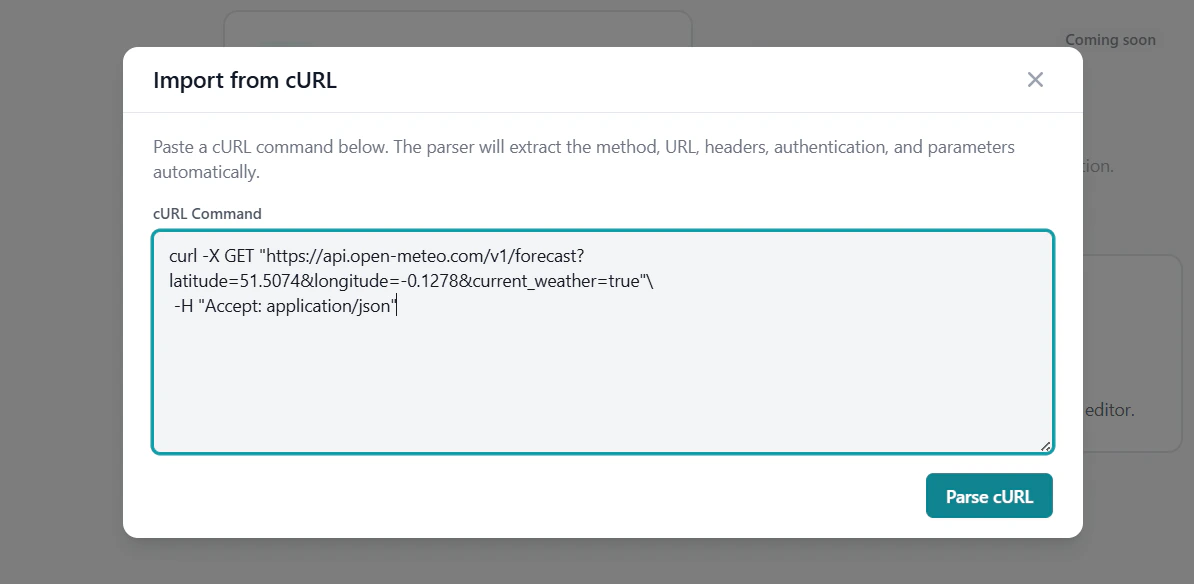 Click the **Parse cURL** button. GetMCP parses the command and shows an interactive preview with the detected method, URL, headers, auth, and a parameter table you can edit before importing.
The preview shows the detected method, auth, URL, and an editable parameter table. You can:
* Toggle each parameter's **Required** flag
* Change the auto-detected **Type**
* Remove parameters you don't need
Click the **Parse cURL** button. GetMCP parses the command and shows an interactive preview with the detected method, URL, headers, auth, and a parameter table you can edit before importing.
The preview shows the detected method, auth, URL, and an editable parameter table. You can:
* Toggle each parameter's **Required** flag
* Change the auto-detected **Type**
* Remove parameters you don't need
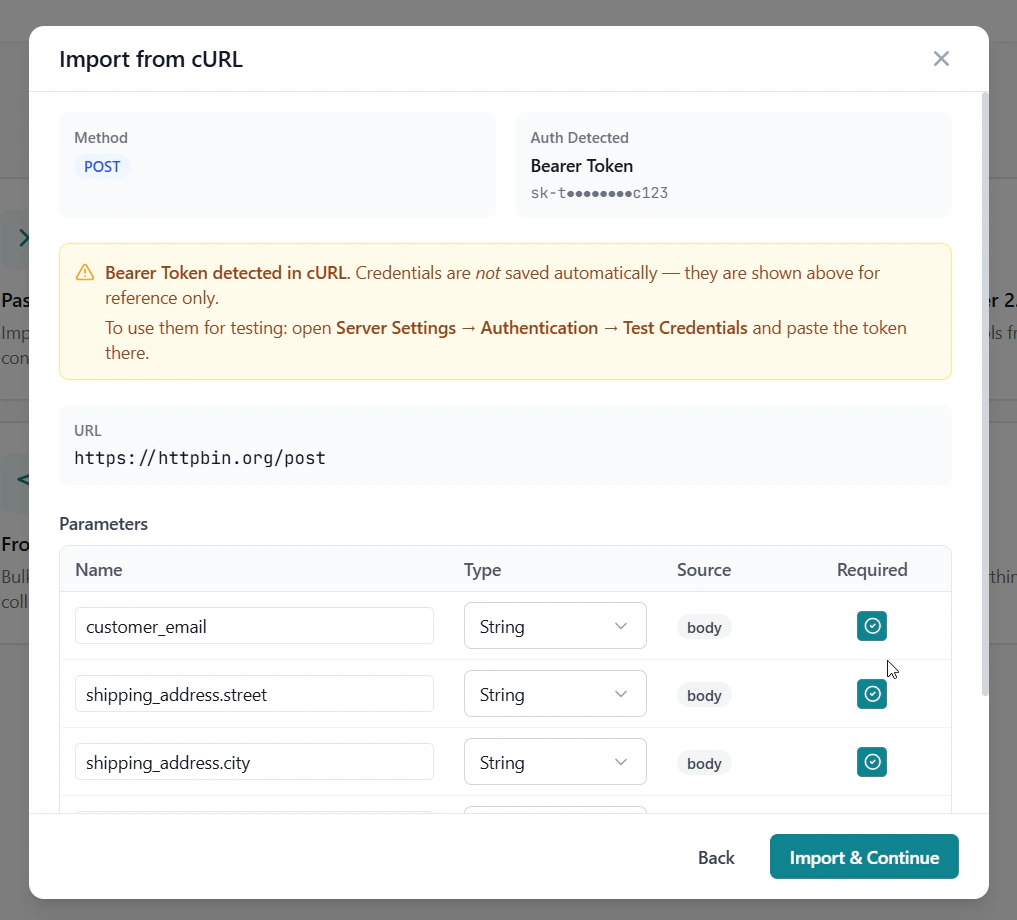 When satisfied, click **Import & Continue** to create the tool, or **Back** to edit the cURL command.
## What Gets Parsed
| cURL Element | Mapped To | Notes |
| ----------------------------------------------- | ------------------------- | ------------------------------------------------------ |
| URL (base path) | Endpoint URL | Query string extracted separately |
| `-X` / `--request` | HTTP Method | Defaults to GET if omitted |
| `-H` / `--header` | Custom Headers | All non-auth headers |
| `-H "Authorization: Bearer "` | Auth Type → Bearer Token | Type detected; **credentials entered manually** |
| `-H "Authorization: Basic "` | Auth Type → Basic Auth | Type detected; **credentials entered manually** |
| `-H "X-API-Key: "` or `-H "apikey: "` | Auth Type → API Key | Type detected; **credentials entered manually** |
| `-u user:pass` / `--user` | Auth Type → Basic Auth | Type detected; **credentials entered manually** |
| `-d` / `--data` / `--data-raw` (JSON body) | Request Body parameters | Top-level fields extracted with auto-detected types |
| `-d` / `--data` (form `key=val&key2=val2`) | Request Body parameters | Each key becomes a parameter |
| `--data-urlencode "key=val"` | Query String parameter | Mapped to Query String, not Request Body |
| URL query string `?key=val&key2=val2` | Query String parameters | Each key extracted with auto-detected types |
| Path segments with IDs (e.g. `/users/12345`) | Path parameter suggestion | GetMCP suggests `{{user_id}}` replacement; you confirm |
| `-k` / `--insecure` | SSL Verification off | Set in Advanced settings |
| `-L` / `--location` | Follow Redirects on | Set in Advanced settings |
| `--connect-timeout` / `--max-time` | Timeout | Set in Advanced settings |
## Authentication Detection
GetMCP detects the authentication **type** from the curl command and pre-selects it in the Auth Type field. **Credentials are not imported** — you must enter your actual API key, token, or password manually after the import.
| Pattern | Detected As | Credentials imported? |
| ------------------------------------ | --------------------- | --------------------- |
| `Authorization: Bearer ` | Bearer Token | No — enter manually |
| `Authorization: Basic ` | Basic Auth | No — enter manually |
| `X-API-Key: ` / `apikey: ` | API Key | No — enter manually |
| `-u user:pass` / `--user user:pass` | Basic Auth | No — enter manually |
| `?api_key=` in URL | API Key (query param) | No — enter manually |
After importing, go to the server's **Authentication** tab to enter your production credentials. For tool testing in the admin panel, enter your test/sandbox credentials in the **Test Credentials** section of the same tab.
## Auto-Detected Parameter Types
GetMCP inspects the parsed values and assigns types automatically. You can change any type in the interactive preview before importing.
| Value Example | Detected Type |
| ----------------------- | ------------------------------------ |
| `"hello"` or any string | `string` |
| `123` (whole number) | `integer` |
| `12.5` (decimal) | `number` |
| `true` / `false` | `boolean` |
| `[...]` | `array` |
| `{...}` | `object` |
| `null` | `string` (default; change as needed) |
Nested JSON objects are recursively flattened into parameters up to 3 levels deep, with correct types assigned to each leaf.
## Supported cURL Formats
The parser handles the full range of real-world curl commands:
* **Single-line** — `curl -X POST https://api.com/data -H "Auth: Bearer xxx" -d '{"key":"val"}'`
* **Multi-line with `\`** — standard format from API docs and browser DevTools
* **Single and double quotes** — both styles around arguments
* **`curl` prefix optional** — paste with or without the leading `curl`
* **Multiple `-H` flags** — on the same or separate lines
* **`-G` flag** — forces GET method; any `-d` data is mapped as Query String parameters instead of body
* **Bash `$'...'` strings** — `--data-raw $'{"key":"value"}'` with escape sequences
* **Escaped characters** — `\'`, `\"`, `\\` handled correctly
* **Auth variants** — `Bearer`, `Basic`, `X-API-Key`, `apikey`, `api-key`, `token`
`--data-binary @filename` (file upload) is not supported. GetMCP will show a friendly error message if this flag is detected.
## Re-import from cURL
The **Re-import from cURL** button is available inside any existing tool editor — not just during initial creation. Use it to overwrite the tool's current configuration from a new curl command. This is useful when an API endpoint changes or you want to refresh the configuration from updated documentation.
## Tips
Copy curl commands directly from your browser's developer tools (Network tab → right-click a request → **Copy as cURL**). This captures the exact headers, auth, and body that the site uses.
After import, replace hardcoded values in the parameter table with descriptive names. For example, rename a detected `user_id` parameter and mark it as required so the AI client always provides it.
Avoid pasting curl commands containing production credentials into shared environments. Although credentials are not imported or stored, they are visible in the curl command text while the import dialog is open.
When satisfied, click **Import & Continue** to create the tool, or **Back** to edit the cURL command.
## What Gets Parsed
| cURL Element | Mapped To | Notes |
| ----------------------------------------------- | ------------------------- | ------------------------------------------------------ |
| URL (base path) | Endpoint URL | Query string extracted separately |
| `-X` / `--request` | HTTP Method | Defaults to GET if omitted |
| `-H` / `--header` | Custom Headers | All non-auth headers |
| `-H "Authorization: Bearer "` | Auth Type → Bearer Token | Type detected; **credentials entered manually** |
| `-H "Authorization: Basic "` | Auth Type → Basic Auth | Type detected; **credentials entered manually** |
| `-H "X-API-Key: "` or `-H "apikey: "` | Auth Type → API Key | Type detected; **credentials entered manually** |
| `-u user:pass` / `--user` | Auth Type → Basic Auth | Type detected; **credentials entered manually** |
| `-d` / `--data` / `--data-raw` (JSON body) | Request Body parameters | Top-level fields extracted with auto-detected types |
| `-d` / `--data` (form `key=val&key2=val2`) | Request Body parameters | Each key becomes a parameter |
| `--data-urlencode "key=val"` | Query String parameter | Mapped to Query String, not Request Body |
| URL query string `?key=val&key2=val2` | Query String parameters | Each key extracted with auto-detected types |
| Path segments with IDs (e.g. `/users/12345`) | Path parameter suggestion | GetMCP suggests `{{user_id}}` replacement; you confirm |
| `-k` / `--insecure` | SSL Verification off | Set in Advanced settings |
| `-L` / `--location` | Follow Redirects on | Set in Advanced settings |
| `--connect-timeout` / `--max-time` | Timeout | Set in Advanced settings |
## Authentication Detection
GetMCP detects the authentication **type** from the curl command and pre-selects it in the Auth Type field. **Credentials are not imported** — you must enter your actual API key, token, or password manually after the import.
| Pattern | Detected As | Credentials imported? |
| ------------------------------------ | --------------------- | --------------------- |
| `Authorization: Bearer ` | Bearer Token | No — enter manually |
| `Authorization: Basic ` | Basic Auth | No — enter manually |
| `X-API-Key: ` / `apikey: ` | API Key | No — enter manually |
| `-u user:pass` / `--user user:pass` | Basic Auth | No — enter manually |
| `?api_key=` in URL | API Key (query param) | No — enter manually |
After importing, go to the server's **Authentication** tab to enter your production credentials. For tool testing in the admin panel, enter your test/sandbox credentials in the **Test Credentials** section of the same tab.
## Auto-Detected Parameter Types
GetMCP inspects the parsed values and assigns types automatically. You can change any type in the interactive preview before importing.
| Value Example | Detected Type |
| ----------------------- | ------------------------------------ |
| `"hello"` or any string | `string` |
| `123` (whole number) | `integer` |
| `12.5` (decimal) | `number` |
| `true` / `false` | `boolean` |
| `[...]` | `array` |
| `{...}` | `object` |
| `null` | `string` (default; change as needed) |
Nested JSON objects are recursively flattened into parameters up to 3 levels deep, with correct types assigned to each leaf.
## Supported cURL Formats
The parser handles the full range of real-world curl commands:
* **Single-line** — `curl -X POST https://api.com/data -H "Auth: Bearer xxx" -d '{"key":"val"}'`
* **Multi-line with `\`** — standard format from API docs and browser DevTools
* **Single and double quotes** — both styles around arguments
* **`curl` prefix optional** — paste with or without the leading `curl`
* **Multiple `-H` flags** — on the same or separate lines
* **`-G` flag** — forces GET method; any `-d` data is mapped as Query String parameters instead of body
* **Bash `$'...'` strings** — `--data-raw $'{"key":"value"}'` with escape sequences
* **Escaped characters** — `\'`, `\"`, `\\` handled correctly
* **Auth variants** — `Bearer`, `Basic`, `X-API-Key`, `apikey`, `api-key`, `token`
`--data-binary @filename` (file upload) is not supported. GetMCP will show a friendly error message if this flag is detected.
## Re-import from cURL
The **Re-import from cURL** button is available inside any existing tool editor — not just during initial creation. Use it to overwrite the tool's current configuration from a new curl command. This is useful when an API endpoint changes or you want to refresh the configuration from updated documentation.
## Tips
Copy curl commands directly from your browser's developer tools (Network tab → right-click a request → **Copy as cURL**). This captures the exact headers, auth, and body that the site uses.
After import, replace hardcoded values in the parameter table with descriptive names. For example, rename a detected `user_id` parameter and mark it as required so the AI client always provides it.
Avoid pasting curl commands containing production credentials into shared environments. Although credentials are not imported or stored, they are visible in the curl command text while the import dialog is open.