> ## Documentation Index
> Fetch the complete documentation index at: https://docs.getmcp.com/llms.txt
> Use this file to discover all available pages before exploring further.
# Connecting AI Clients
> How to configure Claude Desktop, Claude Code, Cursor, Windsurf, VS Code, and OpenAI Playground.
## Finding Your Server URL
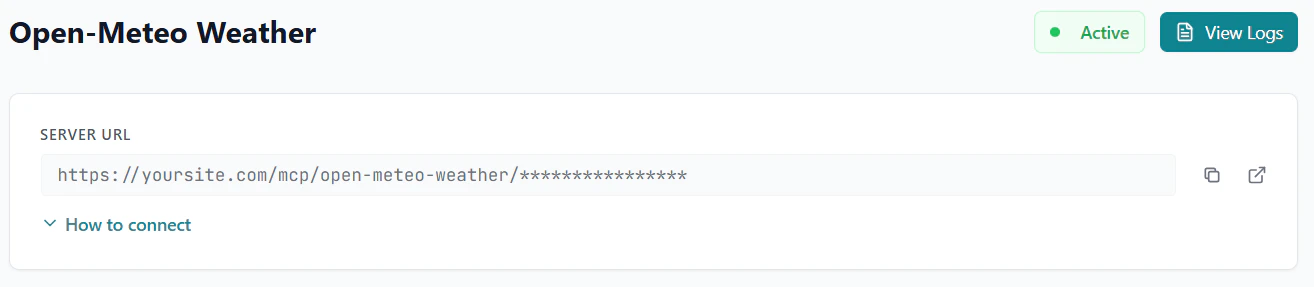
Every GetMCP server has a unique MCP endpoint URL. Find it by:
1. Going to **GetMCP > Dashboard**
2. Clicking on your server
3. Copying the **Server URL** shown at the top of the server detail page
The URL format is:
```text theme={null}
https://yoursite.com/mcp/{slug}
```
 Authentication in your MCP client config serves two purposes: **(1)** sending an access token if your server has inbound authentication enabled, and/or **(2)** supplying your own API credentials that GetMCP forwards to external APIs when tools run. The method differs per client — Claude Desktop uses `--header` args; Cursor, Windsurf, and VS Code use a `headers` JSON object. See [Authentication](/docs/guides/authentication) for a full explanation.
***
## Claude Desktop
**Requires:** Claude Desktop app installed · Node.js 18+ installed (needed for `mcp-remote`)
Open the Claude Desktop app.
* **macOS:** Menu bar → Claude → Settings → Developer → Edit Config
* **Windows:** Breadcrumb menu (top bar) → File → Settings → Developer → Edit Config
The config file opens in a text editor. It is located at:
* **macOS:** `~/Library/Application Support/Claude/claude_desktop_config.json`
* **Windows:** `%APPDATA%\Claude\claude_desktop_config.json`
**No authentication (macOS / Linux):**
```json theme={null}
{
"mcpServers": {
"my-server": {
"command": "npx",
"args": [
"mcp-remote",
"https://yoursite.com/mcp/my-server"
]
}
}
}
```
**No authentication (Windows)** — routes through `cmd.exe` to avoid Node.js path-with-spaces issues:
```json theme={null}
{
"mcpServers": {
"my-server": {
"command": "cmd",
"args": [
"/c",
"npx",
"mcp-remote",
"https://yoursite.com/mcp/my-server"
]
}
}
}
```
If your server has inbound authentication enabled, pass the credential as a `--header` arg (no space after the colon). On Windows, use `cmd /c npx` as shown above and add the `--header` args the same way.
**Bearer token:**
```json theme={null}
{
"mcpServers": {
"my-server": {
"command": "npx",
"args": [
"mcp-remote",
"https://yoursite.com/mcp/my-server",
"--header",
"Authorization:Bearer YOUR_BEARER_TOKEN"
]
}
}
}
```
**Basic auth** (base64-encode `username:password` first):
```json theme={null}
{
"mcpServers": {
"my-server": {
"command": "npx",
"args": [
"mcp-remote",
"https://yoursite.com/mcp/my-server",
"--header",
"Authorization:Basic BASE64_USERNAME_PASSWORD"
]
}
}
}
```
**API key (header):**
```json theme={null}
{
"mcpServers": {
"my-server": {
"command": "npx",
"args": [
"mcp-remote",
"https://yoursite.com/mcp/my-server",
"--header",
"X-API-Key:YOUR_API_KEY"
]
}
}
}
```
**API key (query param) or OAuth:** Use the plain URL — no `--header` needed. For query-param keys, append `?keyName=YOUR_KEY` to the URL. OAuth opens a browser flow automatically.
Closing the window is not enough — fully quit and relaunch. The server will appear in the MCP panel.
Fully quit and restart Claude Desktop after saving — closing the window is not enough.
[Claude Desktop MCP docs](https://support.claude.com/en/articles/10949351-getting-started-with-local-mcp-servers-on-claude-desktop)
***
## Claude Code
**Requires:** Claude Code CLI installed — `npm install -g @anthropic-ai/claude-code`
Open your terminal.
**No authentication:**
```bash theme={null}
claude mcp add --transport http my-server https://yoursite.com/mcp/my-server
```
**Bearer token:**
```bash theme={null}
claude mcp add --transport http my-server https://yoursite.com/mcp/my-server \
--header "Authorization: Bearer YOUR_BEARER_TOKEN"
```
**Basic auth** (base64-encode `username:password` first):
```bash theme={null}
claude mcp add --transport http my-server https://yoursite.com/mcp/my-server \
--header "Authorization: Basic BASE64_USERNAME_PASSWORD"
```
**API key (header):**
```bash theme={null}
claude mcp add --transport http my-server https://yoursite.com/mcp/my-server \
--header "X-API-Key: YOUR_API_KEY"
```
**API key (query param) or OAuth:** Use the plain URL — no `--header` needed. For query-param keys, append `?keyName=YOUR_KEY` to the URL.
Other useful commands:
```bash theme={null}
# List all connected MCP servers
claude mcp list
# Remove a server
claude mcp remove my-server
```
The server is registered right away — no restart needed.
Type `/mcp` in Claude Code to confirm the server is listed and connected.
The server is added immediately — no restart needed.
[Claude Code MCP docs](https://docs.anthropic.com/en/docs/claude-code/mcp)
***
## Cursor
**Requires:** Cursor editor installed
Open Cursor and go to **Settings**.
Navigate to **Tools & MCP**, then click **Add a custom MCP**.
The `mcp.json` config file opens in the editor automatically.
**No authentication:**
```json theme={null}
{
"mcpServers": {
"my-server": {
"url": "https://yoursite.com/mcp/my-server"
}
}
}
```
If your server has inbound authentication enabled, add a `headers` object before `url`:
**Bearer token:**
```json theme={null}
{
"mcpServers": {
"my-server": {
"headers": {
"Authorization": "Bearer YOUR_BEARER_TOKEN"
},
"url": "https://yoursite.com/mcp/my-server"
}
}
}
```
**Basic auth** (base64-encode `username:password` first):
```json theme={null}
{
"mcpServers": {
"my-server": {
"headers": {
"Authorization": "Basic BASE64_USERNAME_PASSWORD"
},
"url": "https://yoursite.com/mcp/my-server"
}
}
}
```
**API key (header):**
```json theme={null}
{
"mcpServers": {
"my-server": {
"headers": {
"X-API-Key": "YOUR_API_KEY"
},
"url": "https://yoursite.com/mcp/my-server"
}
}
}
```
**API key (query param) or OAuth:** No `headers` needed — use the plain URL. For query-param keys, append `?keyName=YOUR_KEY` to the URL.
**File location:** `~/.cursor/mcp.json` (global) · `.cursor/mcp.json` (project)
Restart Cursor after saving to apply the changes.
[Cursor MCP docs](https://docs.cursor.com/context/model-context-protocol)
***
## Windsurf
**Requires:** Windsurf editor installed
Open Windsurf and go to **Settings**.
Click on **Cascade**, then click **Open MCP Registry**.
The `mcp_config.json` config file opens in the editor automatically.
**No authentication:**
```json theme={null}
{
"mcpServers": {
"my-server": {
"serverUrl": "https://yoursite.com/mcp/my-server"
}
}
}
```
If your server has inbound authentication enabled, add a `headers` object before `serverUrl`:
**Bearer token:**
```json theme={null}
{
"mcpServers": {
"my-server": {
"headers": {
"Authorization": "Bearer YOUR_BEARER_TOKEN"
},
"serverUrl": "https://yoursite.com/mcp/my-server"
}
}
}
```
**Basic auth** (base64-encode `username:password` first):
```json theme={null}
{
"mcpServers": {
"my-server": {
"headers": {
"Authorization": "Basic BASE64_USERNAME_PASSWORD"
},
"serverUrl": "https://yoursite.com/mcp/my-server"
}
}
}
```
**API key (header):**
```json theme={null}
{
"mcpServers": {
"my-server": {
"headers": {
"X-API-Key": "YOUR_API_KEY"
},
"serverUrl": "https://yoursite.com/mcp/my-server"
}
}
}
```
**API key (query param) or OAuth:** No `headers` needed — use the plain URL. For query-param keys, append `?keyName=YOUR_KEY` to the URL.
**File location:** `~/.codeium/windsurf/mcp_config.json`
Restart Windsurf after saving to apply the changes.
[Windsurf MCP docs](https://docs.windsurf.com/windsurf/cascade/mcp)
***
## VS Code
**Requires:** VS Code with GitHub Copilot extension installed · Agent mode enabled: VS Code Settings → search "chat agent" → enable
Open (or create) `.vscode/mcp.json` in your project root.
For a global config, open the Command Palette and run **MCP: Open User Configuration**.
**No authentication:**
```json theme={null}
{
"servers": {
"my-server": {
"type": "http",
"url": "https://yoursite.com/mcp/my-server"
}
}
}
```
If your server has inbound authentication enabled, add a `headers` object. VS Code's `${input:}` syntax prompts you to enter the value securely on first use:
**Bearer token:**
```json theme={null}
{
"servers": {
"my-server": {
"type": "http",
"url": "https://yoursite.com/mcp/my-server",
"headers": {
"Authorization": "Bearer ${input:my-server-key}"
}
}
}
}
```
**Basic auth:**
```json theme={null}
{
"servers": {
"my-server": {
"type": "http",
"url": "https://yoursite.com/mcp/my-server",
"headers": {
"Authorization": "Basic ${input:my-server-key}"
}
}
}
}
```
**API key (header):**
```json theme={null}
{
"servers": {
"my-server": {
"type": "http",
"url": "https://yoursite.com/mcp/my-server",
"headers": {
"X-API-Key": "${input:my-server-key}"
}
}
}
}
```
**API key (query param) or OAuth:** No `headers` needed — use the plain URL. For query-param keys, append `?keyName=YOUR_KEY` to the URL.
**File location:** `.vscode/mcp.json` (workspace) · Command Palette → "MCP: Open User Configuration" (global)
Save the file. VS Code picks it up automatically without a restart.
No restart needed — VS Code detects the file automatically on save.
[VS Code MCP docs](https://code.visualstudio.com/docs/copilot/customization/mcp-servers)
***
## OpenAI Playground
Go to [platform.openai.com/playground/prompts](https://platform.openai.com/playground/prompts).
Click the **tools icon** in the left panel, then select **Add MCP server**.
Enter your server URL and a label name.
If your server has authentication enabled (bearer, basic, or API key header), under **Authentication** select **Access token / API key** and paste your token or key value.
For API key query param or OAuth, leave the authentication field empty — the key is appended to the URL or handled via browser flow.
Click **Connect**.
No installation needed — OpenAI Playground connects to remote MCP servers natively.
[OpenAI Playground MCP docs](https://platform.openai.com/docs/guides/tools-mcp)
***
## Generic MCP Client
Any client that supports the MCP Streamable HTTP transport can connect using:
| Setting | Value |
| ---------------- | -------------------------------------------------------------------------------------------------------------------------- |
| **URL** | `https://yoursite.com/mcp/{slug}` |
| **Transport** | Streamable HTTP |
| **Content-Type** | `application/json` |
| **Auth Header** | `Authorization: Bearer YOUR_KEY` (bearer) · `Authorization: Basic BASE64` (basic) · `X-API-Key: YOUR_KEY` (api-key header) |
***
## Verifying the Connection
Once connected, ask your AI client to list available tools:
> "What tools do you have available?"
The AI should respond with the tools configured in your GetMCP server.
You can also verify the connection by checking **GetMCP > Analytics** — a successful MCP `initialize` call will appear in the call logs.
Authentication in your MCP client config serves two purposes: **(1)** sending an access token if your server has inbound authentication enabled, and/or **(2)** supplying your own API credentials that GetMCP forwards to external APIs when tools run. The method differs per client — Claude Desktop uses `--header` args; Cursor, Windsurf, and VS Code use a `headers` JSON object. See [Authentication](/docs/guides/authentication) for a full explanation.
***
## Claude Desktop
**Requires:** Claude Desktop app installed · Node.js 18+ installed (needed for `mcp-remote`)
Open the Claude Desktop app.
* **macOS:** Menu bar → Claude → Settings → Developer → Edit Config
* **Windows:** Breadcrumb menu (top bar) → File → Settings → Developer → Edit Config
The config file opens in a text editor. It is located at:
* **macOS:** `~/Library/Application Support/Claude/claude_desktop_config.json`
* **Windows:** `%APPDATA%\Claude\claude_desktop_config.json`
**No authentication (macOS / Linux):**
```json theme={null}
{
"mcpServers": {
"my-server": {
"command": "npx",
"args": [
"mcp-remote",
"https://yoursite.com/mcp/my-server"
]
}
}
}
```
**No authentication (Windows)** — routes through `cmd.exe` to avoid Node.js path-with-spaces issues:
```json theme={null}
{
"mcpServers": {
"my-server": {
"command": "cmd",
"args": [
"/c",
"npx",
"mcp-remote",
"https://yoursite.com/mcp/my-server"
]
}
}
}
```
If your server has inbound authentication enabled, pass the credential as a `--header` arg (no space after the colon). On Windows, use `cmd /c npx` as shown above and add the `--header` args the same way.
**Bearer token:**
```json theme={null}
{
"mcpServers": {
"my-server": {
"command": "npx",
"args": [
"mcp-remote",
"https://yoursite.com/mcp/my-server",
"--header",
"Authorization:Bearer YOUR_BEARER_TOKEN"
]
}
}
}
```
**Basic auth** (base64-encode `username:password` first):
```json theme={null}
{
"mcpServers": {
"my-server": {
"command": "npx",
"args": [
"mcp-remote",
"https://yoursite.com/mcp/my-server",
"--header",
"Authorization:Basic BASE64_USERNAME_PASSWORD"
]
}
}
}
```
**API key (header):**
```json theme={null}
{
"mcpServers": {
"my-server": {
"command": "npx",
"args": [
"mcp-remote",
"https://yoursite.com/mcp/my-server",
"--header",
"X-API-Key:YOUR_API_KEY"
]
}
}
}
```
**API key (query param) or OAuth:** Use the plain URL — no `--header` needed. For query-param keys, append `?keyName=YOUR_KEY` to the URL. OAuth opens a browser flow automatically.
Closing the window is not enough — fully quit and relaunch. The server will appear in the MCP panel.
Fully quit and restart Claude Desktop after saving — closing the window is not enough.
[Claude Desktop MCP docs](https://support.claude.com/en/articles/10949351-getting-started-with-local-mcp-servers-on-claude-desktop)
***
## Claude Code
**Requires:** Claude Code CLI installed — `npm install -g @anthropic-ai/claude-code`
Open your terminal.
**No authentication:**
```bash theme={null}
claude mcp add --transport http my-server https://yoursite.com/mcp/my-server
```
**Bearer token:**
```bash theme={null}
claude mcp add --transport http my-server https://yoursite.com/mcp/my-server \
--header "Authorization: Bearer YOUR_BEARER_TOKEN"
```
**Basic auth** (base64-encode `username:password` first):
```bash theme={null}
claude mcp add --transport http my-server https://yoursite.com/mcp/my-server \
--header "Authorization: Basic BASE64_USERNAME_PASSWORD"
```
**API key (header):**
```bash theme={null}
claude mcp add --transport http my-server https://yoursite.com/mcp/my-server \
--header "X-API-Key: YOUR_API_KEY"
```
**API key (query param) or OAuth:** Use the plain URL — no `--header` needed. For query-param keys, append `?keyName=YOUR_KEY` to the URL.
Other useful commands:
```bash theme={null}
# List all connected MCP servers
claude mcp list
# Remove a server
claude mcp remove my-server
```
The server is registered right away — no restart needed.
Type `/mcp` in Claude Code to confirm the server is listed and connected.
The server is added immediately — no restart needed.
[Claude Code MCP docs](https://docs.anthropic.com/en/docs/claude-code/mcp)
***
## Cursor
**Requires:** Cursor editor installed
Open Cursor and go to **Settings**.
Navigate to **Tools & MCP**, then click **Add a custom MCP**.
The `mcp.json` config file opens in the editor automatically.
**No authentication:**
```json theme={null}
{
"mcpServers": {
"my-server": {
"url": "https://yoursite.com/mcp/my-server"
}
}
}
```
If your server has inbound authentication enabled, add a `headers` object before `url`:
**Bearer token:**
```json theme={null}
{
"mcpServers": {
"my-server": {
"headers": {
"Authorization": "Bearer YOUR_BEARER_TOKEN"
},
"url": "https://yoursite.com/mcp/my-server"
}
}
}
```
**Basic auth** (base64-encode `username:password` first):
```json theme={null}
{
"mcpServers": {
"my-server": {
"headers": {
"Authorization": "Basic BASE64_USERNAME_PASSWORD"
},
"url": "https://yoursite.com/mcp/my-server"
}
}
}
```
**API key (header):**
```json theme={null}
{
"mcpServers": {
"my-server": {
"headers": {
"X-API-Key": "YOUR_API_KEY"
},
"url": "https://yoursite.com/mcp/my-server"
}
}
}
```
**API key (query param) or OAuth:** No `headers` needed — use the plain URL. For query-param keys, append `?keyName=YOUR_KEY` to the URL.
**File location:** `~/.cursor/mcp.json` (global) · `.cursor/mcp.json` (project)
Restart Cursor after saving to apply the changes.
[Cursor MCP docs](https://docs.cursor.com/context/model-context-protocol)
***
## Windsurf
**Requires:** Windsurf editor installed
Open Windsurf and go to **Settings**.
Click on **Cascade**, then click **Open MCP Registry**.
The `mcp_config.json` config file opens in the editor automatically.
**No authentication:**
```json theme={null}
{
"mcpServers": {
"my-server": {
"serverUrl": "https://yoursite.com/mcp/my-server"
}
}
}
```
If your server has inbound authentication enabled, add a `headers` object before `serverUrl`:
**Bearer token:**
```json theme={null}
{
"mcpServers": {
"my-server": {
"headers": {
"Authorization": "Bearer YOUR_BEARER_TOKEN"
},
"serverUrl": "https://yoursite.com/mcp/my-server"
}
}
}
```
**Basic auth** (base64-encode `username:password` first):
```json theme={null}
{
"mcpServers": {
"my-server": {
"headers": {
"Authorization": "Basic BASE64_USERNAME_PASSWORD"
},
"serverUrl": "https://yoursite.com/mcp/my-server"
}
}
}
```
**API key (header):**
```json theme={null}
{
"mcpServers": {
"my-server": {
"headers": {
"X-API-Key": "YOUR_API_KEY"
},
"serverUrl": "https://yoursite.com/mcp/my-server"
}
}
}
```
**API key (query param) or OAuth:** No `headers` needed — use the plain URL. For query-param keys, append `?keyName=YOUR_KEY` to the URL.
**File location:** `~/.codeium/windsurf/mcp_config.json`
Restart Windsurf after saving to apply the changes.
[Windsurf MCP docs](https://docs.windsurf.com/windsurf/cascade/mcp)
***
## VS Code
**Requires:** VS Code with GitHub Copilot extension installed · Agent mode enabled: VS Code Settings → search "chat agent" → enable
Open (or create) `.vscode/mcp.json` in your project root.
For a global config, open the Command Palette and run **MCP: Open User Configuration**.
**No authentication:**
```json theme={null}
{
"servers": {
"my-server": {
"type": "http",
"url": "https://yoursite.com/mcp/my-server"
}
}
}
```
If your server has inbound authentication enabled, add a `headers` object. VS Code's `${input:}` syntax prompts you to enter the value securely on first use:
**Bearer token:**
```json theme={null}
{
"servers": {
"my-server": {
"type": "http",
"url": "https://yoursite.com/mcp/my-server",
"headers": {
"Authorization": "Bearer ${input:my-server-key}"
}
}
}
}
```
**Basic auth:**
```json theme={null}
{
"servers": {
"my-server": {
"type": "http",
"url": "https://yoursite.com/mcp/my-server",
"headers": {
"Authorization": "Basic ${input:my-server-key}"
}
}
}
}
```
**API key (header):**
```json theme={null}
{
"servers": {
"my-server": {
"type": "http",
"url": "https://yoursite.com/mcp/my-server",
"headers": {
"X-API-Key": "${input:my-server-key}"
}
}
}
}
```
**API key (query param) or OAuth:** No `headers` needed — use the plain URL. For query-param keys, append `?keyName=YOUR_KEY` to the URL.
**File location:** `.vscode/mcp.json` (workspace) · Command Palette → "MCP: Open User Configuration" (global)
Save the file. VS Code picks it up automatically without a restart.
No restart needed — VS Code detects the file automatically on save.
[VS Code MCP docs](https://code.visualstudio.com/docs/copilot/customization/mcp-servers)
***
## OpenAI Playground
Go to [platform.openai.com/playground/prompts](https://platform.openai.com/playground/prompts).
Click the **tools icon** in the left panel, then select **Add MCP server**.
Enter your server URL and a label name.
If your server has authentication enabled (bearer, basic, or API key header), under **Authentication** select **Access token / API key** and paste your token or key value.
For API key query param or OAuth, leave the authentication field empty — the key is appended to the URL or handled via browser flow.
Click **Connect**.
No installation needed — OpenAI Playground connects to remote MCP servers natively.
[OpenAI Playground MCP docs](https://platform.openai.com/docs/guides/tools-mcp)
***
## Generic MCP Client
Any client that supports the MCP Streamable HTTP transport can connect using:
| Setting | Value |
| ---------------- | -------------------------------------------------------------------------------------------------------------------------- |
| **URL** | `https://yoursite.com/mcp/{slug}` |
| **Transport** | Streamable HTTP |
| **Content-Type** | `application/json` |
| **Auth Header** | `Authorization: Bearer YOUR_KEY` (bearer) · `Authorization: Basic BASE64` (basic) · `X-API-Key: YOUR_KEY` (api-key header) |
***
## Verifying the Connection
Once connected, ask your AI client to list available tools:
> "What tools do you have available?"
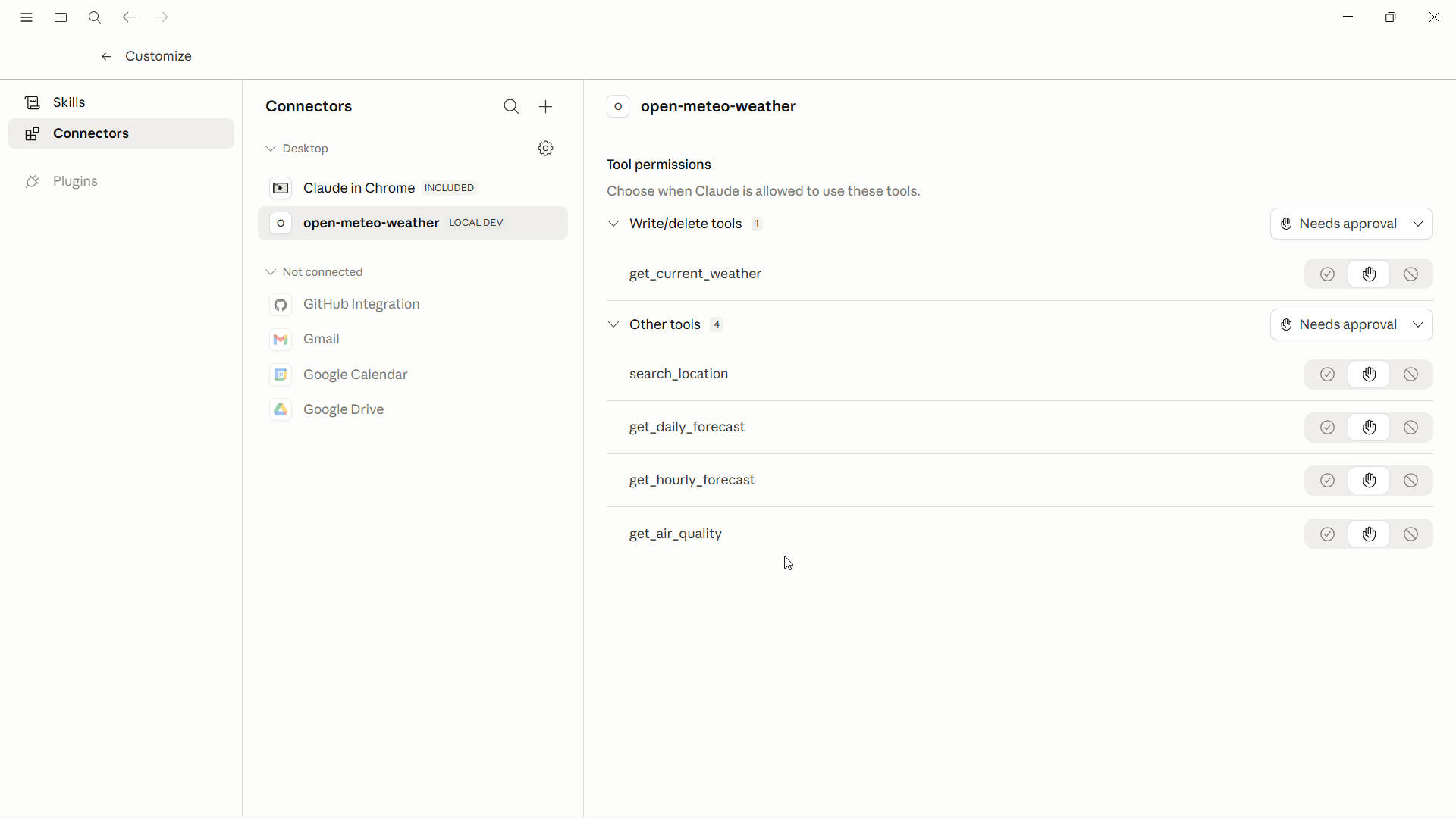
The AI should respond with the tools configured in your GetMCP server.
You can also verify the connection by checking **GetMCP > Analytics** — a successful MCP `initialize` call will appear in the call logs.
 ***
## Troubleshooting
* Verify HTTPS is properly configured on your WordPress site
* Check that the server status is **Active** in GetMCP admin
* Confirm the URL is correct (slug and server\_id match)
* Ensure the MCP rewrite rules are flushed (visit Settings > Permalinks and click Save)
* Your server has inbound authentication enabled
* Verify the API key or token is correct
* Ensure the `Authorization` header is being sent correctly for your client
* For Claude Desktop: auth must be `--header` args in `mcp-remote` (e.g. `"Authorization:Bearer TOKEN"`), not a `headers` JSON key — `mcp-remote` does not support a `headers` object
* The server is set to **Paused** status
* Activate the server in GetMCP admin
* Ensure tools are set to **Active** status
* Ask the AI to refresh its tool list
* In Claude Desktop, fully quit and restart — closing the window is not enough
* Run `/mcp` in Claude Code to check the server status
***
## Troubleshooting
* Verify HTTPS is properly configured on your WordPress site
* Check that the server status is **Active** in GetMCP admin
* Confirm the URL is correct (slug and server\_id match)
* Ensure the MCP rewrite rules are flushed (visit Settings > Permalinks and click Save)
* Your server has inbound authentication enabled
* Verify the API key or token is correct
* Ensure the `Authorization` header is being sent correctly for your client
* For Claude Desktop: auth must be `--header` args in `mcp-remote` (e.g. `"Authorization:Bearer TOKEN"`), not a `headers` JSON key — `mcp-remote` does not support a `headers` object
* The server is set to **Paused** status
* Activate the server in GetMCP admin
* Ensure tools are set to **Active** status
* Ask the AI to refresh its tool list
* In Claude Desktop, fully quit and restart — closing the window is not enough
* Run `/mcp` in Claude Code to check the server status