> ## Documentation Index
> Fetch the complete documentation index at: https://docs.getmcp.com/llms.txt
> Use this file to discover all available pages before exploring further.
# Servers
> MCP servers are the top-level containers for tools, resources, and prompts.
## What is a Server?
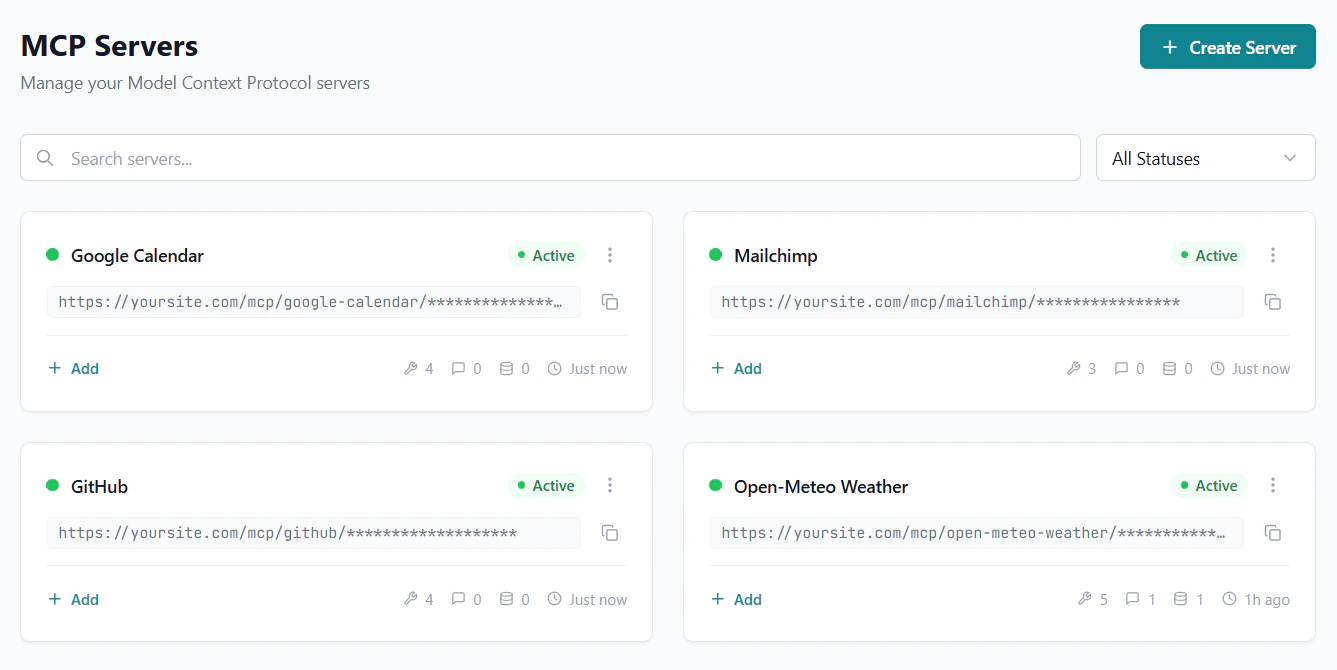
An MCP server in GetMCP is a named container that groups related tools, resources, and prompts together. Each server gets a unique public URL that AI clients connect to via the MCP protocol.
Think of a server as a "workspace" for a specific domain or purpose:
* A **Stripe server** with tools for payments, customers, and subscriptions
* A **GitHub server** with tools for repos, issues, and pull requests
* An **Internal CRM server** with tools for your company's custom CRM API
 ## Server URL Structure
Each server gets a unique endpoint URL:
```
https://yoursite.com/mcp/{server-slug}
```
## Server URL Structure
Each server gets a unique endpoint URL:
```
https://yoursite.com/mcp/{server-slug}
```
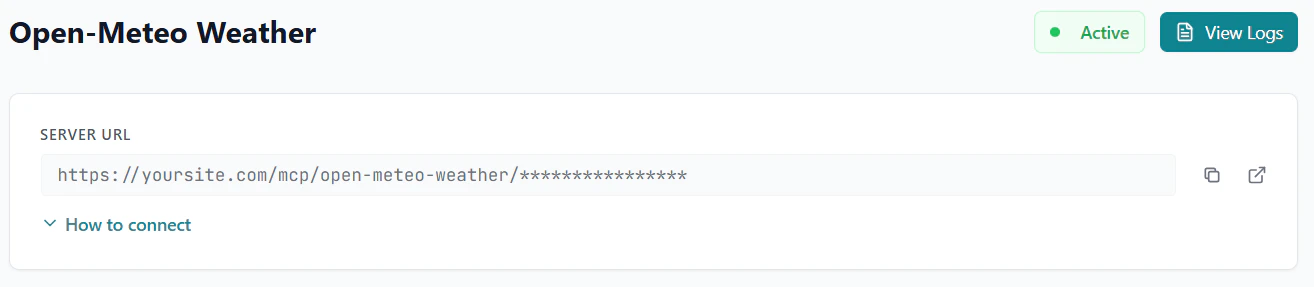 * **slug** — A human-readable identifier derived from the server name (e.g., `my-stripe-tools`)
## Server Properties
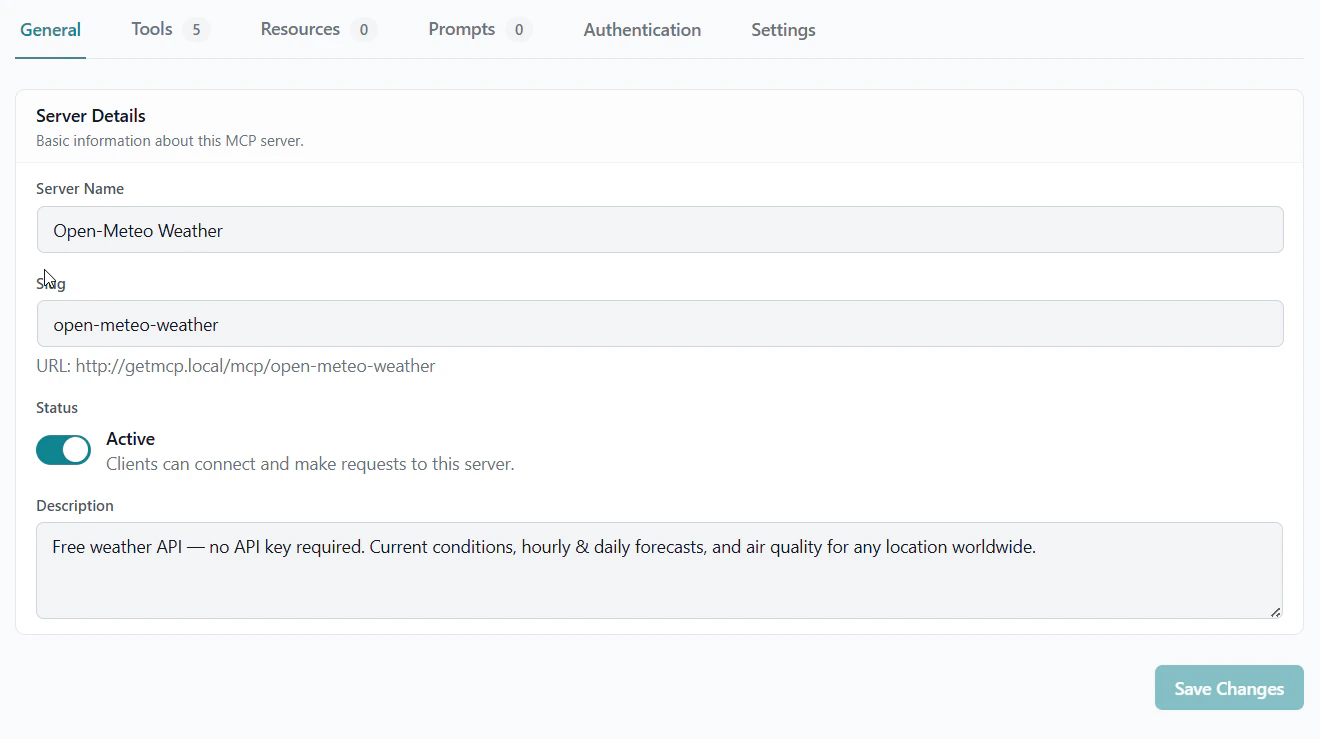
| Property | Description |
| ---------------- | ------------------------------------------------------------------ |
| **Name** | Human-readable label displayed in the admin and sent to AI clients |
| **Slug** | URL path segment; auto-generated from name, must be unique |
| **Status** | `active`, `paused`, or `draft` |
| **Auth Type** | Inbound authentication method for protecting the MCP endpoint |
| **Transport** | Always `streamable-http` (JSON-RPC 2.0 over HTTP) |
| **Rate Limit** | Maximum requests per minute (default: 60) |
| **CORS Origins** | Comma-separated list of allowed origins for browser clients |
## Server Status
| Status | Description |
| -------- | ------------------------------------------------------- |
| `active` | Accepting MCP connections; tools are callable |
| `paused` | Returns HTTP 503 to AI clients; configuration preserved |
| `draft` | Not yet published; not accessible via MCP endpoint |
Use **paused** when you need to temporarily disable a server without losing its configuration.
* **slug** — A human-readable identifier derived from the server name (e.g., `my-stripe-tools`)
## Server Properties
| Property | Description |
| ---------------- | ------------------------------------------------------------------ |
| **Name** | Human-readable label displayed in the admin and sent to AI clients |
| **Slug** | URL path segment; auto-generated from name, must be unique |
| **Status** | `active`, `paused`, or `draft` |
| **Auth Type** | Inbound authentication method for protecting the MCP endpoint |
| **Transport** | Always `streamable-http` (JSON-RPC 2.0 over HTTP) |
| **Rate Limit** | Maximum requests per minute (default: 60) |
| **CORS Origins** | Comma-separated list of allowed origins for browser clients |
## Server Status
| Status | Description |
| -------- | ------------------------------------------------------- |
| `active` | Accepting MCP connections; tools are callable |
| `paused` | Returns HTTP 503 to AI clients; configuration preserved |
| `draft` | Not yet published; not accessible via MCP endpoint |
Use **paused** when you need to temporarily disable a server without losing its configuration.
 ## Authentication Tab
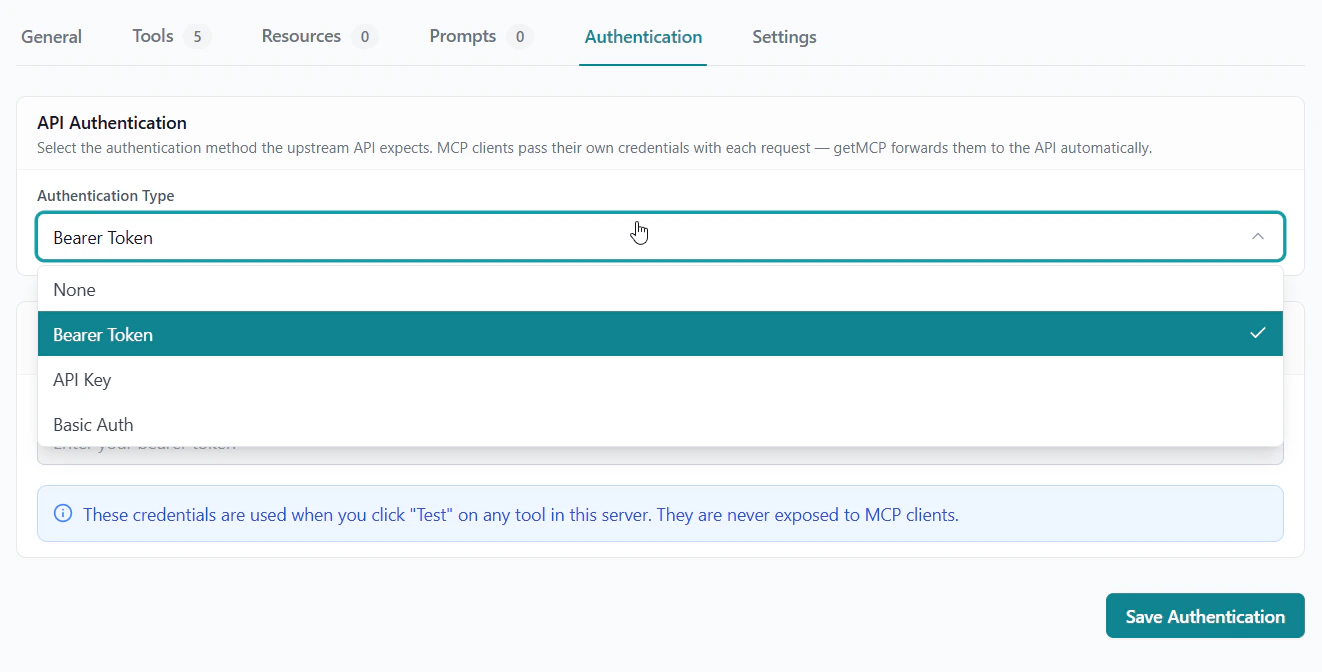
The **Authentication** tab on the server detail page has two independent sections:
### Inbound Authentication
Controls who can connect to your MCP server. Configure this under **Authentication → Auth Type**:
| Auth Type | What the connecting client must send |
| -------------- | -------------------------------------------------- |
| `none` | Nothing extra — the server URL alone grants access |
| `bearer-token` | `Authorization: Bearer ` header |
| `api-key` | `Authorization: ` header |
| `basic-auth` | HTTP Basic credentials (username + password) |
| `oauth` | Browser-based OAuth flow (no static credential) |
After selecting an auth type, a **Credential** field appears — enter the token, API key, or password you want clients to use. Clients must include this value in their `headers` block when connecting.
## Authentication Tab
The **Authentication** tab on the server detail page has two independent sections:
### Inbound Authentication
Controls who can connect to your MCP server. Configure this under **Authentication → Auth Type**:
| Auth Type | What the connecting client must send |
| -------------- | -------------------------------------------------- |
| `none` | Nothing extra — the server URL alone grants access |
| `bearer-token` | `Authorization: Bearer ` header |
| `api-key` | `Authorization: ` header |
| `basic-auth` | HTTP Basic credentials (username + password) |
| `oauth` | Browser-based OAuth flow (no static credential) |
After selecting an auth type, a **Credential** field appears — enter the token, API key, or password you want clients to use. Clients must include this value in their `headers` block when connecting.
 Always enable inbound authentication for production servers. With `none`, anyone who discovers your server URL can call your tools and consume API credits.
Inbound authentication protects access to GetMCP itself. It is completely separate from the API credentials your tools use when calling external services. See the [Authentication Guide](/docs/guides/authentication) for a full explanation.
### Test Credentials
The **Test Credentials** section (lower half of the Authentication tab) is a separate set of outbound API credentials used **only** when you click **Test** on a tool in the admin panel.
| Field | Description |
| -------------- | ------------------------------------------------------------------------- |
| **Auth Type** | The auth method for your external API (bearer-token, api-key, basic-auth) |
| **Credential** | The actual API key or token for your test/staging environment |
All tools in the server share the same test credentials. This lets you:
* Use a sandbox or staging API key during development
* Keep production credentials completely out of the admin test flow
* Rotate dev keys freely without touching production
Test credentials are **never** used by AI clients. When Claude, Cursor, or any other client calls a tool, GetMCP always uses configured production credentials on the MCP client — not these test credentials.
## Creating a Server
Navigate to **GetMCP > Dashboard** in WordPress admin.
Click the **Create Server** button.
Enter a name and optional description. The slug and server ID are auto-generated.
Open the **Authentication** tab to set inbound auth type and test credentials. You can skip this for now and configure it later.
Click **Create**. The server is now active and accessible.
## Multi-Server Architecture
You can create as many servers as you need from a single WordPress installation. This lets you:
* **Organize by domain**: separate servers for different APIs or clients
* **Segment by access level**: different API keys for different servers
* **Isolate environments**: separate staging and production server configs
Always enable inbound authentication for production servers. With `none`, anyone who discovers your server URL can call your tools and consume API credits.
Inbound authentication protects access to GetMCP itself. It is completely separate from the API credentials your tools use when calling external services. See the [Authentication Guide](/docs/guides/authentication) for a full explanation.
### Test Credentials
The **Test Credentials** section (lower half of the Authentication tab) is a separate set of outbound API credentials used **only** when you click **Test** on a tool in the admin panel.
| Field | Description |
| -------------- | ------------------------------------------------------------------------- |
| **Auth Type** | The auth method for your external API (bearer-token, api-key, basic-auth) |
| **Credential** | The actual API key or token for your test/staging environment |
All tools in the server share the same test credentials. This lets you:
* Use a sandbox or staging API key during development
* Keep production credentials completely out of the admin test flow
* Rotate dev keys freely without touching production
Test credentials are **never** used by AI clients. When Claude, Cursor, or any other client calls a tool, GetMCP always uses configured production credentials on the MCP client — not these test credentials.
## Creating a Server
Navigate to **GetMCP > Dashboard** in WordPress admin.
Click the **Create Server** button.
Enter a name and optional description. The slug and server ID are auto-generated.
Open the **Authentication** tab to set inbound auth type and test credentials. You can skip this for now and configure it later.
Click **Create**. The server is now active and accessible.
## Multi-Server Architecture
You can create as many servers as you need from a single WordPress installation. This lets you:
* **Organize by domain**: separate servers for different APIs or clients
* **Segment by access level**: different API keys for different servers
* **Isolate environments**: separate staging and production server configs